EasyManua.ls Logo

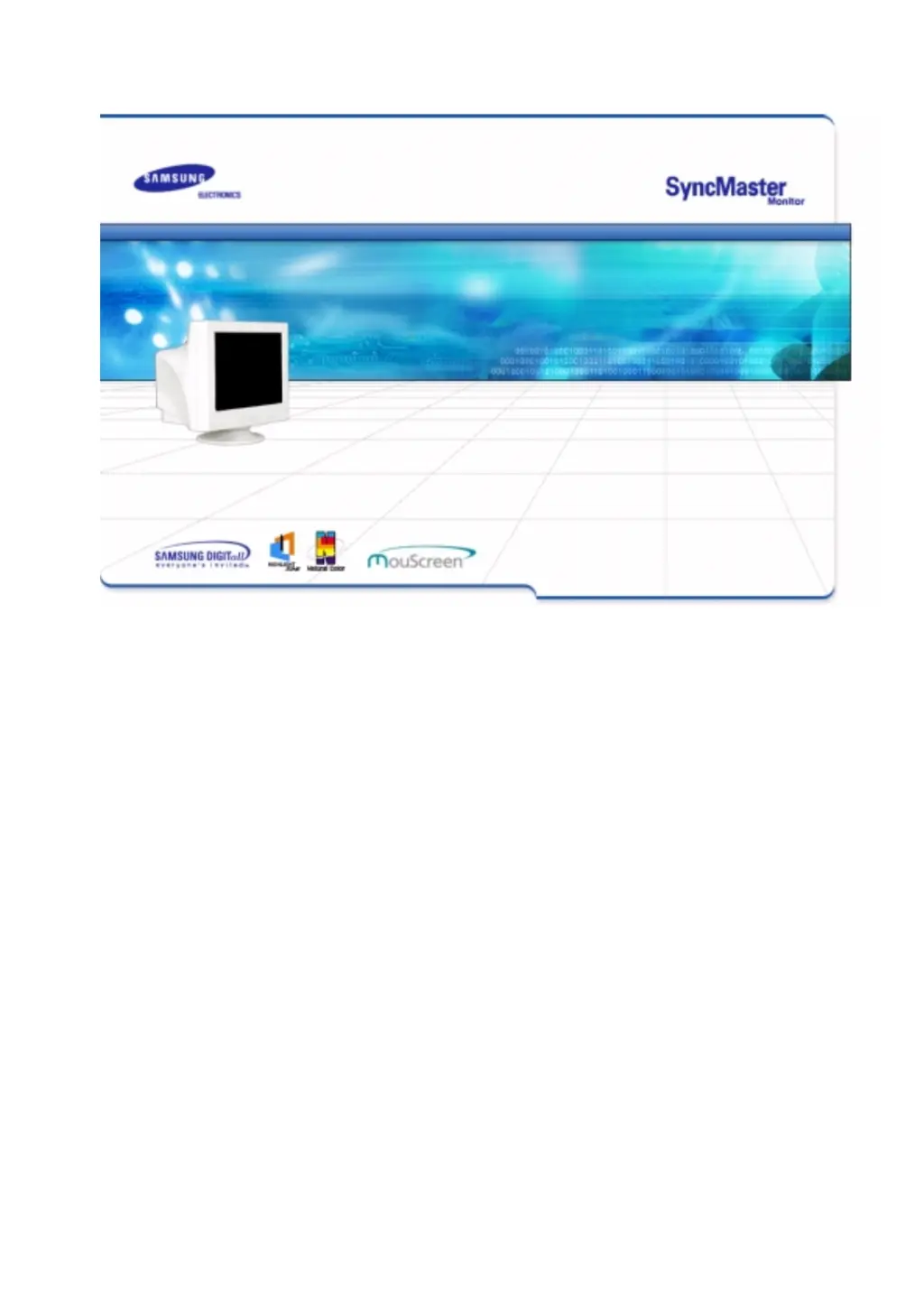
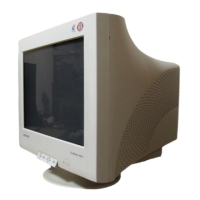
Samsung SyncMaster 959NF - User Manual

Samsung SyncMaster 959NF
88 pages
Print Icon
To Next Page IconTo Next Page
Loading...
SyncMaster 959NF/900NF

Questions and Answers

  • T
    Tina OconnellAug 13, 2025
    Why is there no image on my Samsung SyncMaster 959NF Monitor?
    • R
      Richard AndersonAug 14, 2025
      If there are no images on the screen and you cannot turn on the monitor, there might be a few reasons. First, check the power cord and signal cable connections. If the initial login screen appears, boot the computer in safe mode and change the video card frequency. Also, the signal from the video card might exceed what the monitor can handle, so adjust the resolution and frequency. Finally, if the monitor is in PowerSaver mode, press a key or move the mouse.
  • R
    Ryan JacksonAug 17, 2025
    How to fix a partially distorted screen on a Samsung SyncMaster 959NF?
    • G
      Guy DuncanAug 17, 2025
      If the screen is partially distorted, enter the OSD and perform a "Degauss." Also, keep the monitor away from any magnetic products.
  • B
    brianataylorAug 21, 2025
    How to fix a Samsung SyncMaster 959NF when the LED is blinking but there are no images on the screen?
    • C
      carolinemitchellAug 21, 2025
      If the LED is blinking but there are no images on the screen, adjust the frequency properly by referring to the video card manual and the Preset Display Modes.
  • D
    Darrell DayAug 25, 2025
    What to do if the image on my Samsung SyncMaster 959NF Monitor is shaking?
    • J
      jerry61Aug 26, 2025
      If the image on the screen is shaking, it could be due to several factors. The signal from the video card might exceed the maximum resolution and frequency of the monitor. Additionally, ensure the monitor is away from anything that creates a strong magnetic field. The shaking might also be due to low supply voltage.
  • W
    william71Aug 28, 2025
    How to fix "Unrecognized monitor, Plug & Play (VESA DDC) monitor found" message on Samsung Monitor?
    • S
      Shawn SchmidtAug 28, 2025
      To resolve the message "Unrecognized monitor, Plug & Play (VESA DDC) monitor found", install the monitor driver according to the Driver Installation Instructions.
  • D
    dennis26Sep 1, 2025
    What to do if my Samsung Monitor screen suddenly has become unbalanced?
    • L
      Laura HarrisSep 1, 2025
      If the screen suddenly becomes unbalanced, try adjusting the screen image position and size using the OSD (On-Screen Display). You can also adjust the resolution and frequency at the video card. Additionally, readjust the position using the OSD.
  • M
    michael84Sep 5, 2025
    How to unlock the On Screen Display on Samsung SyncMaster 959NF?
    • E
      Ernest BakerSep 5, 2025
      To unlock the OSD, press the MENU button for at least 10 seconds.
  • T
    Timothy JonesSep 8, 2025
    How to unlock the OSD on a Samsung Monitor?
    • D
      dunnstevenSep 8, 2025
      If you cannot see the On Screen Display on your Samsung Monitor, it may be locked. To unlock it, press and hold the MENU button for at least 10 seconds.

Summary

Safety Instructions

Notational Conventions

Explains symbols and conventions used for safety warnings.

Power Safety

Details safety precautions related to electrical power and connections.

Installation Safety

Covers safe placement and handling of the monitor to prevent damage or injury.

Cleaning Precautions

Provides instructions for safely cleaning the monitor and its components.

Other Safety Guidelines

Discusses various safety precautions not covered in other sections.

Introduction

Unpacking Contents

Lists the items included with the monitor and instructions for checking them.

Front Panel Overview

Describes the front panel buttons and indicators of the monitor.

Rear Panel Ports

Identifies and describes the ports on the back of the monitor.

Bottom Connections

Details the ports and base connections located on the bottom of the monitor.

Setup Guide

Connecting Your Monitor

Provides step-by-step instructions for connecting the monitor to a computer.

Automatic Driver Installation

Guides users through automatic monitor driver installation using the included CD.

Base Installation

Explains how to attach and adjust the monitor's base for optimal viewing.

On-Screen Display (OSD)

Menu Controls

Adjusts Brightness/Contrast and locks/unlocks the OSD menu.

Geometry Adjustments

Adjusts the display's position, size, and rotation on the screen.

Picture & Color Settings

Adjusts color temperature, purity, and other picture-related settings.

Advanced Functions

Accesses features like Degauss, Recall, and input signal settings.

OSD Configuration

Sets OSD menu position, duration, and language preferences.

Highlight Zone Functionality

Controls the Highlight Zone feature for image emphasis.

Screen Settings

Adjusts general screen parameters like brightness and contrast.

Geometry 1 Adjustments

Position Adjustment

Adjusts the vertical or horizontal position of the image area on the screen.

Size Adjustment

Adjusts the image area height and width on the screen.

Rotation Correction

Corrects the skewed image area on the screen.

Geometry 2 Adjustments

Pincushion;Trapezoid Adjustment

Adjusts for bowed sides and trapezoidal image distortions.

Pinbalance Adjustment

Corrects the pin balance of the left and right side of the screen.

Trapezoid Adjustment

Adjusts the horizontal width of the image area on the screen.

Parallel Adjustment

Adjusts the parallelogram level of the screen.

Highlight Zone Features

On;Off Control

Turns the Highlight Zone feature on or off.

Full Screen Mode

Enlarges the Highlight Zone to full screen mode.

Size;Position Control

Adjusts Highlight Zone's location and size.

Picture Settings

Adjusts Highlight Zone's contrast, color, and outline.

More OSD Options

Moire Pattern Removal

Removes wavy concentric circles or arc patterns.

Sidepin Corner Tuning

Fine-tunes screen corner side pins in opposite directions.

Pinbalance Corner Tuning

Fine-tunes screen corner side pins, aligning them in the same direction.

Degauss Function

Removes blurs on the screen caused by magnetic field interference.

Troubleshooting Guide

Check List for Issues

Provides a list of common symptoms and their solutions for monitor issues.

Frequently Asked Questions (Q&A)

Addresses common questions about monitor functions and operation.

Self-Test Feature Check

Guides users on how to perform a self-test to check monitor functionality.

Specifications

General Specifications (959 NF)

Lists general specifications for the SyncMaster 959NF monitor.

General Specifications (900 NF)

Lists general specifications for the SyncMaster 900NF monitor model.

Preset Timing Modes

Lists preset display modes with their corresponding timing specifications.

PowerSaver System

Explains the monitor's built-in power management system.

Information

Service Contact Information

Lists contact information for Samsung service centers worldwide.

Technical Terms Definition

Defines technical terms used in the manual, such as Dot Pitch, Resolution, etc.

Regulatory Compliance

Provides FCC compliance information and warnings.

Environmental Standards

Explains the environmental standards met by the product.

Software Programs

Describes Natural Color and MouScreen software for monitor control.

Samsung SyncMaster 959NF Specifications

General IconGeneral
Display TypeCRT
Maximum Resolution1920 x 1440
Refresh Rate85 Hz
Dot Pitch0.24 mm
Brightness300 cd/m²
Horizontal Refresh Rate30 - 96 kHz
Vertical Refresh Rate50 - 160 Hz
Input SignalAnalog
Aspect Ratio4:3
Screen Size19 inches
Input ConnectorsVGA
Viewable Size18 inches
Max Resolution1920x1440

Related product manuals