Using the Product 3-5
Connecting Anynet+ Devices
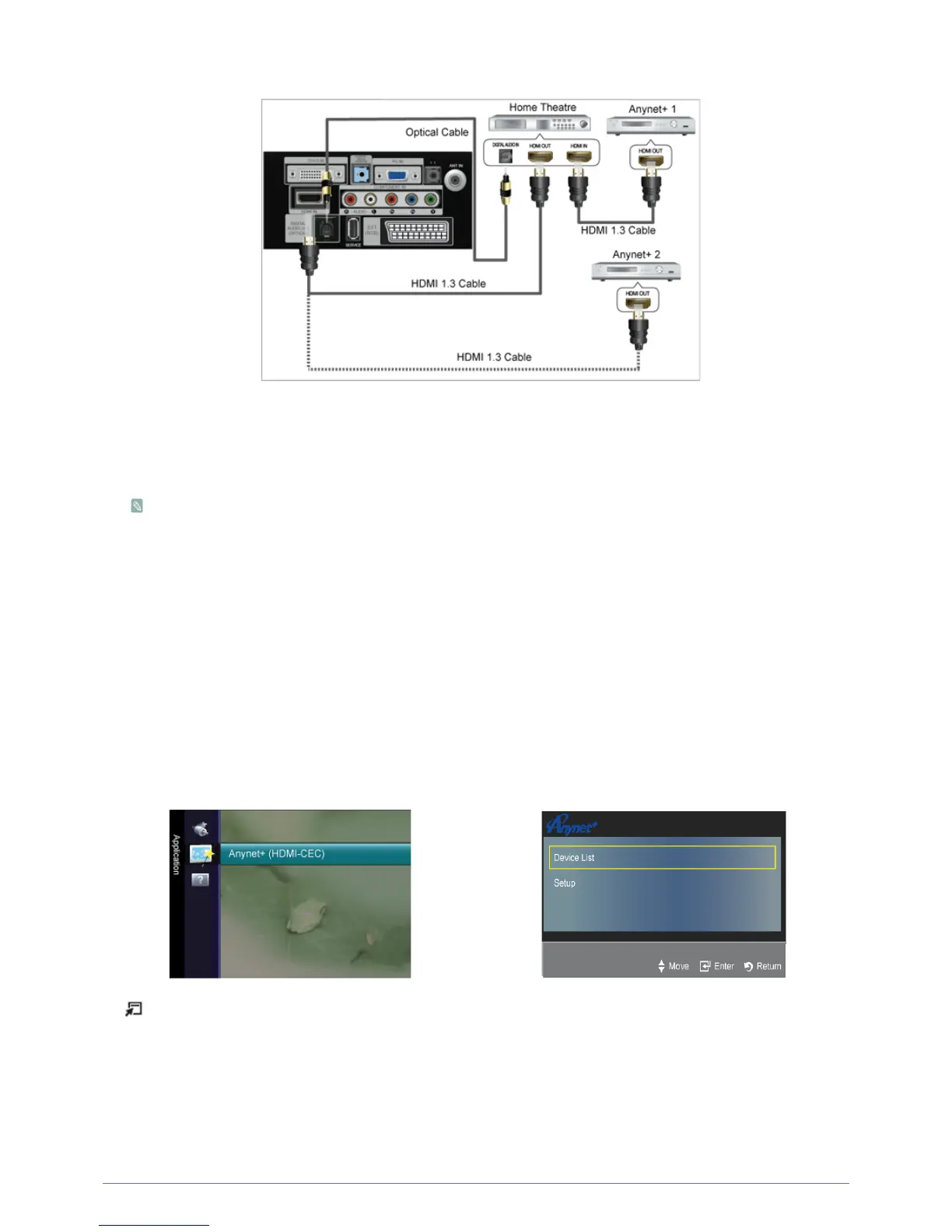
1. Connect the [HDMI IN] jack on the TV and the HDMI OUT jack of the corresponding <Anynet+> device using an HDMI
cable.
2. Connect the [HDMI IN] jack of the home theatre and the HDMI OUT jack of the corresponding <Anynet+> device using an
HDMI cable.
Connect the Optical cable between the [DIGITAL AUDIO OUT (OPTICAL)] jack on your TV and the Digital Audio Input
on the Home Theatre.
When following the connection above, the Optical jack only outputs 2 channel audio. You will only hear sound from the
Home Theatre‘s Front Left and Right speakers and the subwoofer. If you want to hear 5.1 channel audio, connect the
[DIGITAL AUDIO OUT (OPTICAL)] jack on the DVD / Satellite Box (ie Anynet Device 1 or 2) directly to the Amplifier or
Home Theatre, not the TV.
Connect only one Home Theatre.
You can connect an <Anynet+> device using the HDMI 1.3 cable. Some HDMI cables may not support <Anynet+>
functions.
<Anynet+> works when the AV device supporting <Anynet+> is in the Standby or On status.
<Anynet+> supports up to 10 AV devices in total. Note that you can connect up to 3 devices of the same type.
Setting Up Anynet+
Press the [TOOLS] button to display the Tools menu. You can also display the <Anynet+> menu by selecting <Tools> →
<Anynet+ (HDMI-CEC)>




 To Next Page