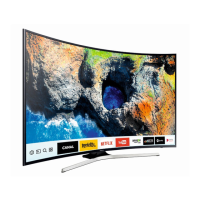
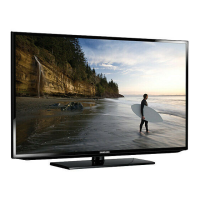
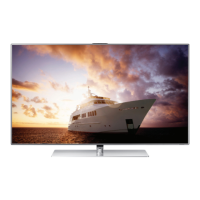
This document is a user manual for a Samsung Series 6 television, providing comprehensive information on its setup, operation, and maintenance.
Function Description
The Samsung Series 6 TV is a modern television designed for home entertainment, offering access to online services, Smart Hub features, and software updates when connected to a network. It is controlled via a Samsung Smart Remote, which allows for power on/off, channel and volume adjustment, navigation through menus, and access to special functions like Voice Interaction and Smart Hub. The TV also features an on-device TV Controller for basic operations.
Usage Features
- Initial Setup: Upon first activation, the TV guides users through an initial setup process. This can also be initiated manually later via the
Settings > General > Start Setup menu.
- TV Controller: For basic control, the TV has a controller button located at the bottom. Pressing it while the TV is on brings up a control menu, allowing users to power off, adjust volume, change channels, and select the source. Pressing and holding the button acts as a "Select" function.
- Samsung Smart Remote:
- Pairing: The remote automatically pairs with the TV upon first use. If pairing fails, users can manually pair by pointing the remote at the TV's sensor and simultaneously pressing and holding the "Return" and "Play/pause" buttons for 3 seconds or more.
- Batteries: The remote uses two AA batteries, inserted by opening the rear cover and ensuring correct polarity. Alkaline batteries are recommended for longer life.
- Power: The "Power" button turns the TV on or off.
- Number Pad (123): Pressing this button brings up a number strip on screen for entering numeric values (e.g., channels, PINs, ZIP codes). Holding it for 1 second or more accesses the TTX menu.
- Voice Interaction: Pressing the dedicated button activates Voice Interaction. Users can speak a command and then release the button. A guide to Voice Interaction appears with a single press. Supported languages and features may vary by region.
- Directional Pad: Used to move focus and change values within the TV's menus.
- Select: Confirms or runs a focused item. When watching content, it displays detailed program information. Pressing it again allows selection or running of displayed functions.
- Return: Navigates back to the previous menu. Holding it for 1 second or more terminates the running function. When watching a program, it returns to the previous channel.
- Play/Pause (▷): Displays playback controls for media content.
- Smart Hub: Returns to the Home Screen.
- 4 Colour Buttons: These colored buttons provide access to additional options specific to the feature currently in use.
- Volume (VOL): Moves up/down to adjust volume. Pressing it mutes the sound. Holding it for 1 second or more brings up the Accessibility Shortcuts menu.
- Channel (CH): Moves up/down to change channels. Pressing it displays the Guide screen.
- Network Connection:
- Wireless: Connects to the internet via a standard router or modem.
- Wired: Connects to the network using a LAN cable. The TV supports network speeds greater than 10 Mbps and recommends using Cat7 (*STP Type) cables.
- Mobile Network: (Availability depends on model and area) Connects via a Mobile Dongle (sold separately) inserted into a USB port. Some functions may be unavailable, and a USB extension cable is recommended for large dongles to avoid interference.
- Troubleshooting: The manual provides a list of common problems and solutions, including issues with power, picture/sound, remote control functionality, and Wi-Fi connectivity. Users are advised to check cable connections, input sources, and perform self-diagnostics.
- Remote Support: Samsung offers one-on-one remote support from a technician to diagnose, adjust settings, perform factory resets, and install firmware updates. This is accessed via the
Support > Remote Management menu.
- Eco Sensor: This feature automatically adjusts screen brightness based on ambient room light to optimize power consumption. It can be toggled on/off via
Settings > General > Eco Solution > Ambient Light Detection. Users are advised not to block the sensor.
- Still Image Warning: To prevent image burn-in on the LED screen, users are advised to avoid displaying still images (e.g., JPEG files, channel logos, news crawls, panorama/4:3 formats) for long periods. Recommendations include varying channels, using full-screen display, reducing brightness/contrast, and utilizing TV features designed to reduce image retention.
Maintenance Features
- Software Updates: To maintain optimum condition, the TV's software can be updated via
Settings > Support > Software Update > Update Now or Auto update.
- Cleaning:
- For the screen, turn off the TV and gently wipe smudges and fingerprints with a micro-fiber cloth.
- For the body or panel, use a micro-fiber cloth dampened with a small amount of water, then remove moisture with a dry cloth.
- Avoid applying strong force to the panel.
- Do not use flammable liquids (benzene, thinner, alcohol, insecticides, aerial fresheners, lubricants, detergents) or spray any liquid directly onto the TV, as this can cause damage, fire, or electric shock.
- For stubborn smudges, a small amount of screen cleaner can be sprayed onto a micro-fiber cloth, then used to wipe the smudges.
- Power Consumption: To decrease power consumption when the TV is not in use for extended periods, unplug the power cord from the wall outlet.
- Battery Disposal: Environmental regulations may require proper disposal of batteries. Users should contact local authorities for information on disposal or recycling.
- Safety Precautions:
- Ensure proper ventilation by maintaining at least 10 cm distance from walls and other objects.
- Do not place the TV in confined spaces or near heat sources.
- Avoid exposing the TV to rain or water.
- Do not overload wall outlets or extension cords.
- Route power cords carefully to prevent tripping or pinching.
- Unplug the TV during lightning storms or extended periods of disuse.
- Never insert metallic objects into the TV's openings.
- Do not open the TV's cover; refer servicing to qualified personnel.
- Ensure the power cord is firmly seated and pull the plug, not the cord, when unplugging.
- If the TV operates abnormally, unplug it and contact an authorized dealer.
- Store accessories (batteries) out of children's reach.
- Do not drop or strike the product.
- Do not dispose of batteries in fire, short-circuit, disassemble, or overheat them.
- Replace remote batteries with the same or equivalent type.
- Wall Mounting: If wall mounting, follow manufacturer instructions precisely to prevent injury or damage. Use provided wall mount adapters if applicable. Samsung is not responsible for self-installation damage. Mount on a solid wall, not ceiling or slanted surfaces. Use VESA-compliant screws of appropriate length and fasten all four screws.
- Securing to Wall (Anti-fall): To prevent the TV from falling, especially with children present, fasten brackets to the wall and the TV, then connect them with a durable, heavy-duty string. Ensure the TV is close to the wall and the string is tied tightly, with wall brackets at or below the TV brackets. Use furniture that can safely support the TV and avoid placing it on tall furniture without anchoring.



 To Next Page
 General