EasyManua.ls Logo

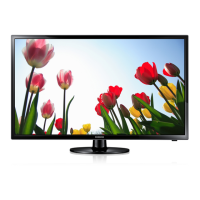
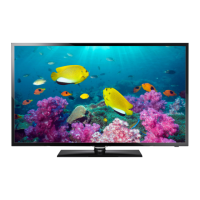
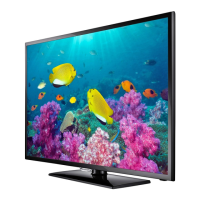
Samsung UE32F4000AW - User Manual

Samsung UE32F4000AW
79 pages
Go to English
Print Icon
To Next Page IconTo Next Page
Loading...
Благодарим−за−приобретение−продукта−
компании−Samsung.−Для−получения−более
полного−обслуживания−зарегистрируйте−
свое−устройство−по−адресу:
www.samsung.com/register
Модель
___
Серийный−номер.
______________
BN68-04784J
BN68-04784J-07
© 2013 Samsung Electronics Co., Ltd. All rights reserved.
UE32F4000AW / UE32F4020AW
UE32F5000AW / UE32F5000AK / UE32F5020AK
UE39F5000AW / UE39F5000AK / UE39F5020AK
UE42F5000AW / UE42F5000AK / UE42F5020AK
UE46F5000AW / UE46F5000AK / UE46F5020AK
UE50F5000AW / UE50F5000AK / UE50F5020AK
LED-ТЕЛЕВИЗОР
руководство−пользователя
Связывайтесь с SAMSUNG по всему миру
Если у вас есть предложения или вопросы по продукции Samsung, обращайтесь, пожалуйста, в информационный центр
компании Samsung.
Страна
Центр поддержки покупателей
Веб-узел
RUSSIA 8-800-555-55-55 www.samsung.com
GEORGIA 0-800-555-555 www.samsung.com
ARMENIA 0-800-05-555 www.samsung.com
AZERBAIJAN 088-55-55-555 www.samsung.com
KAZAKHSTAN 8-10-800-500-55-500 (GSM: 7799) www.samsung.com
UZBEKISTAN 8-10-800-500-55-500 www.samsung.com
KYRGYZSTAN 00-800-500-55-500 www.samsung.com
TADJIKISTAN 8-10-800-500-55-500 www.samsung.com
MONGOLIA +7-800-555-55-55 www.samsung.com
UKRAINE 0-800-502-000 www.samsung.com/ua (Ukrainian)
www.samsung.com/ua_ru (Russian)
BELARUS 810-800-500-55-500 www.samsung.com
MOLDOVA 0-800-614-40 www.samsung.com
E-MANUAL
[UF40005000-RU]BN68-04784J-06L04.indb 1 2014-01-14  5:16:33

Questions and Answers

  • J
    Jacob WileyAug 20, 2025
    What to do if there is no picture on my Samsung UE32F4000AW LED TV?
    • O
      obishopAug 20, 2025
      If your Samsung LED TV shows no picture or video, check the cable connections by removing and reconnecting all cables to the TV and external devices. Ensure your external device's video outputs match the TV inputs (e.g., HDMI to HDMI). Verify that all connected devices are powered on. Select the correct source on your TV using the SOURCE button on the remote. You may also want to reboot the connected device by reconnecting its power cable.
  • J
    Jason BrownAug 22, 2025
    Why does my Samsung LED TV have picture but no sound?
    • A
      Andrew ChenAug 22, 2025
      If your Samsung LED TV has a picture but no sound, first, set the Speaker Select option to TV Speaker in the sound menu. If using an external device, ensure the audio cables are correctly connected to the audio input jacks on the TV. Check the external device's audio output option, and reboot the connected device by reconnecting its power cable.
  • R
    ryan79Aug 25, 2025
    Why does my Samsung LED TV turn off by itself?
    • J
      jloganAug 25, 2025
      If your Samsung LED TV turns off automatically, check that the Sleep Timer is set to Off in the Time menu. If a PC is connected, review the PC's power settings. Ensure the AC power cord is securely plugged into the wall outlet and the TV. If watching TV from an aerial or cable connection without a signal, the TV will turn off after 10-15 minutes.
  • A
    Adam HeathAug 26, 2025
    How to troubleshoot picture quality on a Samsung UE32F4000AW LED TV?
    • K
      Keith GonzalesAug 27, 2025
      To troubleshoot picture quality on your Samsung LED TV, first perform the Picture Test to confirm that your TV is properly displaying a test image. If the test image displays correctly, the poor picture may be due to the source or signal.
  • L
    leslieperezAug 28, 2025
    How to troubleshoot sound quality on a Samsung UE32F4000AW?
    • B
      Bradley JenkinsAug 28, 2025
      To troubleshoot the sound quality of your Samsung LED TV, first perform the Sound Test to confirm that your TV audio is operating properly. If the audio is okay during the test, the sound problem may be caused by the source or signal.
  • A
    Anthony MeltonAug 29, 2025
    Why is my Samsung UE32F4000AW LED TV picture distorted?
    • B
      Benjamin BatesAug 30, 2025
      The picture distortion on your Samsung LED TV that you are experiencing (macroblock error, small blocks, dots, pixelization) is not a TV issue. Compression of video content, especially in fast-moving scenes like sports or action movies, or low signal level or bad signal quality can cause this distortion.
  • S
    Stephanie PriceAug 31, 2025
    Why is my Samsung LED TV remote not working?
    • P
      Patricia RamirezAug 31, 2025
      If the remote control for your Samsung LED TV isn't working, first, replace the batteries, ensuring the poles (+/–) are in the correct direction. Then, clean the sensor's transmission window on the remote. Finally, try pointing the remote directly at the TV from about 5 to 6 feet away.
  • J
    Jeffery JarvisSep 3, 2025
    How to fix poor color or brightness on Samsung UE32F4000AW LED TV?
    • C
      Christopher HarrisSep 3, 2025
      To address poor color or brightness on your Samsung LED TV, try these steps: Adjust the Picture options in the TV menu, focusing on Picture Mode, Colour, Brightness, and Sharpness. Also, adjust the Energy Saving option in the TV menu. You can also reset the picture settings to their defaults.
  • S
    Stacy WilkersonSep 4, 2025
    How to fix Samsung UE32F4000AW LED TV not receiving all channels?
    • A
      Adam ThompsonSep 4, 2025
      If your Samsung LED TV isn't receiving all channels, ensure the aerial cable is securely connected. Try performing the Setup (Initial setup) to add available channels to the channel list. Also, verify that the aerial is positioned correctly.
  • T
    Todd LopezSep 7, 2025
    How to make my Samsung LED TV display full screen?
    • T
      taylormarkSep 7, 2025
      If the picture won't display in full screen on your Samsung LED TV, HD channels might show black bars on the sides when displaying upscaled SD (4:3) content. Black bars may appear on the top and bottom during movies with different aspect ratios. Adjust the picture size options on your external device or TV to full screen.

Summary

Contact Samsung Worldwide

Important Safety Instructions

Warranty Information

Usage and Installation Guidelines

Covers still image warnings and securing installation space for optimal performance.

Product Disposal Guidelines

Provides instructions for the environmentally sound disposal of the product and batteries.

Features and Accessories

List of Features

Highlights key features like Media Play and e-Manual.

Included Accessories

Details the items included in the TV package and installation components.

Remote Control Operation

Controller and Initial Setup

Using the TVs Controller (Panel Key)

Instructions for using the TV's built-in joy stick controller.

Initial Setup Process

Guide for configuring basic TV settings upon first power-on.

Connections Guide

Port Overview and Connections

Diagrams and notes for connecting various external devices via ports.

Headphone Connection Details

Information on connecting headphones to the audio output.

Interface and Source Management

Common Interface Slot Usage

Instructions for inserting and using a CI or CI+ CARD for paid channels.

Input Source Selection

How to select different input sources like TV, HDMI, AV, and Component.

e-Manual Usage Guide

Navigating the e-Manual

Step-by-step guide on navigating and using the on-screen e-Manual.

e-Manual and OSD Menu Switching

Methods to switch between e-Manual topics and TV settings menus.

Teletext Feature

Troubleshooting Picture and Sound

Picture Quality Problems

Solutions for common issues like poor image, distortion, and color problems.

Sound Quality Problems

Troubleshooting steps for no sound, low volume, or noise.

Troubleshooting Other Issues

No Picture;Video and Remote Issues

Resolving problems with no video signal or non-functional remote controls.

Channel Reception and Distortion

Fixes for issues with receiving channels and picture distortion.

Advanced Troubleshooting and Security

Settings Lost and Playability Issues

Solutions for settings resetting, file playback errors, and firmware upgrades.

Securing the TV to the Wall

Instructions for safely mounting the TV to a wall to prevent falls.

Anti-theft Kensington Lock

Information on using a Kensington lock for security in public places.

Wall Mount Installation

Wall Mount Kit Specifications (VESA)

Details VESA mounting standards, screw sizes, and installation notes.

Cover-jack Caution

Warning regarding the use of the cover-jack by qualified service personnel only.

Storage and Maintenance

Product Specifications

Supported Media Formats

Video and Audio Format Support

Lists compatible video codecs, containers, and audio codecs.

Subtitle and Photo Format Support

Details compatible subtitle formats and photo file types.

Music Format Support

Lists compatible music file types and audio codecs.

Resolution Support Information

Samsung UE32F4000AW Specifications

General IconGeneral
Display diagonal32 \
Display resolution1366 x 768 pixels
Native aspect ratio16:9
LED backlighting type-
Display diagonal (metric)81 cm
Supported graphics resolutions1366 x 768
Motion interpolation technologyCMR (Clear Motion Rate) 100
3DNo
Dimensions (WxDxH)737.9 x 49.5 x 435.8 mm
Annual energy consumption44 kWh
Dimensions (W x D x H) with stand737.9 x 252.6 x 487 mm
Tuner typeAnalog & digital
Digital signal format systemDVB-C, DVB-T
Audio systemDTS Studio Sound
RMS rated power20 W
Number of speakers2
DVI-D ports quantity0
USB 2.0 ports quantity1
Number of OSD languages26
Product colorBlack
Panel mounting interface200 x 200 mm
AC input voltage220 - 240 V
AC input frequency50 - 60 Hz
Power consumption (standby)0.3 W
Power consumption (typical)30 W
Package depth143 mm
Package width985 mm
Package height514 mm
Package weight7400 g
Cables includedAC
Weight and Dimensions IconWeight and Dimensions
Depth (with stand)252.6 mm
Height (with stand)487 mm
Weight (with stand)5600 g
Depth (without stand)49.5 mm
Width (without stand)737.9 mm
Height (without stand)435.8 mm
Weight (without stand)5200 g

Related product manuals