
 Need help?
Do you have a question about the Samsung UN40JU7500 and is the answer not in the manual?
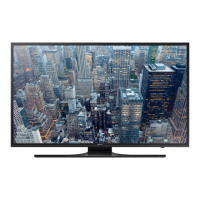
This document describes a Samsung UHDTV from the 7500/750D series, featuring Ultra High Definition 4K resolution. It serves as a user manual, guiding users through initial setup, operation, and maintenance.
The Samsung UHDTV is a high-definition television designed for immersive viewing experiences, including 3D content. Its core functionality revolves around the Smart Hub, a multi-purpose entertainment and family center. Through Smart Hub, users can browse the web, download and run various applications and games, and access photo, video, and music files stored on external storage devices like Blu-ray players, USB devices, smartphones, personal tablets, and computers. The TV also supports Smart Interaction, allowing users to access and control menu options and functions using motions, provided a TV camera (sold separately) is connected.
The TV's primary control is the Samsung Smart Control, a remote that facilitates navigation and interaction. It features a POINTER button for on-screen cursor movement, allowing users to select items by pressing the button. The Smart Control also includes dedicated buttons for SOURCE selection, MENU/123 (to display the On-Screen Remote and access numeric/function buttons), VOL+/- for volume adjustment, CH^/v for channel changes, RETURN to go back to the previous menu, EXIT to leave the current function, ►II for specific feature controls, and SMART HUB to launch applications. A microphone is integrated for Voice Recognition and Voice functions, accessible by pressing and holding the MENU/123 button. The Smart Control's buttons light up in dark environments for easy identification.
For basic control without the remote, the TV includes a TV Controller located on the lower left corner of its back. This control stick allows users to change channels, adjust volume, navigate Smart Hub, access the TV's menu, and select sources by moving it up, down, left, or right, and pressing it to select.
The TV is designed to connect to the Internet for full Smart Features functionality. This can be done via a wireless network (requiring a network router) or a wired connection using an Ethernet cable (CAT 7 cable preferred).
Initial Setup: When first powered on, the TV automatically initiates an Initial Setup process. This guides users through pairing the Samsung Smart Control, connecting to the home network, accepting Smart Hub agreements, linking to the live TV signal source, and setting up control for a cable or satellite box. Users will need their wireless network password, postal/zip code, and cable/satellite provider information (if applicable).
Smart Hub Navigation: Smart Hub services are categorized into "Recent" (recently used) and "Featured" groups, displayed at the bottom of the screen. The active group's icons are on the right, while the inactive group's are on the left. Users select a group, then an icon, and press Enter to launch a service. Internet connection is required to access Smart Hub.
On-Screen Remote: Pressing the MENU/123 button on the Samsung Smart Control brings up an On-Screen Remote, providing virtual numeric and function buttons for convenient control, similar to a traditional remote.
Source Switching: The SOURCE button on the Smart Control allows users to switch between external devices connected to the TV (e.g., game consoles, Blu-ray players). The Source list appears at the top of the screen for selection.
e-Manual: An embedded e-Manual provides detailed information about the TV's key features. It can be accessed through the On-Screen Remote (MENU/123 > e-Manual) or the TV's menu (Support > e-Manual). The e-Manual offers search functionality, an index, and a list of recently viewed topics. It also allows direct access to associated menu screens via "Try Now" and links to related topics. The e-Manual can be updated like other apps.
Remote Support: Samsung offers a remote support service where a technician can remotely diagnose and adjust TV settings, perform factory resets, and install firmware updates. Users initiate this by calling Samsung Customer Service, accessing "Remote Management" in the Support menu, agreeing to terms, and providing a PIN to the agent.
Network Troubleshooting: The manual provides guidance for improving wireless signals by positioning the router centrally and avoiding corners. It also suggests using a wireless repeater to boost signal strength and reducing interference by avoiding 2.4 GHz wireless devices in favor of 5.0 GHz frequency devices. For intermittent Wi-Fi, it advises checking distance, obstacles, cable condition, and trying a wired connection. Netflix-specific issues can often be resolved by changing DNS settings or resetting Smart Hub.
Battery Installation: The Samsung Smart Control requires batteries. Users push open the rear cover, insert batteries according to polarity, and alkaline batteries are recommended for longer life.
Cleaning: To clean the TV, users should unplug the power cord and wipe the product with a soft, dry cloth. Flammable liquids, chemicals (wax, benzene, alcohol, thinners, insecticide, air fresheners, lubricants, detergents), or abrasive cleaning agents should not be used as they can damage the TV's appearance or erase printing. For stubborn smudges, a small amount of screen cleaner can be sprayed on the cloth, not directly onto the TV. The exterior and screen should be wiped carefully with a soft cloth to prevent scratches. Any debris from stickers should be cleaned off before viewing.
Eco Sensor: The TV features an Eco Sensor that automatically adjusts screen brightness based on room light to optimize power consumption. This feature can be turned off in the menu (MENU > System > Eco Solution > Eco Sensor). Users are advised not to block the sensor, as this can decrease picture brightness.
Still Image Warning: To prevent image burn-in on the LED screen and maintain image quality, users are cautioned against displaying still images (e.g., JPEG files, channel logos, stock crawls, panorama or 4:3 format images) for extended periods. Recommendations include avoiding long periods on the same TV channel, always displaying images in full screen, reducing brightness and contrast, and utilizing all TV features designed to reduce image retention and screen burn.
Power Consumption: To decrease power consumption, users are advised to unplug the power cord when the TV will not be used for a long time, as it draws a small amount of power even in Standby mode.
Wall Mounting: Instructions are provided for mounting the TV on a wall using a separately sold wall mount kit. Users are advised to follow manufacturer instructions precisely and consider professional assistance to prevent injury or damage. Before installing screws, placing Styrofoam from the TV's packaging on the TV protects it. For models with wall mount adapters, these should be installed first. The manual also describes how to secure the TV to the wall to prevent falling, using brackets, screws, and a durable string, emphasizing the importance of firm attachment and periodic checks for fatigue or failure.
Cable Management: The manual includes diagrams for arranging cables using a cable guide to maintain a tidy setup.
 General
| Screen Size | 40 inches |
|---|---|
| Resolution | 3840 x 2160 |
| Display Type | LED |
| HDR | Yes |
| Smart TV | Yes |
| Wi-Fi | Yes |
| HDMI Ports | 4 |
| USB Ports | 3 |
| Audio Output | 20W |
| Refresh Rate | 120Hz |
| Curved | No |
| Refresh Rate (Motion Rate) | 240 |
| Bluetooth | No |


 To Next Page