EasyManua.ls Logo

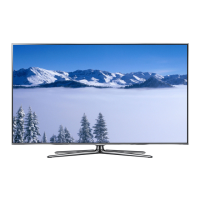
Samsung UN50F6300 - User Manual

Samsung UN50F6300
46 pages
Print Icon
To Next Page IconTo Next Page
Loading...
© 2013 Samsung Electronics Co., Ltd. All rights reserved.
BN68-04792C-05
LED TV
user manual
Thank you for purchasing this Samsung product.
To receive more complete service, please register
your product at
www.samsung.com/register
Model _____________Serial No. _____________
(Mexico only) If you have any questions, please call us at 1-800-SAMSUNG (1-800-726-7864) for assistance.
Contact SAMSUNG WORLD WIDE
If you have any questions or comments relating to Samsung products, please contact the SAMSUNG customer care center.
Comuníquese con SAMSUNG WORLD WIDE
Si desea hacernos alguna pregunta o comentario en relación con los productos de Samsung, comuníquese con nuestro centro de
atención al cliente de SAMSUNG.
Country
Customer Care Center
Web Site
MEXICO 01-800-SAMSUNG (726-7864) www.samsung.com
Dirección: GENERAL MARIANO ESCOBEDO 476 PISO 8
COL. ANZURES, DELEGACIÓN MIGUEL HIDALGO MÉXICO, DISTRITO FEDERAL C.P. 11590
ARGENTINE 0800 333 3733 www.samsung.com.ar
URUGUAY 000 405 437 33 www.samsung.com
PARAGUAY 009 800 542 0001 www.samsung.com.py
BRAZIL 0800-124-421 (Demais cidades e regiões)
4004-0000 (Capitais e grandes centros)
www.samsung.com.br
CHILE 800-SAMSUNG(726-7864) www.samsung.com/cl
BOLIVIA 800-10-7260 www.samsung.com
COLOMBIA 01 8000 112 112
Bogotá 600 12 72
www.samsung.com/co
COSTA RICA 0-800-507-7267 www.samsung.com/latin (Spanish)
www.samsung.com/latin_en (English)
DOMINICA 1-800-751-2676 www.samsung.com/latin (Spanish)
www.samsung.com/latin_en (English)
ECUADOR 1-800-10-7267 www.samsung.com/latin (Spanish)
www.samsung.com/latin_en (English)
EL SALVADOR 800-6225 www.samsung.com/latin (Spanish)
www.samsung.com/latin_en (English)
GUATEMALA 1-800-299-0013 www.samsung.com/latin (Spanish)
www.samsung.com/latin_en (English)
HONDURAS 800-27919267 www.samsung.com/latin (Spanish)
www.samsung.com/latin_en (English)
JAMAICA 1-800-234-7267 www.samsung.com
NICARAGUA 001-800-5077267 www.samsung.com/latin (Spanish)
www.samsung.com/latin_en (English)
PANAMA 800-7267 www.samsung.com/latin (Spanish)
www.samsung.com/latin_en (English)
PERU 0-800-777-08 www.samsung.com/pe
PUERTO RICO 1-800-682-3180 www.samsung.com
TRINIDAD & TOBAGO 1-800-SAMSUNG (726-7864) www.samsung.com
VENEZUELA 0-800-100-5303 www.samsung.com/ve
(Sólo Mexico)
IMPORTADO POR : SAMSUNG ELECTRONICS MÉXICO S.A. DE C.V.
GENERAL MARIANO ESCOBEDO 476 PISO 8
COL. ANZURES, DELEGACIÓN MIGUEL HIDALGO MÉXICO, DISTRITO FEDERAL C.P. 11590
TEL : 01 (55) 5747-5100 / 01 800 726 7864
[UF6300-ZX]BN68-04792C-05L02.indb 1 2013-10-11 �� 3:01:26


Table of Contents

Other manuals for Samsung UN50F6300

Questions and Answers

  • R
    Richard WilliamsSep 9, 2025
    Why is there picture but no sound on my Samsung UN50F6300?
    • B
      bruce74Sep 9, 2025
      If the picture is good but there is no sound on your Samsung LED TV, navigate to Sound and set Speaker Select to TV Speaker. If using an external device, check its audio output option. If using a DVI to HDMI cable, a separate audio cable is required. Also, ensure nothing is plugged into the headphone jack and reboot the connected device.
  • C
    Cory EnglishAug 23, 2025
    How to stop my Samsung UN50F6300 from flickering?
    • M
      Maria MathewsAug 23, 2025
      If your Samsung LED TV is flickering or dimming sporadically, disable the energy efficiency features. You can disable Energy Saving in the Eco Solution settings.
  • M
    Mr. Jeffrey BallAug 25, 2025
    What to do if my Samsung LED TV won't turn on?
    • M
      Mrs. Amanda WilliamsAug 26, 2025
      If you are having problems powering on your Samsung LED television, check the power cord connection and ensure the remote control is working. Also, check the antenna cable connection or ensure the cable/satellite box is turned on.
  • E
    Edward JacksonAug 26, 2025
    Why is there no sound on my Samsung UN50F6300?
    • R
      Rebecca WardAug 27, 2025
      If there is no sound or the sound is too low at maximum volume on your Samsung LED TV, please check the volume of the device connected to your TV, such as a cable/satellite box, DVD, or Blu-ray player.
  • D
    Danielle BatesAug 28, 2025
    How to adjust brightness on Samsung UN50F6300 LED TV?
    • T
      Taylor JuarezAug 28, 2025
      If you find that the colors on your Samsung LED TV are correct but too dark or bright, adjust the picture settings. Navigate to Picture and adjust Backlight/Cell Light, Contrast, Brightness, Sharpness, Color, Tint and other picture quality settings.
  • A
    Ashley CurtisAug 29, 2025
    Why is the picture distorted on my Samsung UN50F6300?
    • M
      Mr. Craig FergusonAug 29, 2025
      If the picture on your Samsung LED TV is distorted, it might be due to video content compression, especially in fast-moving scenes, or a weak signal. Also, mobile phones used close to the TV may cause noise.
  • J
    Joseph McdonaldSep 18, 2025
    Why do 3D images not look right on my Samsung UN50F6300?
    • J
      Jermaine RodriguezSep 18, 2025
      The ideal viewing distance for 3D images on your Samsung LED TV is three times or more the height of the screen. It is also recommended to sit with your eyes level with the screen.
  • C
    Cody SmithSep 22, 2025
    How to make the batteries in my Samsung LED TV 3D glasses last longer?
    • U
      uscottSep 22, 2025
      To prolong the battery life of the 3D glasses for your Samsung LED TV, turn them off when you are not using them. Leaving them on shortens the battery lifespan.
  • P
    pholmesSep 7, 2025
    How to find channels on Samsung UN50F6300 LED TV?
    • W
      warrencarlaSep 8, 2025
      To find a channel on your Samsung LED TV, run Setup or Auto Program in the Broadcasting settings.
  • T
    taylorpetersonSep 4, 2025
    Why is the color missing on my Samsung LED TV?
    • M
      mccormickjacobSep 4, 2025
      If you’re using a Component connection on your Samsung LED TV, make sure that the component cables are connected to the correct jacks. Incorrect or loose connections may cause color problems or a blank screen.

Summary

Important Safety Instructions

Features of Your New TV

SMART HUB

Central hub for web browsing, apps, social media, and media playback.

Anynet+ (HDMI-CEC)

Control connected Samsung devices with the TV remote.

e-Manual

On-screen user manual providing detailed information about TV features.

SMART Interaction

Control TV functions using motion gestures with a compatible camera.

Device Manager

Use TV features with a USB keyboard and mouse.

Screen Mirroring

Display mobile device screens on the TV wirelessly.

Accessories

Lists items included in the TV package.

Using the Remote Control

Inserting the Batteries (AAA X 2)

Guide on how to insert batteries into the remote control correctly.

Turning on the TV

Instructions for powering on the TV using the remote or TV panel.

Switching Between Video Sources

Edit Name

Assign custom names to input sources for easier identification.

Information

View detailed information about connected external devices.

Remove USB

Safely remove USB devices from the TV.

Universal Remote Setup

Add the External Device

Steps to configure the TV remote for controlling external devices.

Viewing the e-Manual

Scrolling a Page

Methods to navigate through pages within the e-Manual.

Using the Top Icons

Utilize icons for navigation like Back, Forward, and Opened pages.

Returning to the Home Page

How to return to the main screen of the e-Manual.

Searching the Index

Find specific topics by searching the e-Manual's index.

Searching Pages

Enter search criteria to find specific content within the e-Manual.

Closing the e-Manual

Steps to exit the on-screen e-Manual.

Jumping to a Menu Item

Directly navigate to a menu item described in the e-Manual.

Updating the e-Manual

Instructions to update the e-Manual to the latest version.

Connecting to a Network

Network Connection - Wireless

Guide to connect the TV to the internet via a wireless network.

Wireless Network Precautions

Important considerations for a stable wireless network connection.

Network Security Protocols

Supported protocols and security measures for network access.

Network Connection - Wired

Instructions for connecting the TV to a network using an Ethernet cable.

What is Remote Support?

How Does it Work?

Step-by-step process for receiving remote technical support.

Troubleshooting

Mounting the TV on the Wall Using the Wall Mount Kit (Optional)

Guidance on safely mounting the TV to a wall.

Installing the Wall Mount Kit

Steps for installing the optional wall mount bracket.

Installing a Wall Mount using the Wall mount adapter

Detailed steps for using the wall mount adapter.

VESA Wall Mount Kit Notes and Specifications

Important notes and specifications for VESA compliant wall mounts.

Assembling the Cable manager

Eco Sensor and Screen Brightness

Explanation of the Eco Sensor's function and screen brightness adjustment.

Maintenance

Providing Proper Ventilation for Your TV

Guidelines for ensuring adequate airflow around the TV.

Other Warnings

General warnings regarding TV appearance and touch precautions.

Securing the TV to the Wall

To Avoid the TV from Falling

Instructions to prevent the TV from tipping over.

Specifications

Licenses

Samsung UN50F6300 Specifications

General IconGeneral
Screen Size50 inches
Resolution1920 x 1080
Display TypeLED
Smart TVYes
Refresh Rate120 Hz
HDMI Ports4
USB Ports3
Wi-FiYes
Operating SystemSamsung Smart TV

Related product manuals