This document is a user manual for the Samsung UHDTV Series 6 (models 6700 and 670D), an Ultra High Definition 4K television. It provides instructions for initial setup, operation, troubleshooting, maintenance, and technical specifications.
Function Description
The Samsung UHDTV Series 6 is a 4K Ultra High Definition television designed for home entertainment. Its primary function is to display high-resolution video content. Key features include:
- Smart Hub: A multi-purpose entertainment and family center that allows users to surf the web, download applications, and view/play photo, video, and music files from external storage devices.
- e-Manual: A detailed, on-screen user's manual built into the TV for easy access to help and information.
- Smart Interaction: Enables access and control of menu options and functions using motions, requiring a separately sold TV camera.
- Voice Recognition: Allows control of the TV using voice commands through the microphone on the Samsung Smart Control.
Important Technical Specifications
The manual provides detailed specifications for various models within the Series 6, including UN40JU6700/UN40JU670D, UN48JU6700/UN48JU670D, UN55JU6700/UN55JU670D, and UN65JU6700/UN65JU670D.
- Display Resolution: All models feature a 3840 x 2160 resolution, indicating 4K UHD capability.
- Sound Output: 20W (10W x 2) for all models.
- Screen Curvature: 3000R for 40" and 48" class models, and 4200R for 55" and 65" class models.
- Screen Size (Diagonal):
- 40" Class (40 measured diagonally)
- 48" Class (47.6 measured diagonally)
- 55" Class (54.6 measured diagonally)
- 65" Class (64.5 measured diagonally)
- Dimensions (W x H x D) and Weight:
- UN40JU6700/UN40JU670D (40" Class):
- Body: 36.1 x 21.0 x 4.1 inches (918.5 x 534.0 x 104.2 mm)
- With stand: 36.1 x 23.1 x 11.6 inches (918.5 x 588.5 x 294.8 mm)
- Weight (Without Stand): 17.8 lbs (8.1 Kg)
- Weight (With Stand): 22.4 lbs (10.2 Kg)
- UN48JU6700/UN48JU670D (48" Class):
- Body: 42.7 x 24.7 x 4.6 inches (1084.8 x 628.9 x 117.6 mm)
- With stand: 42.7 x 26.8 x 12.1 inches (1084.8 x 682.7 x 308.6 mm)
- Weight (Without Stand): 24.9 lbs (11.3 Kg)
- Weight (With Stand): 31.3 lbs (14.2 Kg)
- UN55JU6700/UN55JU670D (55" Class):
- Body: 48.8 x 28.1 x 4.4 inches (1241.7 x 716.0 x 111.9 mm)
- With stand: 48.8 x 30.3 x 12.1 inches (1241.7 x 770.7 x 308.6 mm)
- Weight (Without Stand): 35.7 lbs (16.2 Kg)
- Weight (With Stand): 42.1 lbs (19.1 Kg)
- UN65JU6700/UN65JU670D (65" Class):
- Body: 57.5 x 33.1 x 5.1 inches (1460.3 x 842.6 x 131.1 mm)
- With stand: 57.5 x 35.2 x 13.6 inches (1460.3 x 893.9 x 346.8 mm)
- Weight (Without Stand): 56.2 lbs (25.5 Kg)
- Weight (With Stand): 65.7 lbs (29.8 Kg)
- Environmental Considerations:
- Operating Temperature: 50°F to 104°F (10°C to 40°C)
- Operating Humidity: 10% to 80%, non-condensing
- Storage Temperature: -4°F to 113°F (-20°C to 45°C)
- Storage Humidity: 5% to 95%, non-condensing
- Connectivity: Includes multiple HDMI inputs (HDMI IN 1 (STB/DVI), HDMI IN 2 (MHL), HDMI IN 3 (ARC), HDMI IN 4), USB ports (USB (TV CAMERA), USB (5V 0.5A), USB 3.0 (HDD 5V 1A)), LAN, Component/AV IN, Digital Audio Out (Optical), EX-LINK, and ANT IN.
- Licenses: DOLBY DIGITAL PLUS, DTS Premium Sound 5.1, DIVX HD, DTS HEADPHONE, UEI TECHNOLOGY, and MHL. HDMI is a trademark of HDMI Licensing LLC.
Usage Features
- Initial Setup: Guides the user through pairing the Samsung Smart Control, connecting to a home network, agreeing to Smart Hub terms, and setting up live TV signal sources.
- Samsung Smart Control: A remote control with a pointer function, voice recognition, and dedicated buttons for Smart Hub, Source, Menu, Volume, and Channel. It requires batteries (alkaline recommended).
- On-Screen Remote: A virtual remote accessible via the MENU/123 button on the Smart Control, allowing numerical input and content playback control.
- TV Controller: A physical control stick located on the back of the TV for basic functions like opening Smart Hub, menu, selecting source, and turning off the TV.
- Source Switching: The SOURCE button on the remote allows switching between external devices connected to the TV.
- e-Manual Access: The e-Manual can be accessed via the On-Screen Remote or through the TV's Support menu. It includes search, index, and recently viewed topics functions, with "Try Now" and "Link" options for direct interaction.
- Network Troubleshooting: Provides tips for improving wireless signal, adding a wireless repeater, and reducing wireless interference.
- Remote Support: Samsung offers one-on-one remote support for diagnosing TV issues, adjusting settings, performing factory resets, and installing firmware updates.
Maintenance Features
- Software Updates: Users are encouraged to install software updates promptly to improve TV security. Auto Update can be enabled in the Support > Software Update menu.
- Eco Sensor: Automatically adjusts screen brightness based on ambient light to reduce power consumption. This feature can be turned off in the System > Eco Solution menu.
- Still Image Warning: Advises users to avoid displaying static images for long periods to prevent image burn-in and recommends displaying full-screen moving images, reducing brightness/contrast, and using image retention reduction features.
- Caring for the TV:
- Clean debris from stickers before watching.
- Wipe the exterior and screen with a soft, dry micro-fiber cloth.
- Clean the body with a soft cloth dampened with a small amount of water.
- Avoid flammable liquids or harsh cleaning agents. For stubborn smudges, use a small amount of screen cleaner on the cloth.
- Do not spray water or liquid directly onto the TV.
- Power Consumption: To decrease power consumption, unplug the power cord when the TV is not in use for extended periods.
- Troubleshooting: The manual includes a troubleshooting section for common issues like the TV not turning on, no picture/video, and remote control not working. Users are advised to check connections, power, batteries, and input sources.
- Warranty Information: Provides details on Samsung's limited warranty, including coverage for manufacturing defects, service procedures, and exclusions. It also includes important information regarding television format viewing and potential uneven LED aging from static images.

 Need help?
 General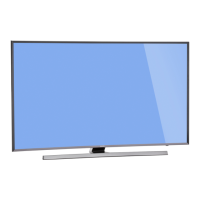


 To Next Page