
EasyManua.ls Logo

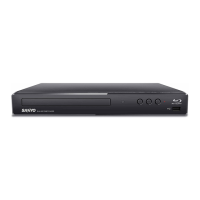
Sanyo FWBP505F K - User Manual

Sanyo FWBP505F K
52 pages
Print Icon
To Next Page IconTo Next Page
Loading...
sanyo-av.com
sanyo
-
a
v.
c
c
c
c
c
c
ooo
o
o
mmm
m
m
m
Owner's Manual
Manual del Propietario
ES
Need help? Please Call Toll Free 1 866 212 0436 or visit our Web Site above:
To obtain a more detailed Electronic Copy of this
Manual or much further contents, go to
Para obtener una Copia Electrónica más detallada de este Manual o mucho otras
contenido, visite
ES
¿
Necesita ayuda?
Llame por favor sin costo al 1 866 212 0436 ó visite nuestro
Sitio Web en:
ES
sanyo-av.com
B
lu-ray Disc™ / DVD
a
er
FWBP
505F
FWBP
505
F
K

Questions and Answers

  • K
    Karen JamesSep 23, 2025
    How to fix Sanyo Blu-ray Drive cannot find a JPEG fi le?
    • C
      Carla RushSep 23, 2025
      Make sure that the selected Group (folder) does not contain more than 9,999 files for Blu-ray Disc / DVD / USB Memory Stick and 999 files for CD. Ensure that the file extension is .jpg / .JPG / .jpeg / or .JPEG.
  • L
    Luis NortonAug 25, 2025
    What to do if my Sanyo FWBP505F K Blu-ray Drive has no sound or picture?
    • T
      Thomas BurnettAug 25, 2025
      If you're not getting any sound or picture from your Sanyo Blu-ray Drive, first ensure that both the TV and the Blu-ray Disc player are turned on. Verify that the connections to the TV are correctly set up according to the connection guide. Also, confirm that the connected TV or device supports HDCP, as the unit won't output a video signal without HDCP support.
  • J
    Jose MeltonAug 25, 2025
    How to fix no Audio / Video signal on Sanyo FWBP505F K Blu-ray Drive via HDMI cable?
    • C
      Christopher SmithAug 26, 2025
      If you're experiencing no Audio/Video signal on your display device via HDMI cable with your Sanyo Blu-ray Drive, it might be due to a non-certified HDMI device connection. The Audio/Video signal will not output to that device. Ensure the display device is set to the correct Input/Video source. Try performing an HDMI hotplug: disconnect the HDMI cable from the display device, turn on both devices, and then replug the HDMI cable. Check if the HDMI cable is a certified version.
  • S
    Samuel WestAug 27, 2025
    What to do if Sanyo FWBP505F K Blu-ray Drive picture freezes momentarily during disc playback?
    • R
      Robert RobertsonAug 27, 2025
      If the picture freezes momentarily during disc playback on your Sanyo Blu-ray Drive, inspect the disc for fingerprints or scratches. Clean the disc with a soft cloth, wiping from the center to the outer edge.
  • B
    brownandrewAug 27, 2025
    How to resolve Sanyo FWBP505F K not playing a disc?
    • N
      nelsonluisAug 27, 2025
      If your Sanyo Blu-ray Drive cannot play back a disc, first ensure that the disc is playable on the unit. Check the region code of the disc, ensuring it matches the unit's supported codes (Blu-ray Disc: A, DVD: ALL or 1). For DVD-RW/-R discs, confirm that the disc is finalized. Clean the disc.
  • C
    connie81Sep 14, 2025
    What to do if I forgot the password for rating level on Sanyo Blu-ray Drive?
    • F
      felicia56Sep 14, 2025
      Enter the default password '4737', then your forgotten password will be cleared.
  • J
    Jacob McgeeSep 12, 2025
    What to do if Sanyo FWBP505F K playback does not start when a Title is selected?
    • E
      Ebony MeyerSep 12, 2025
      Check the settings in the Parental menu.
  • T
    Trevor BryanSep 13, 2025
    How to fix Sanyo FWBP505F K Blu-ray Drive no Audio signal from Surround system of the audio system?
    • S
      Steven NicholsSep 13, 2025
      To resolve the issue of no audio signal from the surround system of the audio system, ensure the audio system is turned on. Check the input mode on the audio system to make sure it is on the correct channel. Check if the surround system is compatible with either Bitstream or LPCM. Increase the volume level of the surround system.
  • M
    mark95Sep 4, 2025
    What causes completely distorted picture or black / white picture with Sanyo FWBP505F K?
    • J
      jbuckleySep 5, 2025
      Make sure the disc is compatible with this unit.
  • C
    Candace CardenasSep 2, 2025
    What to do if Sanyo FWBP505F K Blu-ray Drive software update screen appears after Turning On the unit?
    • G
      Gerald DiazSep 2, 2025
      If the software update screen appears after turning on your Sanyo Blu-ray Drive, please complete the software update. If the software update fails repeatedly, try updating via a USB Memory Stick with the update software installed in its root directory. Rename the file to UPDATE10000FA1.BIN, ensuring the file name is case sensitive.

Summary

1. INTRODUCTION

1.1. Safety Instructions

Guidelines to prevent electrical shock, fire, and damage during installation and operation.

2. FEATURES

2.1. Key Features Overview

Overview of the player's capabilities, including Blu-ray, DVD upscaling, audio, and connectivity.

3. FUNCTIONAL OVERVIEW

3.1. Front Panel Controls

Identifies and explains the buttons and indicators on the player's front panel.

3.2. Rear Panel Connections

Identifies and explains the ports on the player's rear panel.

3.3. Remote Control Functions

Details the functions of each button on the remote control for operating the player.

Remote Control Usage Guidelines

Guidelines for optimal remote control usage and operating range.

4. CONNECTIONS

4.1. Connecting to a TV

Instructions for connecting the player to a television via HDMI for optimal video and audio output.

4.2. Connecting to an Audio System

Instructions for connecting the player to an external audio system via HDMI.

5. BEFORE YOU START

5.1. Selecting TV Input Source

Guides the user to select the correct video input source on their TV.

5.2. Initial Setup Procedure

Step-by-step instructions for completing the initial setup, including language selection.

6. INFORMATION ON PLAYBACK

6.1. Playable Media and Files

Lists playable discs, files, and media types supported by the player.

7. BASIC PLAYBACK

7.1. Playing Back Discs

Instructions for playing back various types of discs and basic playback controls.

7.2. Playing Back USB Contents

How to play back JPEG files and access BD-ROM contents from a USB Memory Stick.

8. SPECIAL PLAYBACK

8.11. Switching Subtitles

How to select and change subtitle languages or styles during playback.

8.12. Switching Audio Soundtrack

How to select different audio tracks, languages, or formats during playback.

10. SETUPS

10.1. HDMI CEC Configuration

Explains HDMI CEC for integrated system control and its functions like One Touch Play.

10.2. HDMI Video Resolution Settings

How to set the video output resolution via HDMI, including supported formats.

10.3. Parental Control Setup

How to set parental controls for BD-video and DVD-video based on rating levels.

DVD Rating Level Settings

Explains DVD rating levels and how to set them for parental control.

10.4. Software Update Procedure

How to update the player's software using a disc or USB Memory Stick.

10.5. Restoring Default Settings

How to reset player settings, format USB sticks, or clear saved data.

11. TROUBLESHOOTING

Common Problems

Lists common problems encountered with the player and their solutions.

Troubleshooting Tips

Provides tips and solutions for various troubleshooting issues.

13. SPECIFICATIONS

14. MAINTENANCE

Servicing Information

Instructions for contacting service if the unit becomes inoperative.

Sanyo FWBP505F K Specifications

General IconGeneral
BrandSanyo
ModelFWBP505F K
CategoryBlu-ray Drive
LanguageEnglish

Related product manuals