EasyManua.ls Logo

Satco STARFISH 65/900 - User Manual

Satco STARFISH 65/900
47 pages
Print Icon
To Next Page IconTo Next Page
Loading...
1© Copyright 2022 Satco Products, Inc. 7/22, v2.1
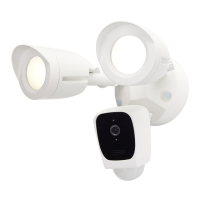
LED SMART SECURITY FLOODLIGHT
& CAMERA
Models: 65/900, 65/901, 65/902
Satco Products, Inc.
Brentwood, NY 11717
INSTALLATION AND SAFETY INSTRUCTIONS
IMPORTANT: Read before installing xture. Retain for future reference.
Thank you for choosing our Starsh Security Floodlight with Camera.
Getting started is easy.
1. Parts Included
WARNING: Risk of Fire or Electric Shock.
This xture must be wired in accordance with the National Electrical Code and applicable local codes and ordinances.
Proper grounding is required to insure personal safety. Carefully observe grounding procedure under installation section.
Make certain power is OFF before starting installation or attempting any maintenance. Risk of re/electric shock. If not
qualied, consult an electrician.
For proper weatherproof function, all gaskets must be seated properly and all screws inserted and tightened rmly. Apply
weatherproof silicone sealant around the edge of the Back Box and/or Junction Box. This is especially important with an
uneven wall surface. Silicone all plugs and unused conduit entries.
Be sure xture temperature is cool enough to touch. Do not clean or maintain while xture is energized. Clean glass lens
with non-abrasive glass cleaning solution. Do not open xture to clean the LED. Do not touch the LED.
2. Product Details
3. Safety Instructions
Security Flood
Camera
Gasket
M4*14 Bracket
Screws
Wire Nuts
1900 Lm Output
Light Lock Collar
Microphone
Lens
LED Indicator
Speaker
PIR Motion Detector
LED Bullet Head
Adjustment Locknut
Camera Lock Collar
Micro SD Card Slot
Reset
WIRING: If wiring does not include a ground wire, consult your local electrical code for approved grounding methods.
For proper connection, place wire nut over wires and twist clockwise until tight.

Questions and Answers

Summary

INSTALLATION AND SAFETY INSTRUCTIONS

Parts Included

Lists all components included in the package for the security floodlight camera.

Product Details

Identifies and labels the key components and features of the security floodlight camera.

Safety Instructions

Provides critical safety warnings and guidelines for installation and use to prevent hazards.

Installation Guide

Optimal Installation Height

Recommends the best height for optimal motion sensor performance.

Installation Steps

Step-by-step guide for mounting the fixture onto a junction box and connecting wiring.

Powering On and Troubleshooting

Instructions for powering on the device after installation and initial troubleshooting steps.

App and Device Setup

Connection Preparation

Ensures adequate Wi-Fi signal for best product performance before setup.

Get the App and Account

Guide to download the Starfish app, create an account, and prepare for device setup.

Set Up the Camera

Details on powering the device, initiating reset, and pairing it with the Wi-Fi network via the app.

Camera Features and Storage

Micro SD Card Usage

Information on the included and supported Micro SD card specifications for storage.

APP Interface Overview

Overview of the Starfish app interface and its various features for controlling the camera and light.

Product Information and Support

Camera LED Indicator Guide

Explains the meaning of different LED status lights on the camera.

Frequently Asked Questions (FAQ)

Answers to common questions regarding floodlight operation, SD card upgrades, and alert settings.

5-Year Limited Warranty

Details the manufacturer's warranty policy, terms, and conditions for the product.

Getting Started with the Starfish App

Download the Starfish App

Instructions to download the Starfish application from app stores.

Starfish App Account Creation

Register or Login

Instructions for registering a new account or logging into an existing Starfish app account.

Email Verification Process

Process of entering email and obtaining a verification code for account creation.

Set Account Password

Steps to set a secure password for the Starfish account.

Home Management in the App

Create a Home

Navigating the app to access home management settings for creating a new home.

Sharing and Permissions

Share Your Home Setup

Instructions on how to share your home setup with other users via the app.

Adding and Connecting Devices

Initiate Add Device Process

Steps to initiate the device addition process within the app.

Wi-Fi and Bluetooth Requirements

Pre-connection checks for Wi-Fi network and Bluetooth for device pairing.

Device Pairing and Network Connection

Enter Wi-Fi Credentials

Inputting Wi-Fi credentials to connect the device to the network.

Enter Pairing Mode

Instructions for putting the device into pairing mode by power cycling.

Device Configuration and Naming

Confirm Pairing Mode

Confirmation of successful pairing mode and proceeding to the next step in the app.

Rename Your Device

Customizing the device name within the app after successful addition.

App Features: Device Control

Individual Device On;Off

How to turn individual lights or devices on and off using the app.

Individual Device Settings

Accessing additional settings and features for individual devices in the app.

App Features: Dimming

Adjusting Brightness Level

Adjusting the brightness level of the light fixture using the app's dimming controls.

Note on In-Wall Dimmers

Clarifies that Starfish products must use standard ON/OFF switches, not in-wall dimmers.

App Features: Tunable White

Adjust Color Temperature

Changing the color temperature of the light from warm to cool via the app.

Set Brightness Level

Using the slider to set the desired brightness level for the light.

App Features: Color Changing

Select Desired Color

Selecting desired colors and adjusting brightness/saturation using the app's color interface.

App Features: Effects and Music

Apply Lighting Effects

Applying preset lighting effects or creating custom effects through the app.

Music-Reactive Lighting

Using the music function to change light color based on room sounds via the mobile device microphone.

App Features: Schedules and Timers

Set Device Schedules

Setting up timed schedules for the device to turn on or off automatically.

Use Countdown Timer

Creating a countdown timer for the device to activate or deactivate after a set duration.

Advanced Settings Menu

Access Device Settings

Accessing device-specific settings via the app's menu by tapping the pen icon.

Third-Party Integrations

Options for integrating with Alexa, Google Assistant, and SmartThings.

Creating Device Groups

Start Group Creation

Instructions for creating groups of devices to control them simultaneously in the app.

Select Devices for Grouping

Choosing specific devices to be included in a group.

Editing Device Groups

Modify Existing Groups

Steps to rename, modify, or remove devices from existing groups within the app.

Automation and Scenes

Create New Scene or Automation

Options to create custom scenes or automated device actions from the home screen.

Configuring Automations

Define Automation Conditions

Defining conditions like weather or schedule to trigger automated device actions.

Select Automation Actions

Specifying the action (e.g., turn on light, change color) for a scene or automation.

Setting Automation Actions

Designate Device States

Assigning devices/groups and their desired state (On/Off, color) for automations/scenes.

Finalizing Smart Actions

Review and Save Automation;Scene

Finalizing and saving the created automation or scene in the app.

Connecting to Alexa

Access Alexa App Menu

Initial steps to log into the Alexa app and navigate to its main menu.

Alexa Skill Setup

Navigate to Skills & Games

Accessing the "Skills & Games" section within the Alexa app to find new skills.

Searching for Satco Starfish Skill

Find Satco Starfish Skill

Searching for and selecting the "Satco Starfish" skill within the Alexa app.

Linking Satco Starfish to Alexa

Enable Satco Starfish Skill

Activating the Satco Starfish skill and initiating the account linking process.

Authenticating Starfish Account for Alexa

Link Starfish Account

Logging into the Starfish account to authorize the connection with Alexa.

Authorizing Alexa Integration

Authorize Starfish Account

Granting permission for Alexa to control Starfish devices.

Complete Alexa Linking

Completing the account linking process in Alexa after successful authorization.

Discovering Devices with Alexa

Initiate Device Discovery

Initiating device discovery within Alexa to make Starfish devices controllable.

Wait for Device Detection

Allowing Alexa to scan and recognize the paired Starfish devices.

Connecting to Google Home

Open Google Home App and Set Up Device

Starting the device setup process within the Google Home mobile application.

Linking Services in Google Home

Select Existing Service

Selecting the option to link existing smart home services in the Google Home app.

Finding Satco Starfish in Google Home

Search for Satco Starfish Service

Finding and selecting the "Satco Starfish" service in the Google Home app.

Authenticating Starfish Account for Google Home

Link Starfish Account to Google

Authenticating the Starfish account to connect it with Google Home.

Voice Control Commands

Common Voice Commands

Provides examples of voice commands for controlling devices via Alexa or Google Assistant.

Connecting to SmartThings

Access SmartThings App Menu

Navigating the SmartThings app to access its main menu and device management options.

Adding Satco Starfish to SmartThings

Select Brand and Location

Choosing the Satco Starfish brand and assigning a location for the device in SmartThings.

Authenticating Starfish Account for SmartThings

Link Starfish Account to SmartThings

Authenticating the Starfish account to enable integration with SmartThings.

Authorizing SmartThings Integration

Authorize SmartThings Connection

Granting permission for SmartThings to access and control the Starfish account.

Connecting to Siri Shortcuts

Access Smart Scenes

Accessing scenes and automations within the app's "Smart" section.

Prepare Custom Scenes

Ensuring custom scenes are created before adding them to Siri Shortcuts.

Setting Up Siri Shortcuts

Add Scene to Siri

Initiating the process to add a custom scene to Siri Shortcuts.

Save Siri Shortcut

Confirming and saving the Siri shortcut for scene activation via voice command.

Other Starfish Smart LED Products

Product Catalog

Displays information about other available Starfish Wi-Fi smart LED products.

Lighting Facts Per Bulb

Bulb Specifications

Provides detailed lighting specifications per bulb, including brightness and energy usage.

Product Specifications and Compliance

General Product Information

Basic details like finish, style, dimensions, and indoor/outdoor rating.

Smart Product Features

Details on smart features like IoT, camera integration, Wi-Fi, and voice assistant support.

Technical Specifications

Technical specifications including LED technology, lumen output, voltage, and operating temperature.

Safety and Compliance

Information on safety listings, ratings, and regulatory compliance for the product.

Satco STARFISH 65/900 Specifications

General IconGeneral
BrandSatco
ModelSTARFISH 65/900
CategorySecurity Camera
LanguageEnglish