HOW
TO
CAPTURE
SCREENSHOTS
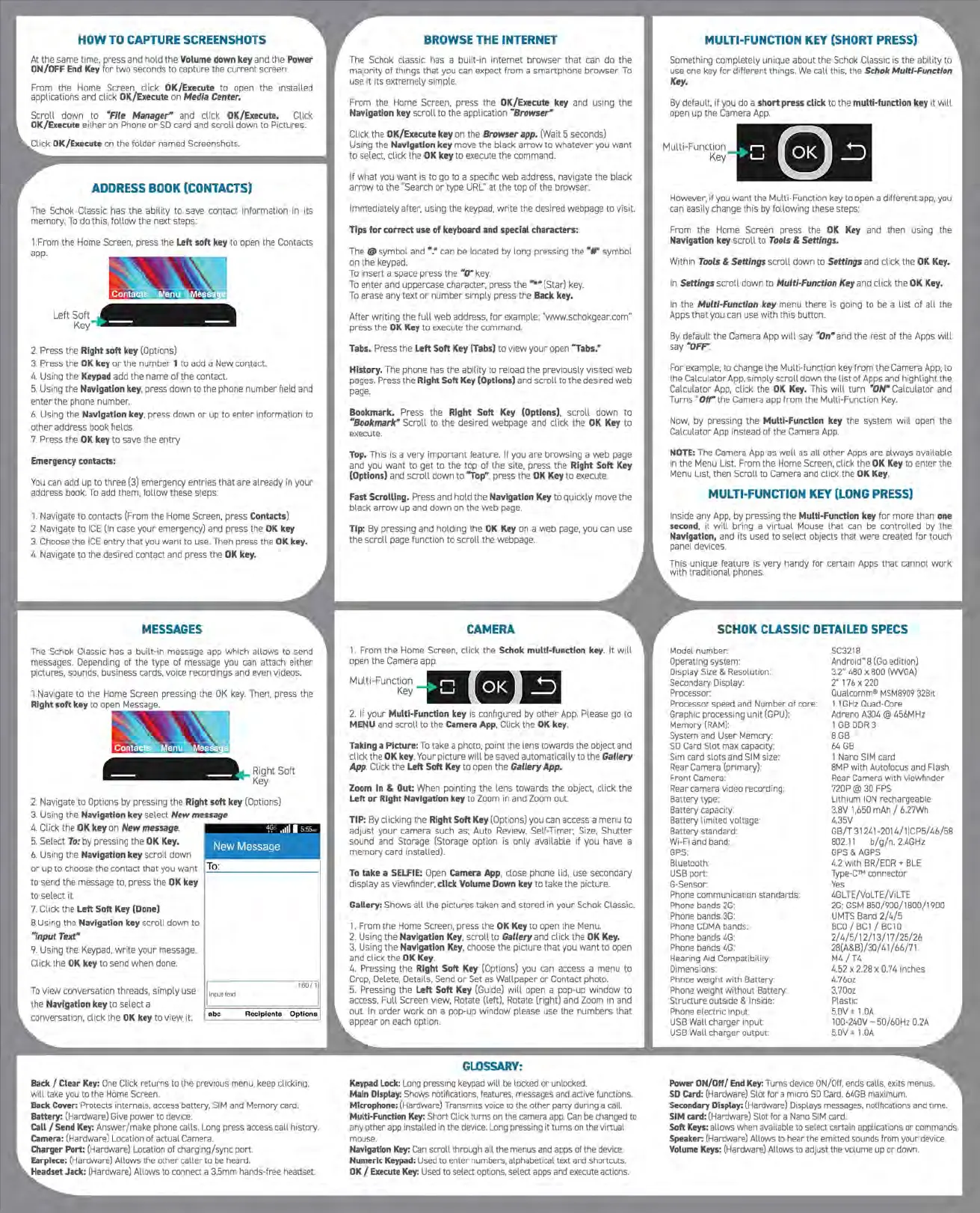
At
the
same time. press and hold
the
Volume
down
key
and the
Power
ON/OFF
End
Key
for
two
seconds to capture the current screen.
From the Home Screen click
OK/Execute to open
the
installed
applications and click
OK/Execute
on
Media
Center.
Scroll down
to
MFile
Manager" and click OK/Execute. Click
OK/Execute
either
on Phone
or
SD
car
d and scroll down
to
Pictures.
OK/Execute
on
the folder named Screenshots.
ADDRESS
BOOK
(CONTACTS)
The Schok Classic has the ability to save contact information in i
ts
memory.
To
do this,
follow
the next steps:
1.From the Home Screen, press the
Left
soft
key
to open the
Co
nt
acts
app.
Left
2.
Press
the
Right
soft
key
[Options)
3.
Press
the
OK
key
or
the
number
I to add a New contact.
4.
Using the
Keypad
add the name
of
the contact.
5.
Using the
Navigation
key,
press
down
to the phone
number
fleld and
en
ter
the phone number.
6.
Using the
Navigation
key,
press down
or
up
to
enter
information to
other
address book flelds.
7.
Press the
OK
key
to
save
the
entry
Emergency
contacts:
You
can add up to three
[3)
emergency entries
that
are already in your
address book.
To
add
them,
follow
these steps:
1. Navigate
to
contacts [From
the
Home Screen, press
Contacts
)
2.
N
av
igate
to
I
CE
[In case
your
emergency) and press the
OK
key
3.
Choose the
IC
E
entry
that
you
want
to u
se.
Then press the
OK
key.
4.
Navigate
to
the desired contact and press the
OK
key.
MESSAGES
The Schok Classic has a
built
-in message app which a
ll
ows
to send
messages. Depending
of
the type
of
message you can a
ttac
h ei
ther
pictures,
sounds,
business
cards,
voice
recordings
and
even
videos.
1.Na
vigate to
the
Home Screen pressing the
OK
key.
Then, press the
Right
soft
key
to open
Right
Soft
Key
2.
Navigate
to
Options
by
pressing the
Right
soft
key
[Options)
3.
Using the
Navigation
key
select New
message
4.
Click
the
OK
key
on
New
message.
"~
,,,fil sss ..
5.
Select
To:
by
pressing the
OK
Key.
6.
Using the
Navigation
key
scro
ll
down
New Message
or
up
to
choose the contact
that
you
want
1-
l<
:.::
o
::.
:
_________
l
to
send the message to, press
the
OK
key
to select it.
7.
C
li
ck
the Left
Soft
Key
(Done)
B.
Using
the
Navigation
key
scroll
d
ow
n to
Mlnput
Tut"'
9.
Using the Keypad,
write
your
me
ssage.
C
li
ck
the
OK
key
to send when done.
To
view
conversation threads, s
imp
ly
use
the
Navigation
key
to
select a
conversation, click the
OK
key
to
view
it.
abc
Recipients Options
Back
I
Clear
Key:
One
Click returns to the previous menu. keep
cl
icking,
wiH
take
you
to
the
Home
Screen
.
Back
Cover:
Protects internals, access battery, S
IM
and
Memory card.
Battery:
[Hardware)
Give
power
to
devi
ce.
Call/
Send
Key:
Answer/make phone
ca
ll
s.
Lon
g press
ac
cess call history.
Camera:
[Hardware) Location of actual
Camera
.
Charger
Port:
[Hardware) Location of
cha
rging/sync port.
Earpiece:
[Hardware) Allows the other
ca
ller
to
be
heard.
Jack:
[Hardwa
re)
Allows to con
ne
ct a 3.
5m
m
ha
nds-free headset.
BROWSE
THE
INTERNET
The Schok classic has a built-in inte
rnet
browser
that
can do the
maJority of things th
at
you can expect from a smartphone
browser
.
To
use
it
its
extremely simple.
From
the
Home Screen, press
the
OK/Execute
key
and using the
Navigation
key
scro
ll
to
the application
MBrowser•
Click
the
OK/Execute
key
on
the
Browser
app.
[Wait 5 seconds)
Using
the
Navigation
key
move
the
black
arrow
to whatever
yo
u
want
to select, click the
OK
key
to
execute the command.
If
what
you
want
is to go to a specific web address. navigate
th
e black
arrow
to
the "Sea
rc
h
or
type URL"
at
t
he
top of the browser.
Immediate
ly
af
ter
. using the keypad, wr
it
e the desired webpage to visit.
Tips
for correct
use
of
keyboard
and
special
characters:
The
@s
ymbol and
"."
can be located by long pressing the
"If'
sy
mbol
on the keypad.
To
insert a space
pr
ess the
MO"
key.
To
enter
and uppercase c
har
acter. press the
"""
[Star)
key.
To
erase any t
ex
t
or
number simply press the
Back
key.
After
writing
the fu
ll
web
address,
for
example; "www.schokgear.com"
press
the
OK
Key
to execute
the
command.
Tabs.
Pre
ss
the
Left
Soft
Key
(Tabs)
to vi
ew
your
open "Tabs.•
History. The phone has the ability
to
reload the
prev
iously visited web
pages. Press t
he
Right
Soft
Key
(Options)
and scro
ll
to the desired web
page.
Bookmark.
Press the
Right
Soft
Key
(Options),
scroll
down
to
MBookmarlr"
Scroll to the desired webpage and click the
OK
Key
to
execute.
Top.
This
is
a very important feature. If you are browsing a
web
page
and you
want
to get to the
top
of
the sit
e,
press the
Right
Soft
Key
(Options)
and
scroll
down to
"Top",
press t
he
OK
Key
to execute.
Fast
Scrolling. Press and hold
th
e Navigation
Key
to quickly move the
black
arrow
up and down on the
web
page.
Tip:
By pressing and holding
the
OK
Key
on a
web
page, you can use
the
scro
ll
page function to
scroll
the
webpage.
CAMERA
1.
From the Home Scree
n,
click
th
e
Schok
multi-function
key
. It wi
ll
open
the
Camera app.
Multi-Funct
ion
Key
2.
If
your
Multi-Function
key
is configured by other
App.
Please go to
MENU
and
scroll
to the
Camera
App,
Click the
OK
key.
Taking
a Picture:
To
take a photo, point the lens towards the object and
click
the
OK
key
. Your picture
will
be saved automatically
to
the
Gallery
App
. C
li
ck the Left
Soft
Key
to open the Gallery App.
Zoom
In &
Out:
When pointing
the
len
s towards the object, click the
Left or Right
Navigation
key
to Zoom in and Zoom out.
TIP: By clicking the
Right
Soft
Key
[Options) you
ca
n access a menu to
adjust yo
ur
camera such
as
; Auto Review.
Se
lf-Timer, Si
ze.
Sh
ut
ter
so
und
and Storage [Storage option is only available if you
hav
e a
memory
card installed).
To
take a
SELFIE:
Open
Camera
App
, close phone lid, u
se
secon
dary
display as viewfinder, click
Volume
Down
key
to ta
ke
the
pict
ur
e.
Gallery: Shows
all
the pictures
tak
en and stored in
your
Schok Class
ic.
1.
From the Home Screen, press the
OK
Key
to open the Menu.
2.
Using the
Navigation
Key,
scroll
to
Gallery
and click the
OK
Key.
3. Using the
Navigation
Key,
choose the picture that you want to open
and cli
ck
the
OK
Key
.
4.
Pressing the
Right
Soft
Key
[Options) you can access a
me
nu to
Crop, Delete, Details, Send
or
Set as
Wa
llpaper
or
Contact photo.
5.
Pressing the
Left
Soft
Key
[G
uide) wi
ll
open a pop-up
window
to
access. Fu
ll
Screen view,
Ro
tate [left), Rotate [right) and Zoom in and
out.
In
order
work
on a pop-up
wi
nd
ow
please use
th
e numbers t
ha
t
appear on each o
pt
ion.
GLOSSARY:
Keypad
Lock:
Long
pressing
keypad
wi
ll
be
loc
ked
or
unl
ocke
d.
Main Display: Sh
ows
notifications,
fea
tu
res,
messages
and
active
fun
ctions.
Microphone:
[
Ha
rd
wa
re
) Transmits voice to the other party during a call.
Multi-Function
Key:
Short Click turns on the camera
app
.
Can
be
changed to
any other app installed in the device.
Lo
ng pressing it turns on the virtual
mou
se.
Navigation
Key:
Can
sc
roll through a
ll
the menus
an
d apps of the devi
ce
.
Numeric
Keypad:
Use
d
to
enter numbers. alp
ha
bet
i
ca
l text
and
shortcuts.
OK
I
Execute
Key:
Used
to
se
lect options.
se
lect
apps
and
execute actions.
MULTI-FUNCTION
KEY
(SHORT
PRESS)
Something completely unique about the Schok Classic is the
abil
ity
to
use one key
for
different
th
ings.
We
call
this, t
he
Schok
Multi-Function
Key.
By default, if you do a short
press
click to the multi-function key
it
wi
ll
open
up
the Camera App.
Mu
lti-Functio
n
Key
Howe
ve
r.
if
you want the Multi-Function key to open a different app, you
can easily change this
by
foll
owing these steps:
From
the
Home Screen press
the
OK
Key
and then using the
Navigation
key
scroll to
Tools
&
Settings.
Within
Tools
&
Settings
scroll
down
to
Settings
and click the
OK
Key.
In Settings
scroll
down to Multi-Function
Key
and click
the
OK
Key.
In the Multi-Function key menu
there
is going to
be
a list
of
all
the
Apps
that
you can u
se
wi
th
this button.
By default the Camera App wi
ll
say
Mon•
and t
he
rest of
the
Apps wi
ll
say
MOFF"
.
For example, to change t
he
Multi-function key from t
he
Camera App,
to
the Calculator
App,
si
mp
ly
scroll
down the
list
of Apps and highlight the
C
alculator
App, click the
OK
Key
. This wi
ll
turn
MON"
Ca
l
cu
l
ator
and
Turns
"Off"
the
Camera app from the
Mult
i-Function
Key.
Now,
by
pressing the Multi-Function
key
the system
wi
ll
open the
Calculator App inst
ead
of
the Camera App.
NOTE:
The Camera App as
well
as
all
other
Apps are always available
in the Menu List. From the Home Screen, cli
ck
the
OK
Key
to
e
nter
the
Menu List. then Scroll
to
Camera and
cl
ick the
OK
Key.
MULTI-FUNCTION
KEY
(LONG
PRESS)
Inside any A
pp,
by pressing the Multi-Function
key
for
more than
one
second,
it
will
bri
ng
a vi
rtua
l Mouse
that
can
be
controlled
by
the
Navigation, and its used to sele
ct
obje
cts
that
were
created
for
touch
pa
nel devices.
This
unique feature is
very
handy
for
certain Apps th
at
cannot
work
w
ith
traditional phones.
SCHOK
CLASSIC
DETAILED
SPECS
Model number:
Operating system:
Display Size &
Reso
lutio
n:
Secondary Display:
Processor:
Proces
sor s
peed
and
Number
of
core:
Graphic
pro
cessi
ng
un
it
[GPU
):
Memory
[R
AM)
:
System and User Memory:
SO
Card Sl
ot
max capacity:
Sim card slots and
SIM size:
Rea
r Camera
[pr
imary):
Front Camera:
Rear
camera
vi
deo
recording
:
Battery type·
Battery capaci
ty
:
Battery limited voltage:
Battery standard:
Wi
-
Fi
and ba
nd:
GPS:
Bluetooth:
USB
port:
G-Sensor:
Phone
comm
u
nication
standards:
Phone
ba
nds
2G:
Phone bands
3G
:
Phone
C
OM
A
ba
nds:
Ph
one
bands
4G
:
Phone bands
4G
:
Hearing Aid Compatib
il
i
ty
:
Dimensions:
Phnoe weight with Battery:
Phone weight without Batte
ry
:
Structure outsi
de
& Insi
de:
Phone electric input:
USB
Wa
ll
charger i
np
u
t:
USB
Wall charger outpu
t:
SC3
21
8
And
roid'S
[G
o
ed
ition)
3.
2"
480
X
800
[WVGA
)
2"
176
X
220
Qualcomm®
MSM8909
32
B
it
1.1
GHz
Quad
-
Co
re
Ad
re
no
A304 @
456M
Hz
I
GB
DDR
3
8GB
64GB
I
Nano
SIM card
SMP
with Autofocus and Flash
Rear
Camera
with viewfinder
72
0P@
30
FPS
Lithium I
ON
rechargeable
3.
8V
1,
650
mAh
I 6.
27W
h
4.
35V
GB/T
31241
-2014/
1ICP5
/46/58
802
.11
b/g
/n.
2.4GHz
GPS
&
AGPS
4.2
with BR/EDR + BLE
Type-
cn-1
connector
Yes
4GL
TE/VoL TE/Vi L
TE
2G:
GSM
850/900/1800/1900
UMTS
Band
2/4/5
BC
D/
BC1
/
BC
10
2/4/5/12/
1
3/17/25
/ 26
28[A&B)/
30/
41
I 66/71
M4/
T4
4.
52
x
2.28
x 0.74 inches
4
.7
6oz
3.70oz
Plastic
5.0V
±
l.
OA
I
00
-
240V-
50/60Hz O.
ZA
5.
0V
±
l.OA
Power
ON/011/
End
Key:
Turns device
ON
/Off,
ends
ca
ll
s, exits menus.
SD
Card:
[Hardware) Slot for a mi
cno
SO
Card.
64GB
max
imum.
Secondary
Display:
[H
ardware)
Dis
plays messages. notifications and time.
SIM
card:
[Hardware) Slot
for
a
Nano
SIM
card.
Soft
Keys:
allows when
ava
ilable to select certain
app
lications
or
co
mma
nds.
Speaker:
[H
ar
dwa
re)
Allows to hear the emitted sounds from your devi
ce.
Volume
Keys:
[Hardware) Allows to
ad
ju
st the volu
me
up
or
down



 To Next Page
 Loading...

