Schüco de
Commissioning instructions – Schüco DCS Touch Display 39
Dok-Nr.10000432116_01
8.4.2. Network
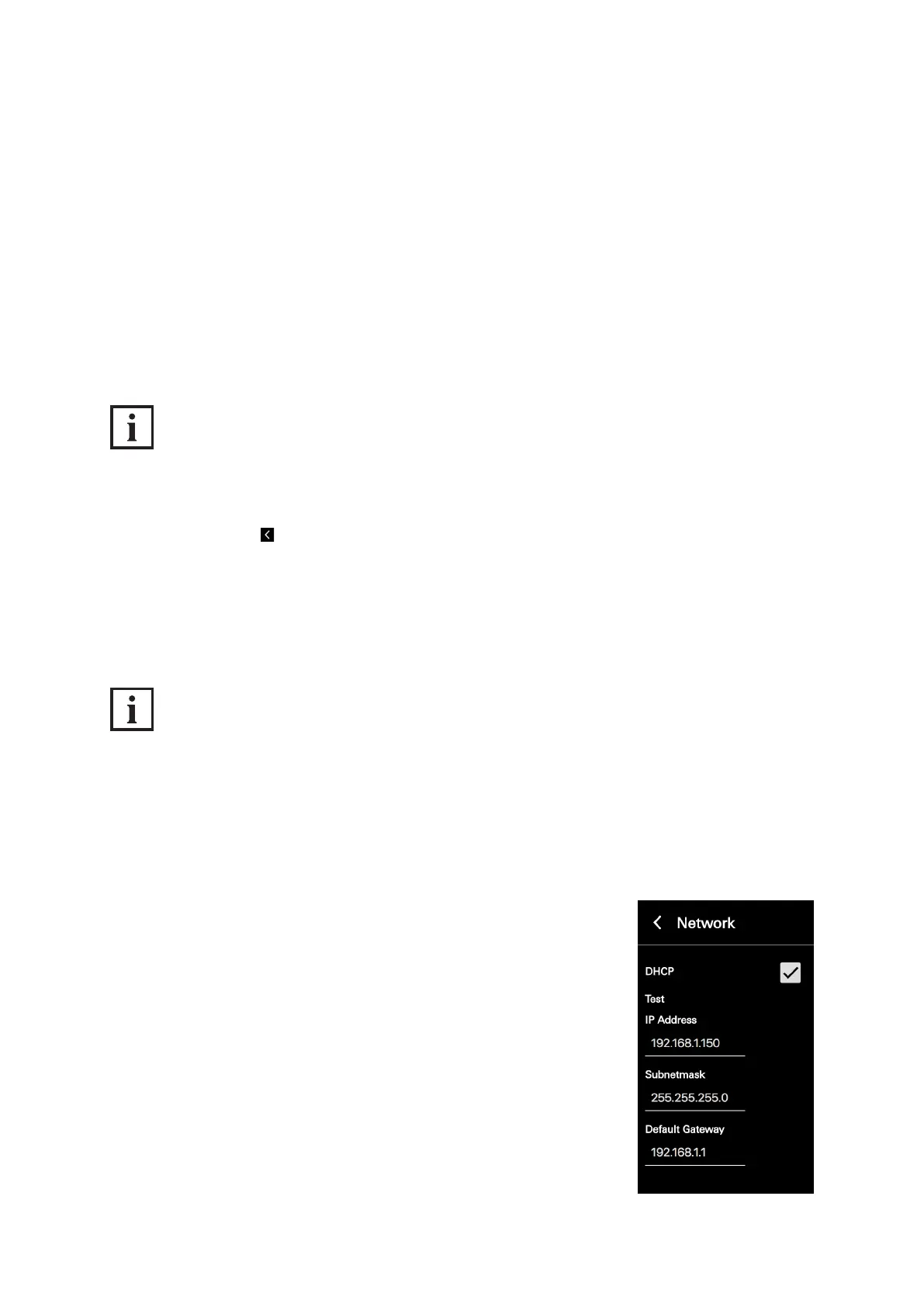
In the „Network“ conguration view, it is possible to assign an IP address to the DCS Touch Display.
The following options are available for this:
● DHCP: If this checkbox is checked, the DCS Touch Display automatically searches for a free
IP address in the building‘s network, the corresponding subnet mask and the default gateway.
This information is then displayed in the „IP address“, „Subnet mask“ and „Default gateway“ eld.
● IP address: Here you can enter the IP address of the DCS Touch Display.
● Subnet mask: Here you can enter the corresponding subnet mask for the IP address.
● Default gateway: Here you can enter the corresponding default gateway for the IP address
INFORMATION
Assigning an IP address
Only IPv4 addresses can be assigned to the DCS Touch Display. Manually assigned IP addresses are
only assigned to the DCS Touch Display once you tap „Save“. In order to discard an entry, you can
either tap „Cancel“ or .
On delivery, DHCP is activated for the DCS Touch Display. If a DHCP server has been found,
the DCS Touch Display displays the information in the „IP address“, „Subnet mask“ and „Default
gateway“ elds. Proceed as follows to manually assign an IP address to the DCS Touch Display:
INFORMATION
DHCP
This enables the assignment of the network conguration by means of a server (e.g. DSL router).
On delivery, DHCP is activated for the DCS Touch Display. If a DHCP server has been found, the
DCS Touch Display displays the information in the „IP address“, „Subnet mask“ and „Default gateway“
elds. Proceed as follows to manually assign an IP address to the DCS Touch Display:
1. Open the „Network“ conguration view.
2. Tap the „DHCP“ checkbox to remove the checkmark.


 To Next Page
 Loading...