3.1.2.4. Edit Value Screen
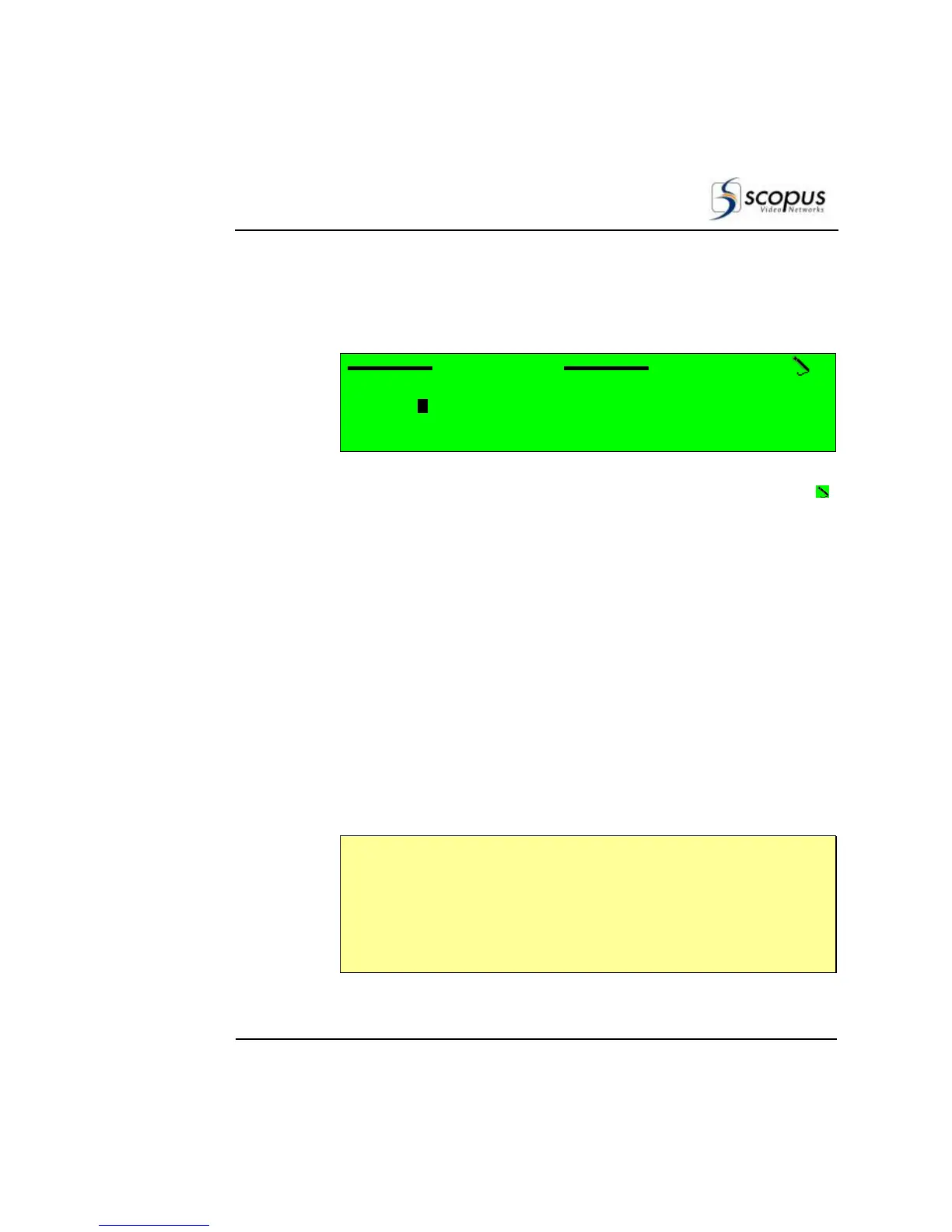
In the Edit Value screen the user can set parameters values. The parameter
value is written using the alphanumeric touch-pad and can be a number or a
string of characters (see example in Figure 3-6).
Output Rate
Output Rate Output Rate
Output Rate
3000000
30000003000000
30000000
00
0 bps
bps bps
bps
<00000000
<00000000 <00000000
<00000000 -
--
- +10000000>
+10000000> +10000000>
+10000000>
Figure 3-6: Edit Value Screen Example
A. Top line – Displays the parameter name (Output Rate). The pencil icon
in the top-right corner indicates that this is an Edit Value screen.
B. Second line – Displays the current value of the parameter. Changing the
value is performed using the alphanumeric touch-pad or the arrow keys:
• [Left] and [Right] Keys – Used to select a digit or character for
change by highlight. The currently selected character or digit is
highlighted and displayed in reverse with white characters over black
background (see Figure 3-6).
• [Up] and [Down] Keys – Used to scroll up or down through digits
(range 0 through 9) or characters (a-z, A-Z, and 0-9). The scroll range
can be limited to prevent setting up values out of range.
C. Third line – Displays the acceptable range of values for the parameter.
Press [ESC] to abort the setup and return one level up to the Edit Menu
Screen without changing the parameters.
Press [Enter] to accept the value. The display returns up one level to the
Edit Menu Screen and the new value is displayed as the current value of the
parameter.
N
OTES
• The Edit Value screen displays the range of values in the bottom line. The
user can set parameters outside of that range, but when trying to submit
them with [Enter] they are not submitted.
• Once setting a new value to a parameter, the user must save the changes
within 60 seconds or the new configuration is lost. For details on saving the
changes, see Section
4.1.1.


 To Next Page
 Loading...