13
● Settings
There are two options for Settings, General and Update
■ General
You can view the current MCU and Secure Element (SE) firmware versions on the device.
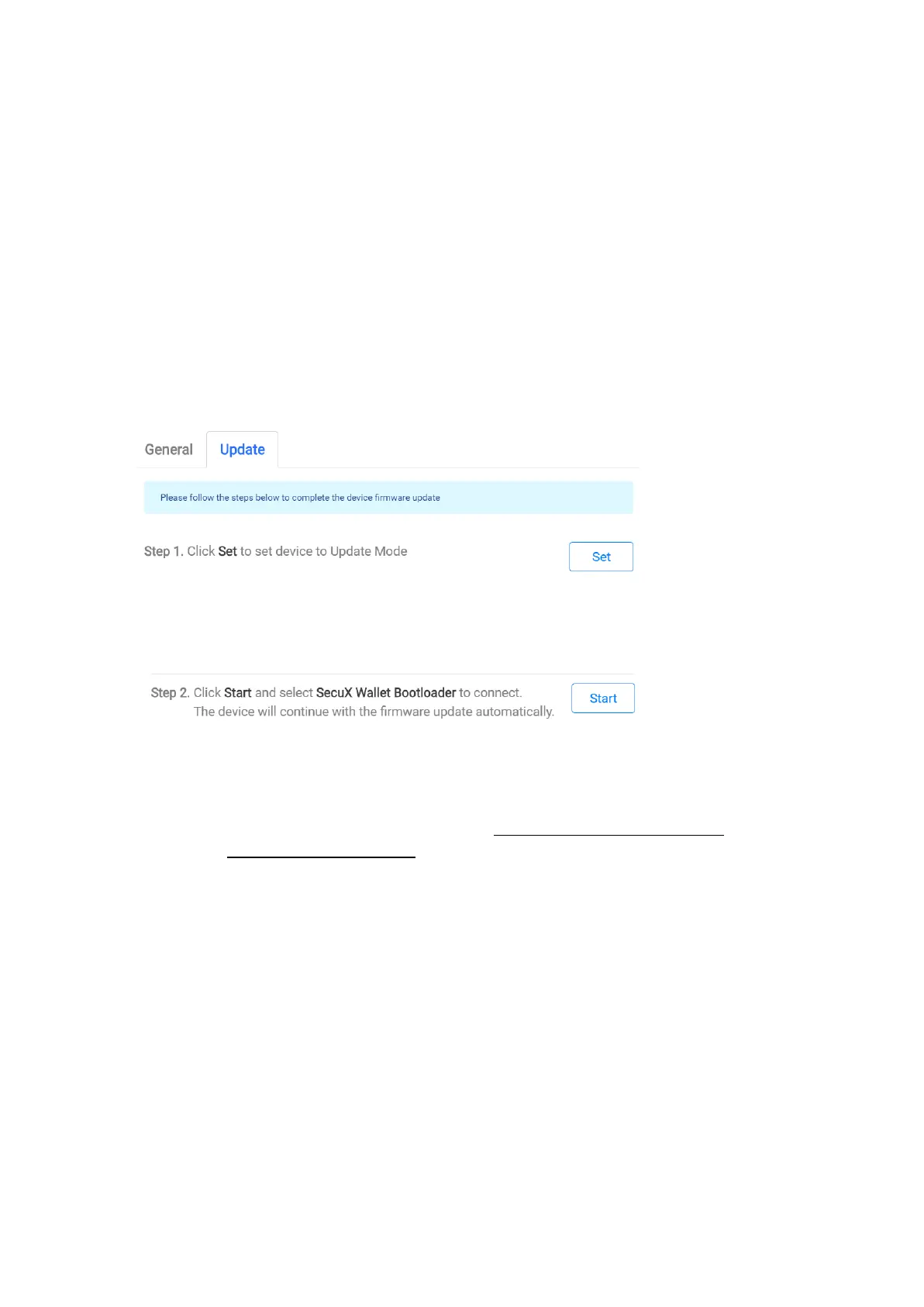
■ Update
Update the device with the latest firmware version. If there is a new firmware version for
update, you will receive a notification when launching the SecuXcess Web Wallet. Please
note that so far only update via USB cable is supported.
Steps for updating device firmware.
1: Click Set to switch to upgrade mode on Step 1 (the device will be on Update Mode).
2: Click Start on Step 2 and select SecuX Wallet Bootloader to continue the firmware
update.
Then the device MCU and SE will then be updated with the latest firmware versions.
If you have any further questions, please visit www.secuxtech.com/support/ or send us
an email at support@secuxtech.com).


 To Next Page