EasyManua.ls Logo

seenda Bluetooth mouse - Function Keys; Instructions; Speaker Pairing; Pair to Another Device

seenda Bluetooth mouse
5 pages
Print Icon
To Next Page IconTo Next Page
To Previous Page IconTo Previous Page
Loading...
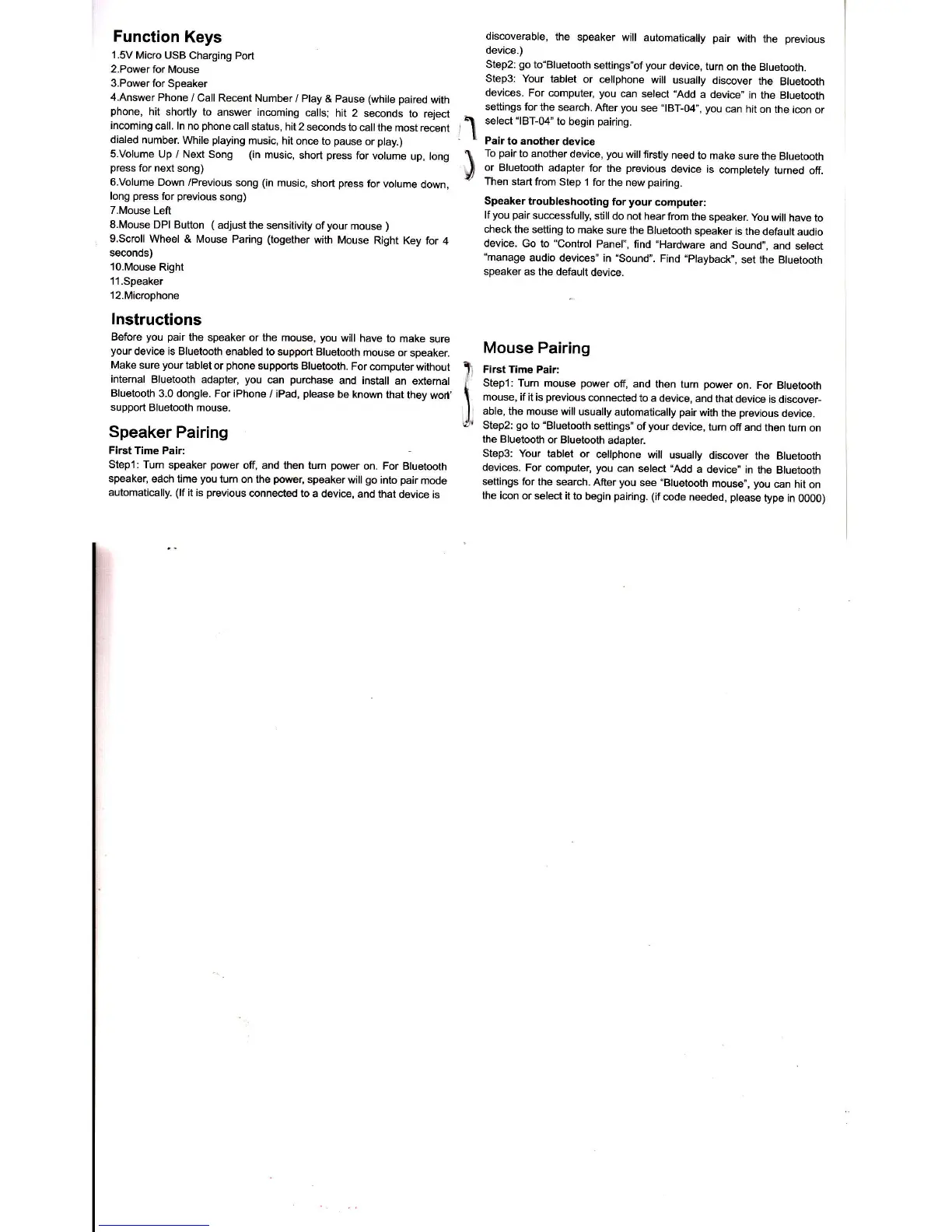
Function
Keys
'1.5V
Micro USB
Charging Port
2.Power for
Mouse
3.Power
for Speaker
4.Answer
Phone
/ Call Recent
Number
/ Play &
pause
(while
paired
with
phone,
hit shortly to
answer incoming
ells;
hlt 2
se@nds
to reject
incoming
call. ln
no
phone
call status, hit 2
semnds
to call the
most recent
dialed
number While
playing
music,
hit once to
pause
or
play.)
s.Volume
Up / Next Song
(in
music,
short
press
for volume
up, long
press
for next
song)
6.Volume
Down /Previous
song
(in
music,
short
press
for
volume
down,
long
press
for
previous
song)
T.Mouse
Left
S.Mouse DPI Button
(
adjust the
snsitivity
of
your
mouse
)
g.Scroll
Wheel & Mouse
Paring
(together
with
Mouse
Right Key
fot 4
seconds)
10.Mouse
Right
ll.Speaker
l2.Microphone
lnstructions
Before
you pair
the speaker or the
mous,
you
will have
to make
sure
your
devi@ is Bluetooth
enabled to support Bluetmth
mouse or
speaker
Make sure
your
tablet
or
phone
supporb
Bluetooth.
For computerwithout
intemal
Bluetooth adapter,
you
€n
purchase
and install
an
exlernal
Bluetooth
3.0 dongle. For
iPhone / iPad,
plmse
be known
that
they woil,
support
Bluetooth mouse.
Speaker
Pairing
First
Time Pair:
Stepl: Turn
speaker
power
off, and then tum
power
on. For Bluetooth
speaker,
edch time
you
turn
on lhe
pow,
speaker will
go
into
pair
mode
automati€lly.
(lf
it is
previous
mnnected to
a devie,
and that
device is
discoverable,
the
speaker
will automatically pair
with the
previous
device.)
Step2:
go
to"Bluetooth
settings"of
your
devie, turn
on
the Bluetooth.
Step3: Your
tablet
or cellphone
will
usually
discover
the
Bluetooth
devices.
For computer, you
can select
,,Add
a device"
in
the Bluetooth
settings for
the search.
After
you
see
"lBT-04,,,
you
can
hit on
the icon
or
select
"lBT-04'to
begin
pairing.
Pair
to another
device
To
pair
to another
device,
you
will firstly
need
to make
sure
the Bluetooth
or Bluetooth
adapter for
the
previous
device is
mmpletely
turned
off.
Then
start
from Step
I for the new
pairing.
Speaker
troubleshooting
for
your
computer;
lfyou
pair
successfully,
still do not hear
from
the speaker
you
will have
to
check the
setting to make
sure the
Bluetooth
speaker
is the
default
audio
devie.
Go to "Control
Panel",
find
"Hardware
and Sound,,,
and
select
"manage
audio
devices" in
"Sound".
Find
"playback",
set the Bluetooth
speaker
as the default
device.
I
r'l
)
Mouse Pairing
i
FiEt Time
Pair:
{
Stept; Turn mouse
power
off, and
then turn
power
on. For Bluetooth
I
mouse. if
it is
previous
connected
to a device,
and
that devi@
is discover-
I
able.
the mouse will
usually
automatimlly
pair
with
the
previous
devie.
{}i
Step2:
go
to
"Bluetmth
settings"
of
your
devie, tum
ofi and
then turn
on
the Bluetooth
or Bluetmth
adapter
Step3: Your
tablet or
ellphone
will usually
dis@ver
the
Bluetooth
devies. For
@mputer,
you
mn select
"Add
a devie"
in
the Bluetooth
seftings
for the search.
After
you
see
"Bluetooth
mouse",
you
€n hit on
the
i@n or select it
to begin
pairing.
(if
code needed,
please
type
in 00OO)