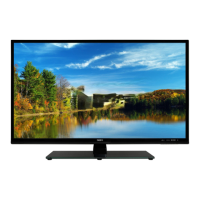
What causes unusual sound from inside Seiki SE39HC?
- FFrank ButlerSep 23, 2025
A change in ambient humidity or temperature may result in an unusual noise when the Seiki HDTV is switched on or off. This does not indicate a fault with the TV.
What causes unusual sound from inside Seiki SE39HC?
A change in ambient humidity or temperature may result in an unusual noise when the Seiki HDTV is switched on or off. This does not indicate a fault with the TV.
What to do if Seiki HDTV does not respond when pressing any buttons?
If your Seiki TV freezes up and doesn't respond to button presses, disconnect the power cord from the power socket for a few minutes. Then, reconnect the power cord and try operating the TV as usual.
What to do if my Seiki HDTV cannot be switched on?
If your Seiki HDTV won't switch on, verify that it is properly connected to the power supply. Also, ensure that all connected AV devices are switched off before attempting to switch on the TV.
What to do if my Seiki SE39HC has no picture and no sound?
If your Seiki HDTV has no picture and no sound, first ensure that the TV is switched on. If it is, try changing to another channel, as the problem may be with the broadcaster.
Why is there no sound on my Seiki SE39HC HDTV but the picture is OK?
If your Seiki HDTV has a picture but no sound, press the VOL +/- buttons to increase the volume. Check if the sound is muted by pressing the MUTE button. Try switching to another channel, as the issue might be with the broadcaster.
Why does picture appear slowly after switching on Seiki SE39HC HDTV?
It's normal for the picture to appear slowly after switching on your Seiki HDTV; the image is muted during the TV startup process. If the picture hasn't appeared after five minutes, it is advised to contact your service center.
How to fix vertical bar or stripe on background on Seiki SE39HC?
To correct a vertical bar or stripe on the background, horizontal noise, or an incorrect position on your Seiki HDTV, use Auto configures or manually adjust clock, phase, or H/V position.
How to fix unstable screen color on Seiki SE39HC HDTV?
If your Seiki HDTV screen color is unstable or shows a single color, check the signal cable. You may also need to reinstall the PC video card.
How to fix horizontal/vertical bar or picture shaking on Seiki HDTV?
If your Seiki HDTV displays a horizontal or vertical bar, or the picture is shaking, check for local interference from electrical appliances or power tools.
Why is there no sound when connecting HDMI to my Seiki SE39HC HDTV?
If there's no sound when connecting HDMI to your Seiki HDTV, check if the input source is HDMI1/HDMI2/HDMI3.
Lists all items included with the TV package for initial setup.
Identifies and explains the buttons and indicators on the front of the TV.
Provides step-by-step instructions for attaching the TV stand.
Details the process for detaching the stand for wall mounting.
Explains the functions of each button on the TV remote control.
Guides the user through the first-time setup wizard for the TV.
Explains how to scan for available TV channels using antenna or cable.
Describes how to use the MENU button and navigation keys to access TV settings.
Details how to choose the active input signal for the TV.
Covers adjustments for picture quality like brightness, contrast, and color.
Explains how to configure sound modes, volume, and audio output.
Describes how to set the sleep timer and time zone for the TV.
Covers menu language, zoom mode, noise reduction, and other system settings.
Explains how to set up parental controls, system locks, and channel blocking.
Details options for managing channels, including favorites and signal quality.
Instructions on how to view JPEG photos from a USB storage device.
Instructions on how to play MP3 music files from a USB storage device.
Explains playback controls for music and photo files via USB.
Addresses problems like the TV not responding or not turning on.
Covers common video problems such as no picture or poor image quality.
Details solutions for no sound, speaker issues, or audio noise.
Explains how to handle lost passwords and problems with PC connections.
| Screen shape | Flat |
|---|---|
| Response time | 6.5 ms |
| Display diagonal | 38.5 \ |
| Display brightness | 220 cd/m² |
| Display resolution | 1366 x 768 pixels |
| Display technology | LED |
| Native aspect ratio | 16:9 |
| Supported video modes | 480i, 480p, 576i, 576p, 720p, 1080i, 1080p |
| Contrast ratio (dynamic) | 3000:1 |
| Display number of colors | 16.78 million colors |
| Supported graphics resolutions | 640 x 480 (VGA), 800 x 600 (SVGA), 1280 x 768 (WXGA), 1360 x 768 (WXGA) |
| Display refresh rates supported | 60 Hz |
| Motion interpolation technology | - |
| 3D | No |
| Tuner type | Analog & digital |
| RMS rated power | - W |
| PC in (D-Sub) | Yes |
| HDMI ports quantity | 3 |
| DVI-D ports quantity | 0 |
| USB 2.0 ports quantity | 1 |
| On Screen Display (OSD) languages | ENG, ESP, FRE |
| Product color | Black |
| Panel mounting interface | 200 x 200 mm |
| Package depth | 175 mm |
| Package width | 971 mm |
| Package height | 625 mm |
| Package weight | 12383 g |
| Depth (with stand) | 255 mm |
|---|---|
| Height (with stand) | 591 mm |
| Weight (with stand) | 9390 g |
| Depth (without stand) | 81 mm |
| Width (without stand) | 891.29 mm |
| Height (without stand) | 529 mm |
| Weight (without stand) | 6622 g |
Loading...