2
WWW.SENSORPUSH.COM
WiFi
ADD DEVICE
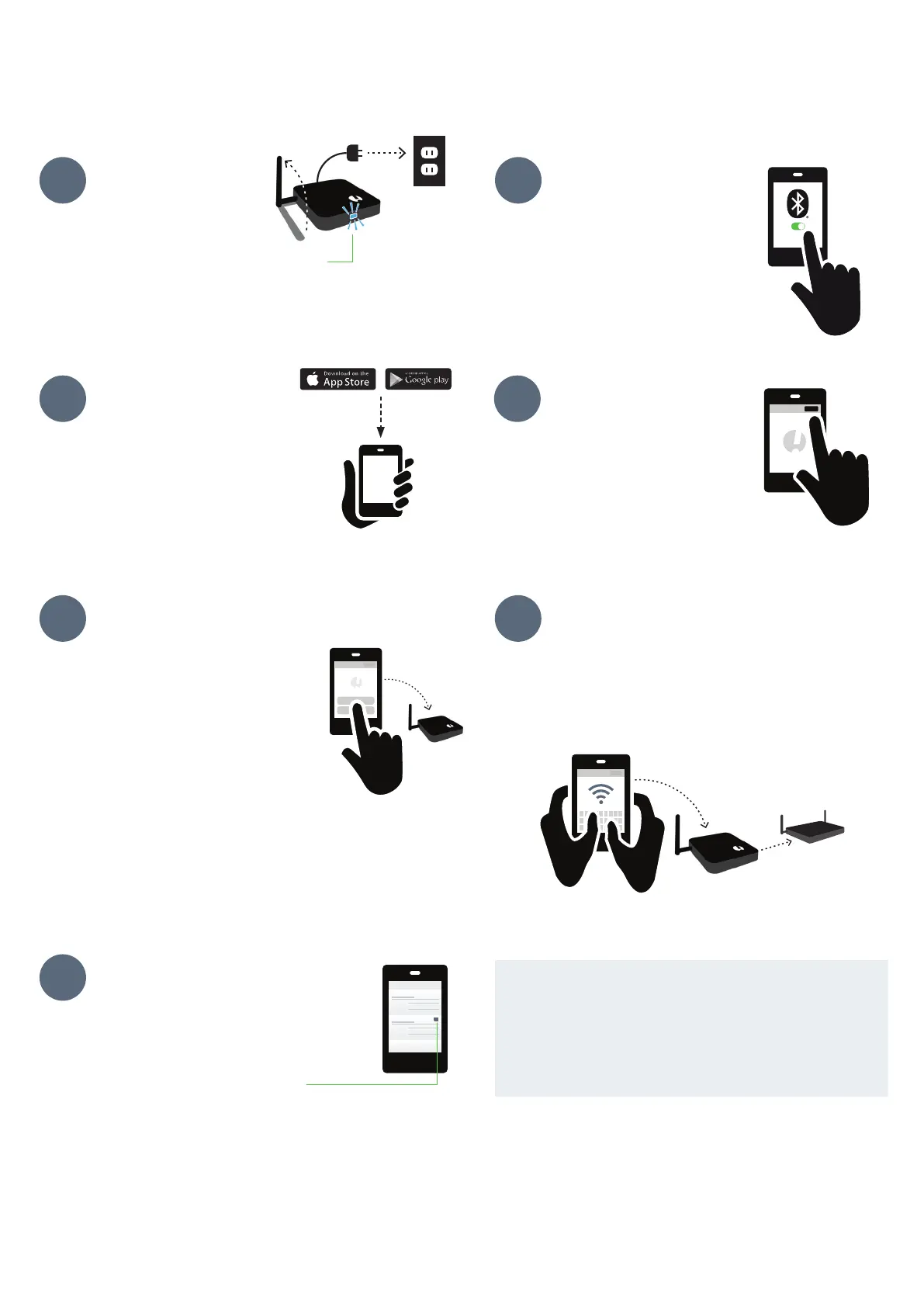
Once installed, open the
app and start by tapping the
Add Device button in the
upper right.
DOWNLOAD
OR UPDATE APP
Visit Google Play or the App Store
to download or update the
SensorPush app.
ADD GATEWAY & LOG IN
Tap Add Gateway. Your mobile
device will form a temporary
connection to the Gateway.
It may take a minute or two.
If it takes longer than that, please
restart the mobile device and also
the Gateway and then try again.
You will then get the option to sign
up for an account (or log in if you are not
currently logged in to an existing account). If you
don’t get the option to sign up and you don’t have an
existing account, see “Basic Troubleshooting” below.
CONNECT TO WIFI
After you have created or logged in to your
SensorPush account, choose a WiFi network to use
with your Gateway and enter your WiFi password.
If your WiFi password is not accepted or if your
WiFi network is not among the list of available
networks, please see
“Basic Troubleshooting”
below.
STATUS: ONLINE
Your Gateway will appear at the bottom
of the list of Devices. After a few minutes
its status should be “online,” and any
sensors that are in range of the Gateway
will display a small Gateway icon.
If the Gateway does not show up as ‘online’ within a
few minutes, see “Basic Troubleshooting” below.
1
3
6
4
SET UP
Plug in to a power outlet
and raise the antenna.
The light on the front should be blue.
(If light remains unlit or is red, see the
“Basic Troubleshooting” section below.)
BLUETOOTH
Make sure Bluetooth is ON
on your mobile device so
you can add the Gateway
to the app.
2
5
GET STARTED
7
77.2 F
47.9%
Living Room
81.4 F
46.4%
Attic
IF AT ANY POINT YOU GET STUCK:
• Try restarting your mobile device and the Gateway
• See the “Basic Troubleshooting” section below
• Visit the FAQ or Support pages at sensorpush.com
• Contact support via email at support@sensorpush.com


 To Next Page
 Loading...