4
WWW.SENSORPUSH.COM
RESET GATEWAY TO START OVER, OR REMOVE
GATEWAY FROM APP
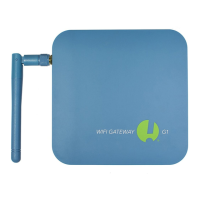
The process is the same whether you need to reset the
Gateway (e.g. want to create a new account) or if you simply
want to remove the Gateway from your app. Please follow these
steps below (Important note: There is a small hole under the
Gateway. This is not for resetting the device.):
1) Make sure you are within range of the Gateway
(e.g. same room).
2) Go to app settings inside the SensorPush app and verify
that you are logged in. Here’s how:
• Open the app, and from the main screen (the screen with
the word “Devices” at the top) select the button in the top
left to open app settings.
• Once in app settings you’ll notice a section called
“Account.” If your account email is listed there, you are
logged in. If not, please log in now.
You need to be logged in to reset the Gateway. If you no
longer have the login email and password, contact us at
support@sensorpush.com
3) Verify also that the Bluetooth for the mobile device is ON.
4) Return to the main screen of the app and select the
Gateway you want to remove from the account.
5) Then select the “Remove Gateway” option and wait for
the app to connect to the gateway. Once connected,
choose “Remove and Unlock.” Do NOT choose “remove
without unlocking” because that will remove it from your
account, but the Gateway will not be usable.
Once nished, the Gateway is removed from the app
and it can be used with a different account.


 To Next Page
 Loading...