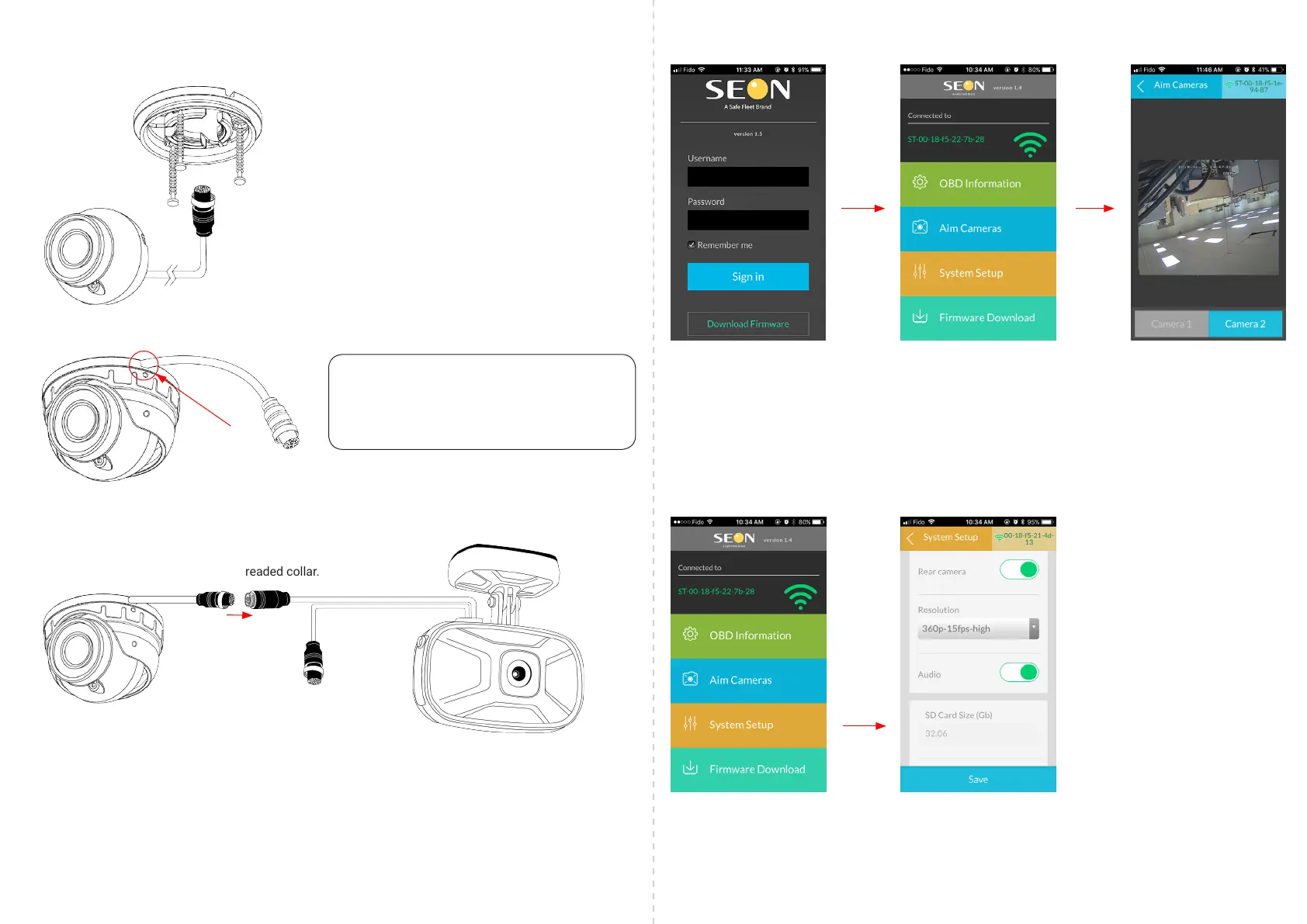
Step 4: Connect Cameras
1. Connect Camera 2’s cable to the cable on Camera 1.
2. Lock the cables together using the threaded collar.
Step 5: Verify Operation
1. Log into the DS2 Conguration App on your mobile device.
2. Tap Aim Cameras from the main menu, then tap Camera 2 to verify that the camera is operating.
3. Tap < Aim Cameras to return to the main menu.
Step 5 continued...
Step 6: Congure Cam 2 (optional)
1. Tap System Setup from the main menu.
2. Scroll down to the Rear Camera settings.
3. Change the camera resolution by tapping the Resolution drop down.
4. Enable or disable Cam 2’s audio by using the Audio slider.
5. Tap < System Setup to exit this menu.
Step 3: Mount Camera
1. Thread the cable through the base and attach the at side to the mounting surface with the 3 screws.
2. Secure the camera to the housing, then the housing to the base using the supplied Allen key. Take care not
to pinch the camera cable between the base and the mounting surface.
Note:
To avoid pinching and damaging the cable, ensure
that it is properly lined up with the cable grooves
on the camera base. There are 3 grooves in total.


 To Previous Page