The SereneLife IPCAMHD30BK is an HD Network IP Camera with Wi-Fi connectivity, designed for remote monitoring with app control and 720p video resolution.
Function Description:
This IP camera allows users to monitor their home, office, or business remotely via a mobile app or web browser. It offers live video streaming and recording capabilities, motion detection with alerts, and two-way audio communication. The camera features pan, tilt, and zoom (PTZ) control, night vision, and various storage options including local SD card, cloud box, and phone memory.
Important Technical Specifications:
- Imaging Sensor: 1/4" Color CMOS
- Video Resolution: Up to 720p (1280 x 720 Pixels) at 30FPS
- Video File Format: MJPEG (H.264 Compression)
- Night Vision Distance: 32"+ ft. (0.01 LUX)
- Wi-Fi Wireless Network: 2.4G WiFi -- IEEE802.11b/g/n
- Protocols: TCP/IP, UDP/IP, HTTP, DHCP, RTMP, MUTP
- Ethernet Network: 10/100Mbps, RJ-45 Interface
- P2P Technology: Plug and Play
- Maximum Micro SD Card Support Size: 64 GB
- Lighting Frequency: 50/60Hz
- Audio Compression: AAC (Advance Audio Coding)
- Video Compression: H.264
- Power Supply: DC 5V
- Dimensions (L x W x H): 4.7" x 3.3" x 3.3"
- Product Structure:
- Front: Photosensitive Sensor, Lens, IR LED, Wireless Network Status Light, Loudspeaker
- Back: Wired network Status Light, Microphone, RESET button, Ethernet port, USB 5V Power Port, Micro SD Card Slot
Usage Features:
- Easy Setup: The camera supports P2P technology for plug-and-play setup. Users can connect via wired Ethernet or Wi-Fi. For Wi-Fi, the app guides the user through scanning a QR code and connecting to the network.
- Remote App Control: The "SereneViewer" app (available for Android and iOS) provides remote access to live and recorded video, camera management (control, view, add additional cameras), and configurable picture adjustment settings.
- Account Management: Users create an account username and password (6-20 alphanumeric characters) to access all cameras from the app or PC. This account password can be separate from individual camera passwords.
- Device List: The main screen of the app displays a device list with thumbnail previews for all added cameras.
- Camera View Page: Offers full-screen mode (vertical/horizontal), video repositioning by swiping, and zoom by pinching.
- Two-Way Audio: Built-in microphone and speaker enable two-way audio communication.
- Snap Photo: Allows users to save photos directly to their phone's local memory.
- Video Recording:
- Local Storage: Records video directly to the phone's memory while the app is open.
- SD Storage: Supports up to 64GB Micro SD cards for scheduled recording, motion detection triggered recording, or continuous recording. Older videos are overwritten. Videos can be downloaded and saved from the mobile app or website.
- CloudBox Storage: Compatible with SereneLife CloudBox for up to 2TB of video storage, accessible from any device on a single network.
- Motion Detection: Configurable motion detection sensitivity for day and night. Users can choose actions to occur upon detection, such as recording video to the SD card and sending push notifications.
- Scheduled Recording: Users can set start and end times for recording schedules.
- Image Configuration: Adjustable brightness, contrast, saturation, and sharpness.
- Web Access: Cameras can be accessed from any device with an internet browser by logging into http://cloud.serenelifehome.com/ with the account username and password.
- Multi-Camera Support: Add any number of SereneLife cameras to one account to monitor multiple locations.
Maintenance Features:
- Firmware Updates: The app indicates available firmware updates with a red dot icon in the settings. Users are recommended to install updates while on a wired connection to ensure proper functionality and prevent bandwidth issues. Updates can take 5-10 minutes, and users should not quit the app or modify camera hardware during this process.
- Password Reset: If an individual camera's password is forgotten, a hardware reset can be performed by pressing and holding the reset switch for 12-15 seconds. The camera will reboot and run through pan and tilt. If the account password is forgotten, a new account must be registered, and cameras paired again.
- Troubleshooting:
- Can't connect to WiFi: Check Ethernet connection, verify WiFi status and password in camera settings, or disable Ethernet to force WiFi search.
- SD Card not recognized: Ensure the card is Class 10 (32GB or less), insert it while the camera is powered down, reformat to FAT32, or try multiple SD cards.
- App crashing/feature not working: Check for app and camera firmware updates, or contact support with app version, device model, and OS version.
- Choppy video: Decrease video stream quality in settings or connect the camera via a wired data connection.
- Motion detection issues: Adjust motion sensitivity settings for day and night.
- Network Evaluation: Recommendations include running a speed test (wired and wireless) to assess home network bandwidth and range. Upgrades to internet service, router, or signal boosters may be necessary if bandwidth is too low or data drops significantly.
- Warranty: Users are encouraged to register their camera online at www.SereneLifeHome.com for a free 1-year manufacturer's warranty.

 Need help?
 General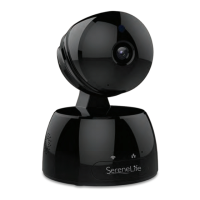

 To Next Page