
 Need help?
Do you have a question about the Seuic AUTOID Q9 and is the answer not in the manual?
Safety precautions regarding direct exposure to laser scanning engines and beams.
General safety guidelines for device usage, including battery and charger handling.
Guidelines for device maintenance, screen cleaning, and environmental operating conditions.
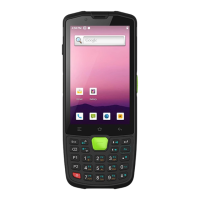
Detailed description of the device's physical layout and components with front, back, and battery compartment views.
Explanation of the physical keyboard layout, key functions, and their descriptions.
Step-by-step instructions on how to power on the device for the first time.
Guidance for initial device setup and first-time operation.
Procedures for safely shutting down the device.
Instructions on how to restart the device if it becomes unresponsive.
Guide on inserting a Nano SIM card into the device.
Instructions for installing a memory (SD) card into the device.
Steps for installing and securing the device's battery and cover.
Information on the expected time required to fully charge the device battery.
Guidelines on optimal and safe charging temperature ranges for the battery.
Details on the battery charging process, including methods and tips for long-term use.
Important safety precautions and recommendations for using the device battery.
Explanation of the LED indicators and what they signify regarding battery and charging status.
Explanation of the icons displayed in the status and notification bars for system status.
Configure network and internet connectivity settings, including Wi-Fi and mobile data.
Manage connections to other devices, including Bluetooth and NFC.
Manage application settings, view notifications, and configure app permissions and alerts.
View battery status, manage battery saver settings, and monitor battery usage by apps.
Adjust screen brightness, wallpaper, font size, screen timeout, and auto-rotation settings.
Configure device volumes, ringtones, notification tones, and touch sounds.
Check internal and external storage space, manage files, and view usage details.
Enable or disable location services and manage app permissions for location access.
Set screen lock, manage device admin apps, configure unknown source installations, and SIM card lock.
Set up accounts and sync data for cloud services, contacts, and calendars.
Configure accessibility features like magnification, font size, captioning, and TTS output.
Access system-wide settings including language, date/time, backup, reset options, and developer settings.
Select device language, keyboard layout, input methods, and text-to-speech settings.
Configure gesture shortcuts, such as using button combinations for specific actions.
Set or synchronize device date, time, and time zone, and select display formats.
Reset network settings, app preferences, or perform a full factory data reset.
View device information such as model, IMEI, Android version, IP address, and build number.
Configure and use the device's barcode scanning functionality for various barcode types.
Check for and install system software updates remotely to improve device performance and stability.
Manage application permissions, set administrator passwords, and customize desktop and autostart settings.
Copy configuration settings between devices, import/export data via files or QR codes.
Import configuration files from SD card or QR codes to set up the device.
Export device configuration to SD card or via QR code for backup or transfer.
Manage user-specific configuration files, including XML files for custom settings.
Customize function key (Fn) behavior, screen lock, and glove mode for enhanced usability.
Configure Fn key behavior for easier access to function keys.
Disable the function of the P5 key for specific operational needs.
Disable the function of the P7 key for specific operational needs.
Enable touchscreen operation with gloves by increasing sensitivity.
Control the visibility and functionality of the status bar dropdown menu.
Prevent scan key data from being passed to specific applications.
Display a floating button on screen to trigger scanning via touch.
Configure audible feedback tones for physical keyboard input.
Prevent the device from entering sleep mode automatically when dropped.
Manage digital certificates for secure app installation and verification.
Assign frequently used applications to function keys for quick access.
Resolve common problems like power issues, battery charging, sound, and scanning failures.
 General
| Brand | Seuic |
|---|---|
| Model | AUTOID Q9 |
| Category | Cell Phone |
| Language | English |

 To Next Page