EasyManua.ls Logo

Seura S1 32 " -65 " - User Manual

Seura S1 32 " -65 "
24 pages
Print Icon
To Next Page IconTo Next Page
Loading...
S1 32" -65"
USER MANUAL
Premier
Series
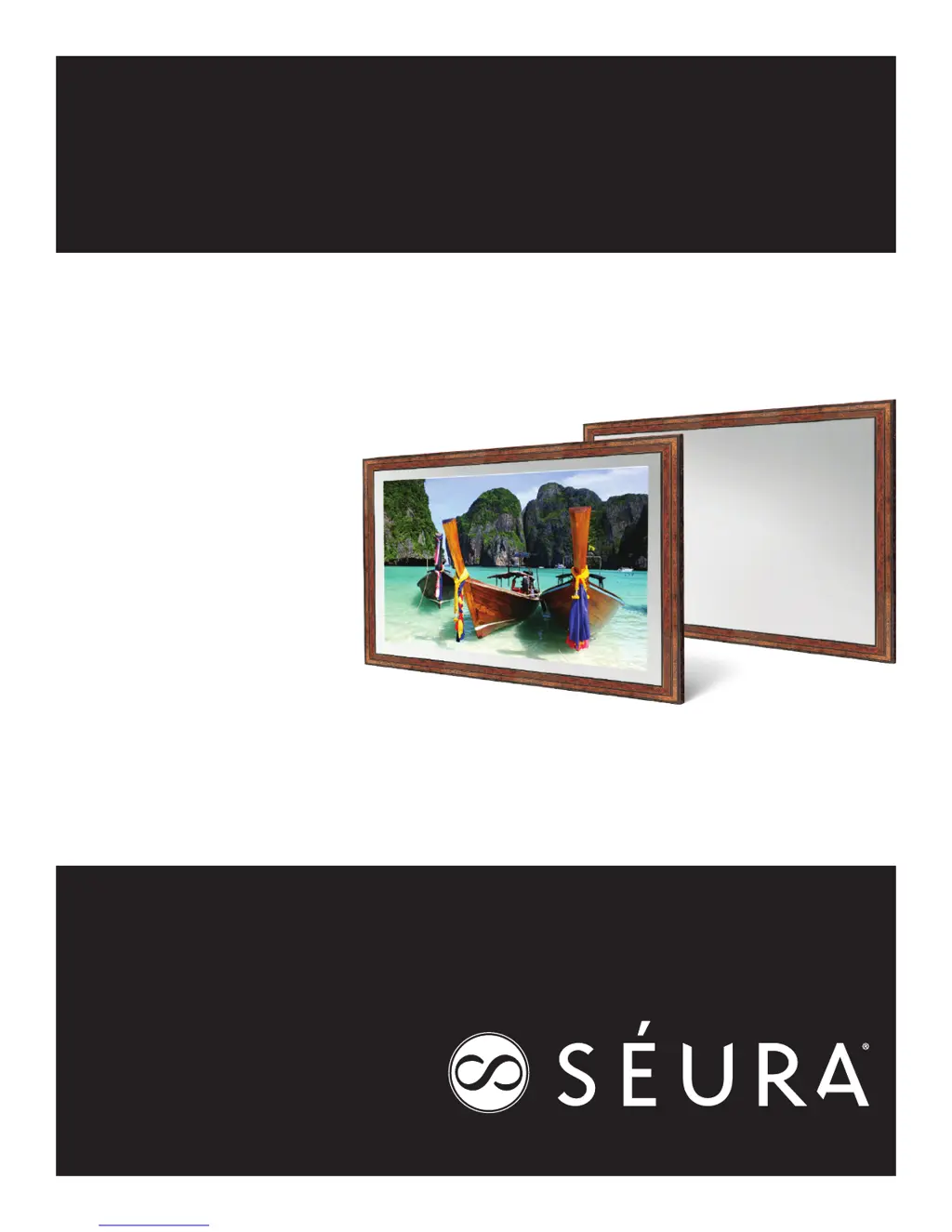
VANISHING MIRROR DISPLAY
www.seura.com

Questions and Answers

  • K
    katelynknightAug 1, 2025
    What to do if my Seura S1 32 " -65 " Monitor says “No Signal”?
    • D
      Donald ButlerAug 1, 2025
      If your Seura Monitor displays a “No Signal” error message, first ensure that all connected media sources are powered on. Next, verify that the signal cable connector is securely connected and inspect the connection pins for any bends or damage. If the issue persists, access the OSD menu by pressing the “Menu” button on your remote control to check for any misconfigurations in your settings. You may also try restoring the Mirror Display to its default settings by performing a factory reset. If the problem continues after these steps, further assistance may be needed.
  • T
    Thomas WarrenAug 8, 2025
    How to fix a blank screen on my Seura S1 32 " -65 "?
    • M
      Mark ThompsonAug 8, 2025
      If your Seura Monitor screen is blank, start by checking the status LED. A red LED indicates standby mode, which is normal. If the LED is green but the screen is black, the Mirror Display might be scanning for an input signal. Ensure an input source is available and correctly connected via the Service Settings/Input Ports menu. You can access the OSD menu by pressing “Menu” on your remote to check and adjust settings. If needed, perform a factory reset to restore default settings. If the issue persists, further assistance may be needed.
  • P
    Pamela ColemanAug 15, 2025
    How to troubleshoot low sound on a Seura S1 32 " -65 " Monitor?
    • M
      Mark NelsonAug 16, 2025
      If you experience low or no sound on your Seura Monitor, first press “Volume Up” and/or “Volume Down” on your remote control. Then, check the audio connection cable(s) to ensure they are properly connected. Also, verify that the Volume Limit setting in the Service Settings menu is set to an audible level.
  • D
    Debra AlexanderAug 25, 2025
    How to improve the image quality on my Seura Monitor?
    • J
      Joshua MartinAug 25, 2025
      If the image quality on your Seura Monitor is unsatisfactory, adjust the picture characteristics as described in the “Image Settings”. If the image is unstable, check that the display resolution and frequency from your media source are compatible with the Mirror Display.

Summary

Safety Warnings

Before Installation Safety

Installation Handling Warnings

Specific warnings regarding handling, transport, and installation of the display.

Product Setup Guide

Device Interface and Controls

Input;Output Port Overview

Identifies and explains the various input and output ports on the device.

Remote Control Functions Explained

Details the functions of each button on the remote control.

Product Installation Procedure

On Screen Display (OSD) Menu Navigation

Input Source Selection Method

How to choose and switch between different input sources.

Image Quality Settings

Options to adjust picture quality like brightness, contrast, and color.

OSD Display and Audio Configuration

Display Settings and Features

Adjustments for sleep timer, aspect ratio, and backlight.

Audio Settings and Sound Options

Options to configure sound modes, balance, volume, and speaker protection.

OSD Display and Audio Configuration (cont.)

OSD Menu Customization

Customization for OSD language, timeout, and transparency.

Advanced Service Settings

Advanced settings including boot options, access control, and signal management.

RS-232 Communication Protocol

RS-232 Protocol Overview

Details the protocol for controlling the display via RS-232 commands.

Séura S1 RS-232 Command Structure

Explains the structure of RS-232 commands.

RS-232 Communication Protocol (cont.)

Troubleshooting and Technical Details

Product Limited Warranty Information

Seura S1 32 " -65 " Specifications

General IconGeneral
BrandSeura
ModelS1 32 " -65 "
CategoryMonitor
LanguageEnglish