Do not do operate the player during the update process.
Firmware Update
2.
"System Setting - System Update - Local Update" and confirm to start the update process.
Connect the USB Drive to the device. Press the [ ] knob to enter the settings menu. Go to
1.
root/main directory of USB Drive.
Download the firmware update from Shanling official website. Copy the "update.bin" file to
/ MENU
1. Turn on WiFi in the player and connect to an available network.
USB Drive Update
Over-the-Air Update
2. Press the [ ] knob to enter the settings menu. Go to "System Setting - System Update -
Network Update" to update to the latest firmware automatically.
/ MENU
16
SyncLink Control
Scan code to download
the Eddict Player app
1. Press the [ ] knob to enter the settings menu.
2. Go to Bluetooth settings and turn on Bluetooth.
3. Turn on the SyncLink function in the settings menu." "
4. Insert USB drive and switch source to the USB Drive input.
5. On your phone, open Eddict player app, go to SyncLink function and turn on SyncLink Controller .
Select "Shanling ET3" from list of available devices.
" "
6. Click on Scan Music to scan for music files on the USB Drive." "
7. Now you can control music playback on your ET3.
/ MENU
Eddict Player
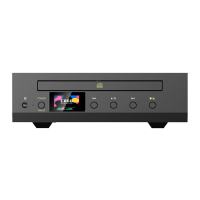
ET3
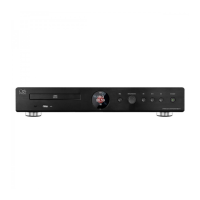
CD Transport
WiFi Connection
2. Go to Wi-Fi settings and enable Wi-Fi.
3. Open the Eddict Player app on your smartphone. Click the icon in top left corner and then select
"Wireless Distribution Network". From searched device, click on "Shanling ET3", click on "Next" and
enter Wi-Fi password. To finish, click on "Start Network Configuration".
" " " "
4. On the ET3, select Wi-Fi Configuration – One-key network configuration and press [ ] to finish. " "
1. Press the [ ] to enter settings menu.
/ MENU


 To Next Page