30
4
Select [SC2 TCP/IP Port] and then click
the [New Port] button.
In Windows 98/Me, select [Other], [SC2 TCP/IP Port],
and then click the [OK] button.
5
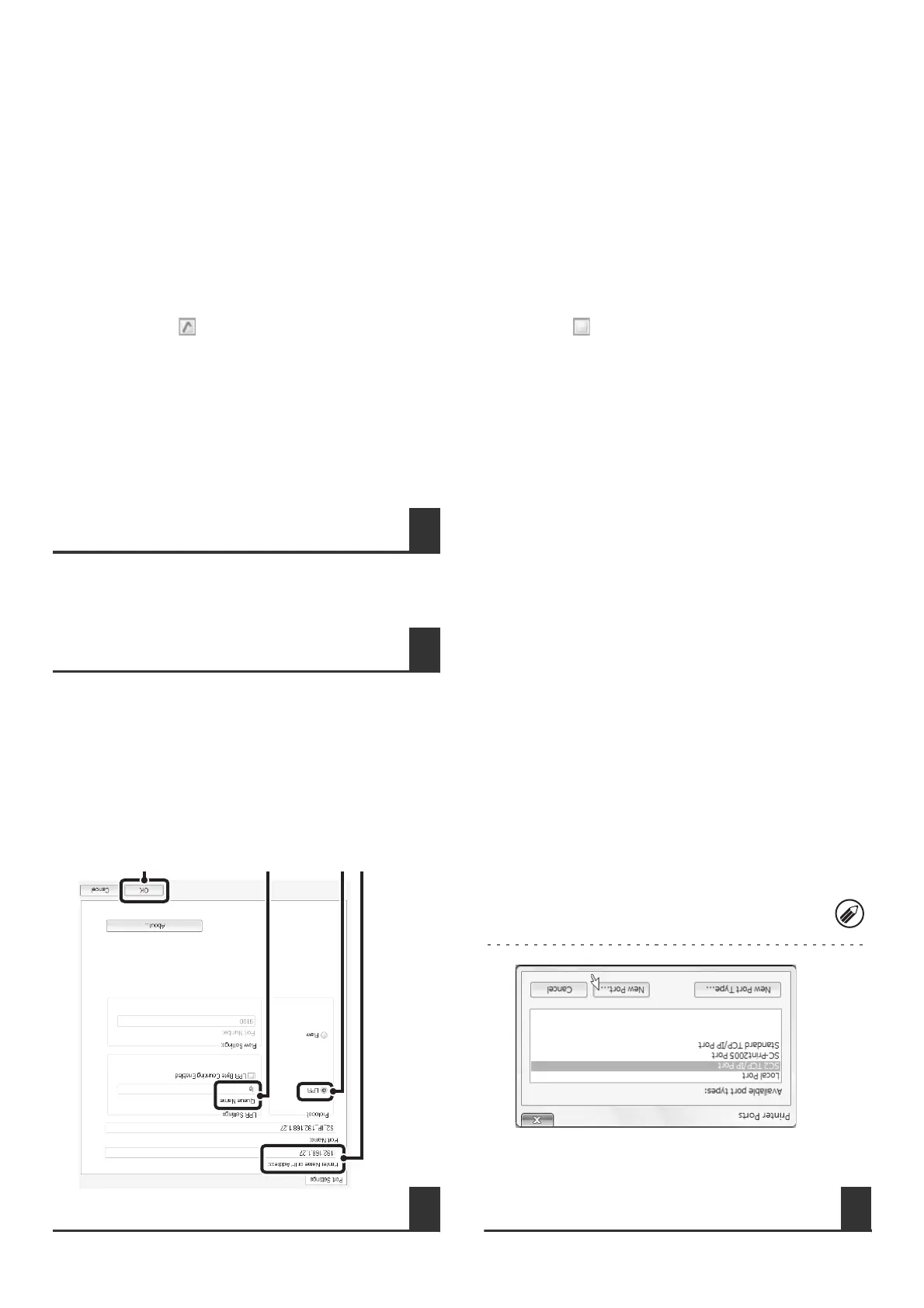
Create the new port.
(1) Enter the machine's IP address.
☞ Checking the IP address of the machine
(page 7)
(2) Make sure that [LPR] is selected.
(3) Make sure that [lp] is entered.
(4) Click the [OK] button.
6
Click the [Close] button in the screen of
step 4.
In Windows 98/Me, this step is not required. Go to the
next step.
7
Make sure the created printer port is
selected in the printer properties
window and then click the [Apply]
button.
X When using a port created with "Standard TCP/IP Port"
When using a port created using "Standard TCP/IP Port" in Windows 2000/XP/Server 2003/Vista, in the screen
that appears after you click the [Configure Port] button in the screen of step 3, make sure the [SNMP Status
Enabled] checkbox is not selected ( ). If the [SNMP Status Enabled] checkbox is selected ( ), it may not be
possible to print correctly.
• The "SC2 TCP/IP Port" is added when the printer
driver is installed using a "Standard installation", or
a "Custom installation" with "LPR Direct Print
(Specify Address/Auto Search)" selected.
• If the printer driver is installed using a "Custom
installation" with "IPP" selected, the [SC-Print2005
Port] is added. If you need to change the printer port
when the machine is connected to an intranet or a
wide area network (WAN) using the IPP function,
select [SC-Print2005 Port], click the [New Port]
button (the [OK] button in Windows 98/Me), and
follow the on-screen instructions to create the port
again.
(4)
(1) (2) (3)



 To Next Page