EasyManua.ls Logo

Sharp PN-Q801 - User Manual

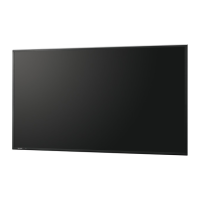
Sharp PN-Q801
97 pages
Print Icon
To Next Page IconTo Next Page
Loading...
>>

Other manuals for Sharp PN-Q801

Questions and Answers

  • T
    Tina OconnorAug 12, 2025
    How to fix a Sharp PN-Q801 with no picture?
    • J
      Jennifer KimAug 12, 2025
      Check if the connection to other components is correct and if the correct input is selected. If you're using a PC, ensure the display output mode is set to external monitor and verify the resolution setting. A non-compatible signal may also be the cause.
  • C
    Carrie RomeroAug 16, 2025
    What to do if my Sharp PN-Q801 Monitor has strange color?
    • M
      Michael OliverAug 16, 2025
      Try adjusting the picture tone. Also, if the room is too bright, the picture may appear dark, affecting the color perception.
  • D
    Diana HansenAug 19, 2025
    What to do if my Sharp PN-Q801 has no power?
    • C
      Christopher YoungAug 19, 2025
      First, ensure that you have pressed the POWER button on the remote control. Then, check if the AC cord is properly connected. Finally, verify that the power switch is turned on.
  • A
    Alisha JohnsonAug 25, 2025
    Why doesn't the remote control for my Sharp PN-Q801 Monitor work?
    • D
      David RobertsAug 25, 2025
      Make sure the batteries are inserted correctly, aligning the + and - polarities. If they are old, replace them with new ones. Strong or fluorescent lighting near the remote control sensor may also interfere with its operation.
  • J
    John CruzAug 27, 2025
    What to do if my Sharp Monitor cannot be operated?
    • C
      Claudia WoodsAug 27, 2025
      External factors like lightning or static electricity might be causing the issue. Turn off the power to the Monitor, or unplug the AC cord, wait for 1 to 2 minutes, and then plug it back in to restore proper operation.
  • M
    Mrs. Crystal DownsAug 31, 2025
    Why does my Sharp PN-Q801 suddenly turn off?
    • D
      Deborah FoxAug 31, 2025
      The sleep timer might be activated. Check the power control settings. Also, if the unit's internal temperature has increased, remove any obstructions blocking the vents or clean them to improve ventilation.
  • T
    Tyler RossSep 4, 2025
    Why is the HD video quality poor on my Sharp PN-Q801?
    • W
      William WardSep 4, 2025
      Ensure you have established an HDMI or component connection to enjoy HD images from external equipment. If the original video source isn't HD, HD images cannot be displayed. Also, the cable/satellite set-top box may need configuration to output HD images.
  • D
    Douglas WagnerSep 7, 2025
    Why is the picture cut off or with a sidebar screen on my Sharp PN-Q801 Monitor?
    • J
      jacksonmeganSep 8, 2025
      Check the image position and screen mode adjustments, such as picture size, to ensure they are set correctly.

Summary

SAFETY PRECAUTIONS

General Safety Precautions

Essential safety guidelines for installing, operating, and cleaning the product.

Child Safety Measures

Precautions to ensure child safety when using the monitor.

Part Names

Monitor (For PN-Q601;701;801 models)

Identifies front, side, and rear parts of the PN-Q601/701/801 monitors.

Remote Control Unit

Details the buttons and functions of the remote control unit.

Introduction

Initial Installation

Guides through the initial setup process, including language and power saving settings.

On-Screen Display Menu

Initial Setup Menu

Covers initial installation steps like language, easy setup, and input settings.

Picture Settings

Adjusts picture quality parameters such as brightness, contrast, and color.

Audio Settings

Customizes sound settings like treble, bass, balance, surround, and auto volume.

Enjoying Photo;Music;Video Playback

Using LINK Operation

Using a PC

Adjusting the PC Image

Fine-tunes PC image position and synchronization for optimal display.

Controlling the Monitor via PC

Manages monitor control using RS-232C or IP network commands.

Using the Internet

Using the Browser

Navigating websites, managing bookmarks, and browsing history.

Appendix

Troubleshooting

Provides solutions for common problems like no power, no sound, or picture issues.

Specifications

Monitor (For PN-Q901 model)

Technical specifications for the PN-Q901 model.

Monitor (For PN-Q801;701;601 models)

Technical specifications for the PN-Q801, PN-Q701, and PN-Q601 models.

Dimensional Drawings

Sharp PN-Q801 Specifications

General IconGeneral
VESA MountYes (600 x 400 mm)
Aspect Ratio16:9
Screen Size80 inches
Resolution3840 x 2160
Brightness350 cd/m²
Contrast Ratio4000:1
Response Time8 ms
ConnectivityHDMI, DisplayPort, DVI-D, VGA
Panel TechnologyLCD
Built-in SpeakersYes
Viewing Angle (H/V)176°/176°

Related product manuals