IP CAMⱘHostˈHttp PortUserPassword
Input the Host ,Http Port, User, Password, Click ,then ,and then to switch
to 4-picture monitoring mode, as following:
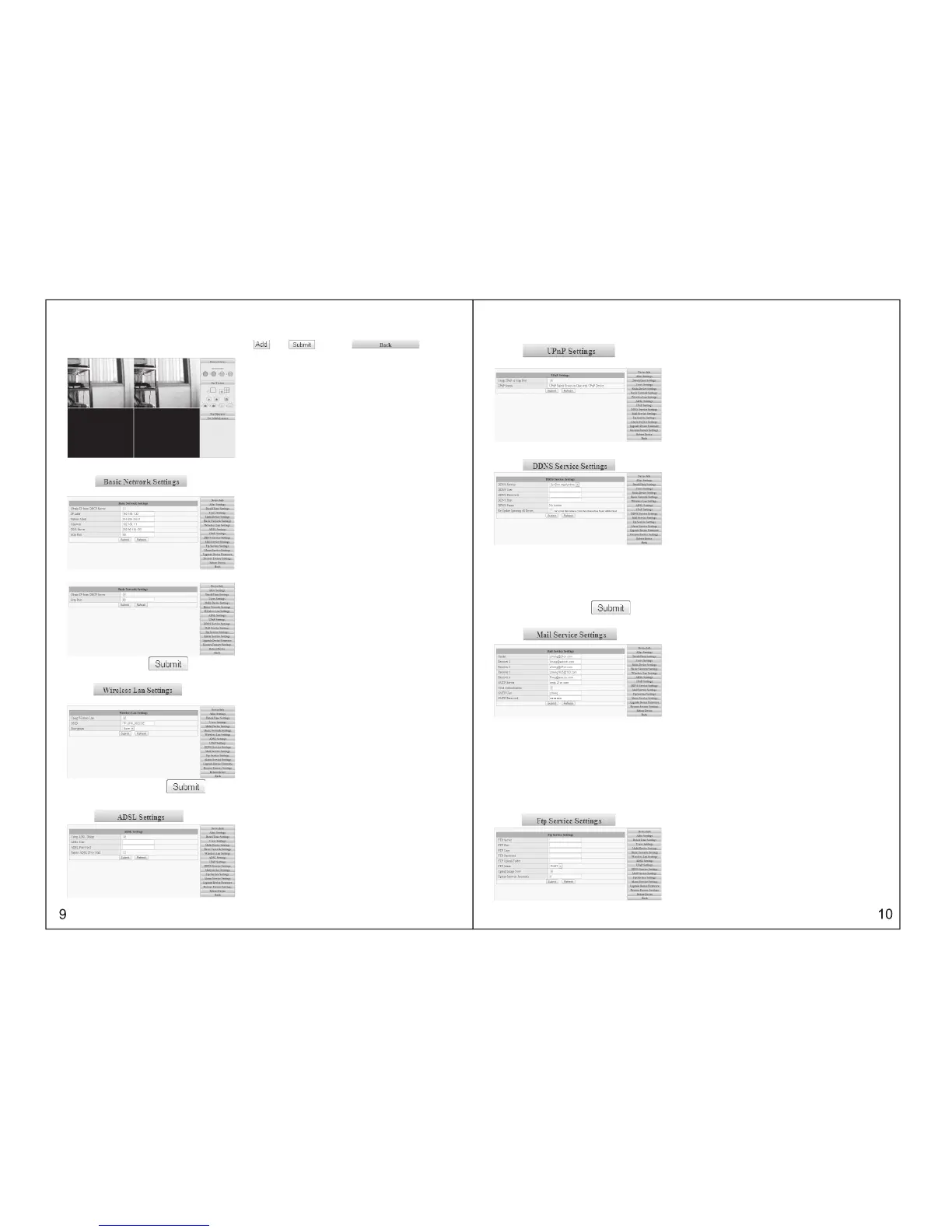
3.5.6 BASIC NETWORK SETTINGS
Click , please refer to the following picture. For example, the IP address of this
device can be set up as follows:
Please set up IP address, subnet mask, gateway, DNS server well. Dynamic IP setting also available
Please choose and click for confirmation.
3.5.7 WIRELESS LAN SETTINGS
Click , please refer to the following picture. If WIFI is required, please set it up
as follows:
Please choose and click for confirmation.
3.5.8 ADSL SETTINGS
Click , please refer to the following picture, with the purpose of connecting ADSL.
3.5.9 UPNP SETTINGS
Click , please refer to the following picture. It is
unnecessary If the router does not have this kind of function.
3.5.10 DYNAMIC DOMAIN NAME SETTINGS
Click , please refer to the following picture:
DDNS Service: Fill in the web address for applying the domain name
DDNS User: Fill in the domain name
DDNS Password: Fill in the password of the domain name
DDNS Domain Name: DDNS domain name will automatically get the IP if connect well.
DDNS Status: Display the status of connecting the domain name
It will be necessary to set up this function if you want to make a visit through Internet.
Please choose and click for confirmation
This is with mail alarm function: if any movement was detected, it will send message to the email box
which we have set up.
Sender: Fill in the e-mail address of senders
Receiver: Fill in the e-mail address of the receiver ( 4 receivers’ e-mails can be set up
synchronously
SMTP Server: Fill in the server address of the sender’s e-mail
SMTP User : Fill in the user name of the sender’s e-mail
SMTP Password: Fill in the password of the sender’s e-mail
This function can be effected only if the camera has been connected to Internet; It is necessary that the
newly-revised password will be same as the e-mail password .
3.5.11 MAIL SERVICE SETTINGS
Click , please refer to the following picture:
3.5.12 FTP Service Settings
Click , please refer to the following picture:



 To Next Page