13
Quick Start Guide - AccessoriesPart I
12
ShiCam Warranty
We oer a 2-Year Warranty that covers
your products from any manufacturing
aws or defects.
Warranty does not cover damages from
accidents or misuse.
2 Simple Steps to Get Your ProGrip
Covered:
Safety Instrucons
Charging ProGrip
To charge ProGrip:
Wireless Charging
Turn on wireless charging funcon:
Turn o wireless charging funcon:
USB-C Charging
To access USB-C charging funcon:
Baery and Power
Baery Specicaons
Keep away from moisture and
liquids. If ProGrip has been exposed
Baery: 18650 Lithium Ion Baery
Cell x2 pcs
Capacity: 3.65V / 6400mAh / 23.36Wh
Total power output: 20W Max
USB-C In: PD 18W Max, DC9V/2A,
5V/3A
USB-C Out: PD 20W Max,
DC12V/1.5A, 9V/2.22A, 5V/3A (Max)
Wireless Charging: 15W Max,
5W(DC5V/1A), 7.5W(DC9V/0.85A)
10W(DC9V/1.12A), 15W(9V/1.65A)
Connect the USB-C cable included
in the packaging to a power adapter
plugged into a power outlet
Insert the USB-C cable to the USB-C
port on the boom of ProGrip
Scan the QR code and complete the
warranty registraon process.
In case of service required, please
reach out to cs@shicam.com and
send this warranty card along with
your ProGrip back to us. We will get
it xed.
Press the Charging Buon
A green LED light indicates the
wireless charging funcon has been
acvated and entered into auto-
detecon mode
Aach your smartphone onto
ProGrip securely, while aligning your
smartphone centered to the wireless
charging plate
ProGrip will auto-detect your
smartphone once it is in place and
begin charging. If fast charge mode
is on, a red LED light will turn on
simultaneously
Please double check your
smartphone’s baery indicator to
ensure it is acvely charging
Double-press the Charging Buon
Green LED light will turn o,
indicang that wireless charging
funcon has been turned o
Connect your accessory or
smartphone to ProGrip using the
USB-C cable
Plug in cable to USB-C port on
ProGrip on one end, and connect
the other end to your accessory or
smartphone’s power port
White LED lights will turn on,
indicang that charging is acve
Please double check your smartphone
or accessory’s baery indicatory to
ensure it is acvely charging
1)
2)
1)
2)
1)
2)
3)
4)
5)
1)
2)
1)
2)
3)
4)
Note: The wireless charging funcon
only works with smartphones that
support wireless charging. Wireless
charging may not work if you have
a case that is (a) too thick, (b) has a
magnet or metal, or (c) has built in
charging funcon. If so, please remove
the phone case before charging.
to liquids, dry immediately with dry
cloth or ssue
Do not open, remove, crush,
puncture, or short-circuit ProGrip
Do not use if visible defects are
observed on ProGrip. Do not
aempt to service or disassemble
Using ProGrip for long periods of
me will result in producon of heat
radiang from the device. It is a
normal condion. If you believe your
ProGrip may be overly heated please
turn o the device immediately
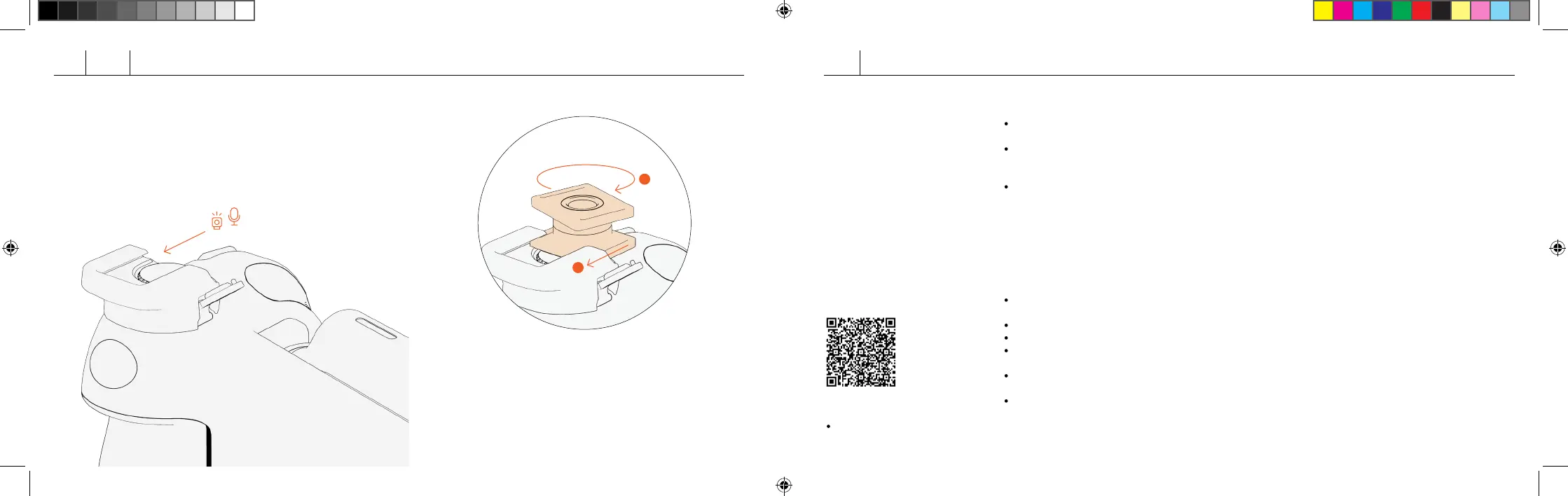
User Manual
Cold Shoe Mount Adapter
If you want to adjust the angle the
accessories face, add-on the rotatable
Cold Shoe Mount Adapter.
Slide and aach accessories of
your choice.
ShiftCam - Getting Started draft 08.indd 12-13
ShiftCam - Getting Started draft 08.indd 12-13
3/8/2022 6:46 PM


 To Next Page
 Loading...