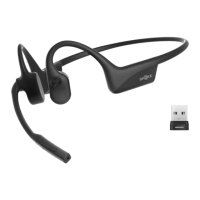
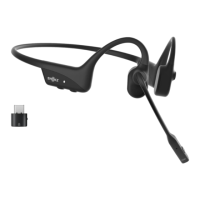
userguide.shokz.net/opencomm2uc
Please refer to the following
for more details
Click once
Answer call
Click once
Play/pause music
Click once
End call
Double-click while music is playing
Next song
*Position the noise-canceling microphone close to your mouth.
1. Start with your headset turned on.
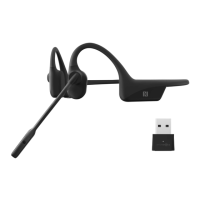
2. Plug the included USB adapter into a USB port on your PC.
3. Connection is established when Audrey says "connected",
and the LED Indicator on the USB adapter is solid blue.
Shokz Loop110
Connected
SELECT THE SOUND DEVICE:
*To play music or take calls on the headset, please ensure the “Shokz Loop110”
is both identified as the default input and output devices in your operating system’s
audio settings.
7.Reconnect to the last
connected headset :
LED:Flashes blue every second
Click once
Volume- Button
Power/Volume+ Button
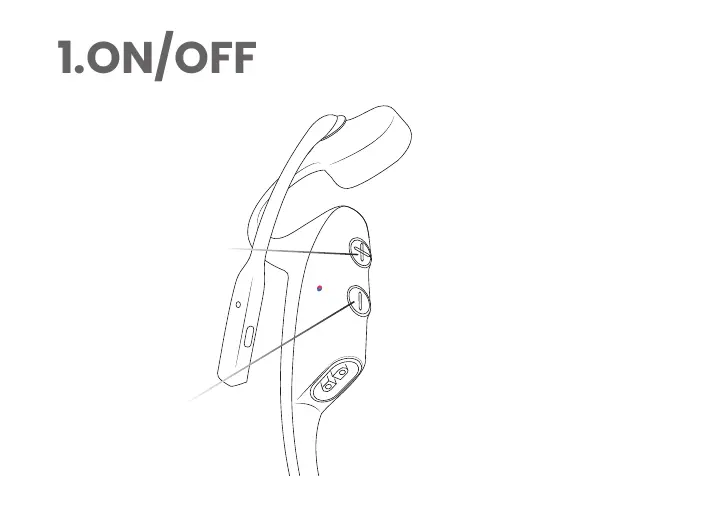
Turn off the headset
Turn on the headset
Press and hold the
Power/Volume+ Button for
2 seconds until the LED
Indicator flashes blue.
Press and hold the
Power/Volume+ Button for
3 seconds until the LED
Indicator flashes red.
Operate controls with your headset powered off.
1. Start with your headset turned
off.
2. Press and
hold the Volume+ Button until the LED
Indicator
flashes red and blue alternately.
2.Pairing to Mobile Device
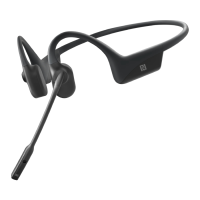
OpenComm2 UC by Shokz
Settings
BLUETOOTH
3. Select "OpenComm2 UC by Shokz" on your device's Bluetooth settings.
Audrey will say, "connected".
3.Pairing to Mobile Device
User Guide
C110
8000500222(A0)
Multifunction Button
Loop110
USB-C
Loop110
USB-A
Multifunction Button
Loop110
USB-C
Loop110
USB-A
Mute/unmute microphone
Click once when on a call
Triple-click while music is playing
Previous song


 To Next Page