EasyManua.ls Logo

Shuttle Omninas KD21 - Page 7

Shuttle Omninas KD21
9 pages
Print Icon
To Next Page IconTo Next Page
To Previous Page IconTo Previous Page
Loading...
Product
Specifications
Page
7
|
28
August
2013
Mena Computers
Wageningselaan 46 -A
3903 LA Veenendaal
|
The Netherlands
Tel
.
+31 (0) 318 518 720
sales@shuttleshop.nl
w w w . s h u t t l e s h o p . nl
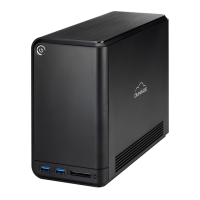
LED
Indic
a
tors
Status
LED:
dual colour (access/error: blue/red), can be turned
off
HDD1/HDD2
LEDs:
dual
colou
r
(access/error: blue/red)
USB
3.0
LED:
single
colour (access:
blue)
Card reader
LED:
single
colour (access: blue)
LAN
speed
LED
(10/100
Mbps:
green,
1000 Mbps:
orange)
LAN
Activity
LED
(access/link:
blinking
green)
CPU, RAM
and
OS
Processor:
Marvell
88F6707
1.0 GHz,
ARMv7
compliant
SOC
DRAM
memory
size: 512
MB
DDR3
Operating
system:
Embedded
Linux
Power
Adapter
External 65 W AC/DC
power adapter
(fan
le
ss)
Input
voltage: 100~240
V
AC,
50~60
Hz
Automatic
AC
voltage
adj
ustmen
t
Input
current:
max. 1.6
A
(1.0
A)
for 100
V
(
240
V)
input
v
o
ltage
Output:
19
V
DC, max. 3.42
A
DC
Connector: 5.5/2.5
mm
(
o
uter/in
n
e
r
diameter)
Dimensions:
108 mm x 30 mm x 46.5 mm (without
cable)
Cooling
fan
and
tempera-
ture
co
ntro
l
Ultra-quiet 70 mm
cooling
fan.
By
default
the fan is not
activated under normal temperature
con
dition
s
.
The followin
g
criteria depicts
the system fan
behavior dependend
on
the
internal hard
disks
temperature:
up to 54
°
C
:
fan is off
55~61
°C: fan is
o
n
62 °C
and above:
system shuts
down
The System also shuts
down
when the system
temperature exceeds
65 °C. [2]
Note: the fan
can be
set to
non-stop operating mode,
if
desired
Accessories
Quick
Installation
Guide
AC Power
adapter
(65
W)
with AC
power cord
(plug
depend
s on
region
)
Ethernet cable, ca.
150
cm
Driver CDROM with
NAS
finder software
(Windows &
M
a
c)
and
documentation
DVD
with Acronis True
Image Personal Backup
Software
Screws for
hard
disk
i
n
stallati
on
Fun
c
tionality
Web
User
Interface
W
eb
User
Interface
The
device settings are made through
a
web browser
on
a computer,
which is
connected
to the
same local subnet.
Many
languages are supported: e.g.
E
n
glish
,
German,
Fre
n
ch,
Spanish,
Italian, Dutch,
Da
n
i
sh,
Chinese, Japanese.
The
OMNINAS
W
e
b
Interface
is
particularly
user friendly
thanks
to its simple
structure.
Th
e
OMNINAS
Wizard is your
guide
du
r
i
n
g
the
in
i
t
ial
setu
p.
Finder
Software
The
OMNINAS
Finder Softwar
e
Tool is
used
to
detect
the
OMNINAS
system in the
lo
cal
n
e
twork (within the
same subnet).
It
can
start the
W
e
b
User
Interface
in your
default
browser and can map/unmap
the
internal and external storages
of the
OMNINAS
to
a
drive letter of your
P
C.

Other manuals for Shuttle Omninas KD21

Related product manuals