-19-
Follow the instructions to reconnect,:
1. Check if you applied the Sensor properly. If no, refer to 3.1 Applying Your Sensor
to learn how to apply the Sensor, and re-connect your phone and Sensor. If the
problem persists, proceed to the next steps.
2. Check if the Bluetooth is turned on in the phone settings. Follow the prompts on
the App to turn on Bluetooth and restore communication with the Sensor.
3. Check if the distance is beyond 6 meters (20 feet) between the phone and Sensor.
If yes, keep the phone within 6 meters (20 feet) of the Sensor.
4. Check if there is another phone connected to the sensor (the sensor cannot be
connected to more than one device at the same time). If so, turn off the Bluetooth
of the original phone before connecting to the new phone.
5. Try restarting the phone and connecting to the sensor again.
6. Check if any event mentioned in section 1.8 System Safety Statements occurred.
Note:
If the problem still persists, contact our Customer Service at support@sibionics.com.
When the Sensor has completed the warm-up and restores
communication, all the recorded glucose data will be
communicated to the phone. After that, the current glucose level
continues to be updated every 5 minutes and displayed on the
phone until the end of the 14-day wear period.
Daily Use
Monitoring
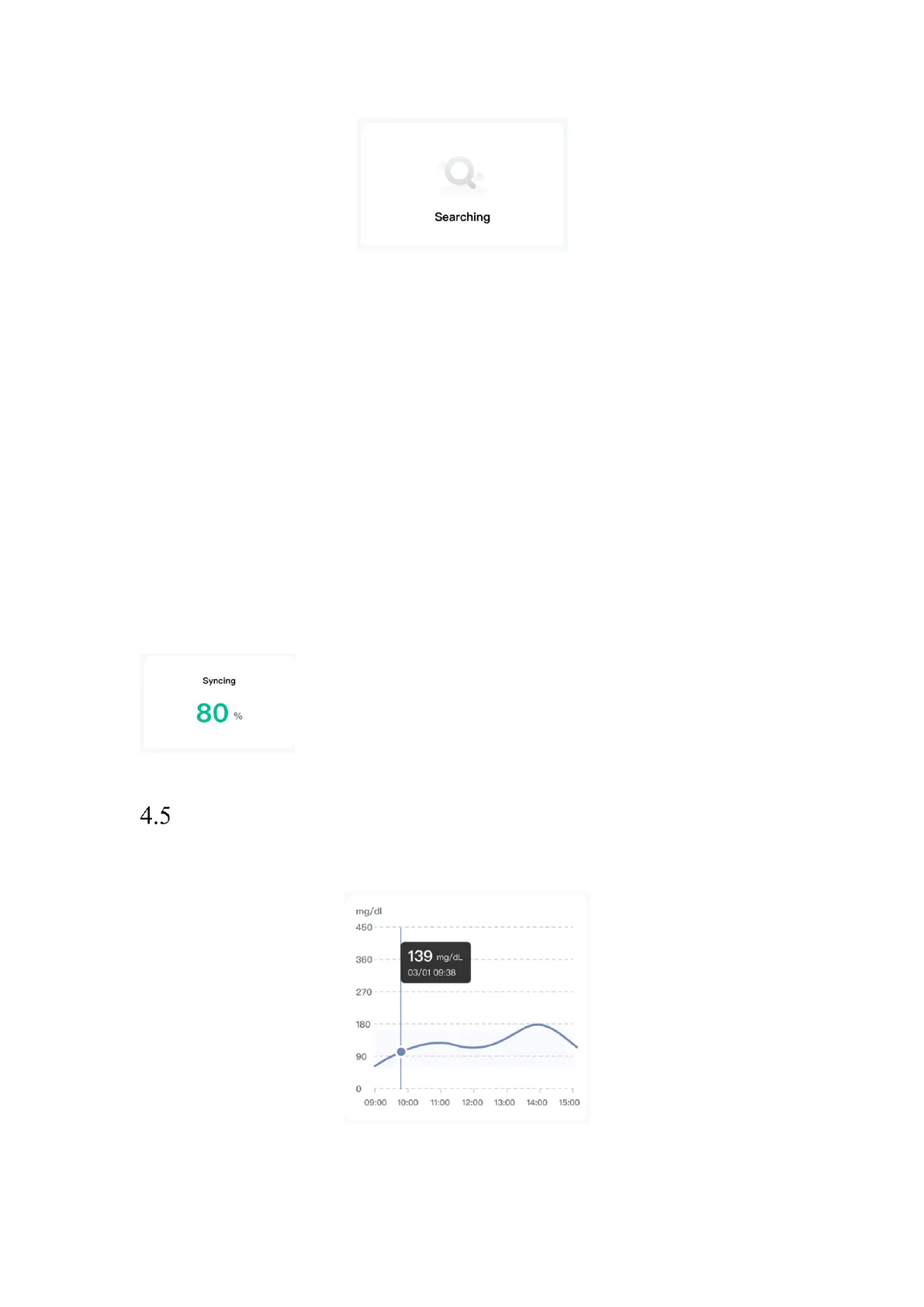
The following figure shows the glucose trending graph of the App.
NOTES:
• The graph displays the sensor glucose readings above 450 mg/dL at 450 mg/dL.


 To Next Page
 Loading...