-21-
Avoid forcing the App to close. To receive alarms, the App needs to be
operating in the background.
Turn the Override Do Not Disturb setting in the App ON for Urgent
Low Glucose, Low Glucose, High Glucose, and Signal Loss Alarms to
make sure you receive audible alarms if do not disturb or silent media
volume of your device is ON.
You must grant permission to the Do Not Disturb feature to use the
Override Do Not Disturb feature.
For iOS: You must accept the App's permission request for Critical
Alerts to use this feature. You can also enable the Critical Alerts
setting directly from the App's notification settings.
For Android: You must accept the App's permission request for Do
Not Disturb access permission to use this feature. You can also
enable the Do Not Disturb access setting directly from the App's
notification settings.
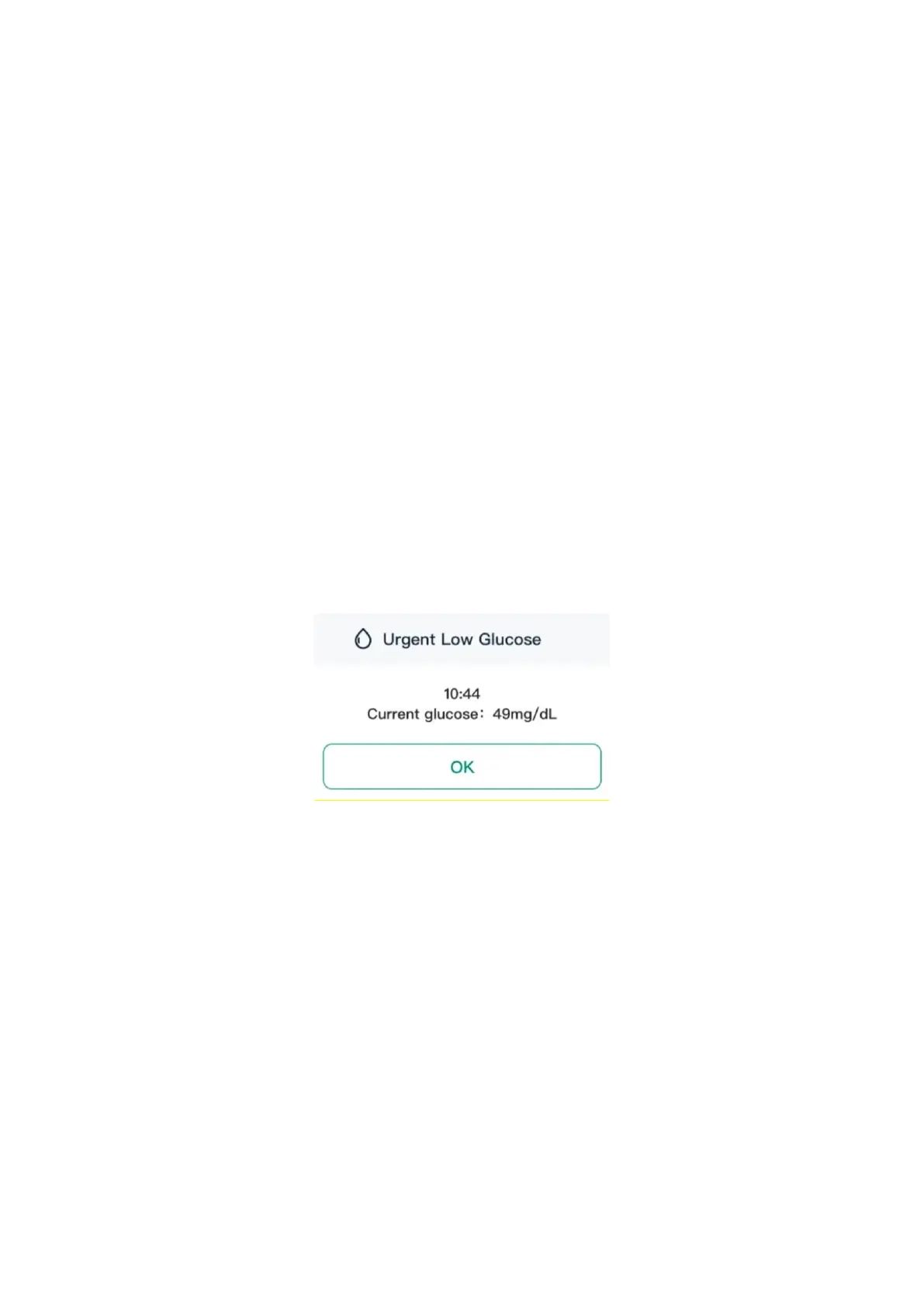
1. Urgent Low Glucose Alarm:
Tells you when your GS1 reading is at 55 mg/dL or below within 30 minutes. Tap
OK to acknowledge this alarm.
You can customize this alarm:
1. Tap Profile > Alarm Settings > Urgent Low Glucose Alarm.
2. Choose either Sound or Vibration & Sound for the alarm style.
3. Choose the sound for this alarm. Volume will match your device settings.
4. Tap Done to save the settings.


 To Next Page
 Loading...