G
-e
fon
of
your SideWinder Force
Feedb
t
y,
our
a11'
d the installa I
ack
2
~r
.
.
5
1
You'Ve
e
me
action!
congratulat1o_n
~ow
readY
tor
so
odify the settings
on
your
game
·s conr
Your
joyst1ck
is
you
maY
need
toS'.'1deWinder
joystick. For example,
if
Your
igura.
ur
game,
f your
1
, · g
choos
th
game
ding
on
yo
dvantage
o t ller you re usin , e e Sidew·
Depen
take
full a f game
con
ro
1nder
tion
screen
to
hoose
which
type
o
allows
you
to
\ 2
Force
Feedbac
.
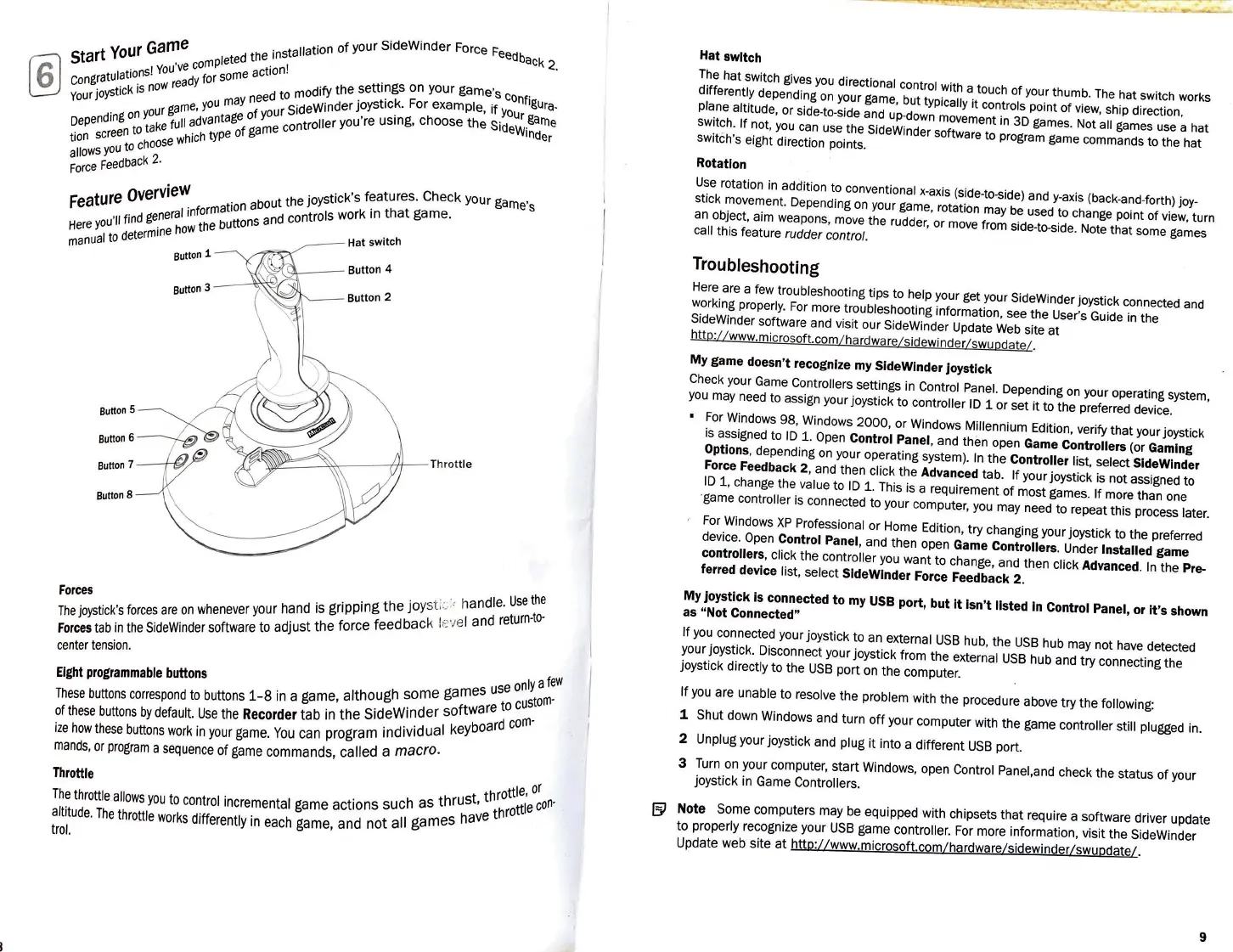
QvervieW
. t the joystick's features.
Check
your game·s
Feature
I
informat1on
abou trols work in
that
game
.
u'II
find
genera
h buttons and con
Here
yo
d
termine
hoW
t e
Hai
switch
manual
to
e
'-<\----
Button 4
sutton
3
Button
7
--/7Si'1/
~~~".'.'.'.'.::.:'~;-----(jj--
Thrott
le
Button
8
Forces
. ri
in
the
joy
st
:,;,
handle.
Use
the
The
joystick's
forces
are
on
whenever your hand is g
pp
edbac
k leve I and
return-to-
Forces
tab
in
the
SideWinder
software to adJust
the
force
e
center
tension
.
Elght
programmable
buttons
es
use
only
a
few
·
lthough
some
gam
tom
-
These
buttons
correspond
to
buttons
1-8
in a game, a
ftware
to
cus
ofthese
buttons
by
default.
Use
the
Recorder
tab
in
the
Sid
_
eWi
nd
~:
1
s~eyboard
corn-
ize
how
these
buttons
work
in
your game.
You
can
program
ind1vid
mands,
or
program
a sequence of game
commands
,
called
a
macro
.
Throttle
hrottle,
or
. • h s
th
rust,
t
con·
The
throttle
allows
you
to
control incrementai
game
act1ons
sue
a e throttle
altitude.
The
throttle
works
differently
in
each game,
and
not
all
games
haV
trol.
Hat
swltch
The
hat switch gives
you
directlonal control with a touch of your thumb.
The
hat switch works
d1fferenUy
depending
on
your game, but typically it controls point of
view,
ship direction,
piane alt1tude, or side-to-side and up-down movement
in
3D
games. Not all games use a hat
sw1tch.
lf
not,
you
can
use
the SideWinder software to program game commands to the hat
switch's eight directi
on
points.
Rotatlon
Use
rotation
in
addition to conventional x-axis (side-to-side) and y-axis (back-and-forth) joy-
stick movement. Depending
on
your game, rotation
may
be
used to change point of view, turn
an
object, aim weapons, move the rudder, or move from side-to-side. Note that some games
cali this feature rudder contrai.
Troubleshooting
Here are a few troubleshooting tips to help your get your SideWinder joystick connected and
working properly.
For
more troubleshooting information, see the User's Guide
in
the
SideWinder software and visit our SideWinder Update
Web
site at
h
ttp://
www.mic
ro
s
of
t.
com/ hardwar
e/s
idewi
nd
er
/s
wupd at
e/
.
My
game
doesn't
recognlze
my
SldeWlnder
Joystlck
Check your
Game
Controllers settings
in
Control Panel. Depending
on
your operating system ,
you
may
need to assign your joystick to controller
ID
1 or set
it
to the preferred device.
•
For
Windows 98, Windows
2000
, or Windows Millennium Edition, verify
that
your joystick
is assigned to
ID
1.
Open
Contro!
Panel,
and then open
Game
Controllers
(or
Gamlng
Options,
depending
on
your operating system).
In
the
Controller
list, select
SldeWlnder
Force
Feedback
2, and then click the
Advanced
tab.
lf
your joystick is not assigned to
ID
1, change the value to
ID
1. This is a requirement
of
most games.
lf
more than one
·game controller is connected to your computer,
you
may need to repeat this process later.
For
Windows
XP
Professional or Home Edition, try changing your joystick to the preferred
device.
Open
Contro!
Panel,
and then open
Game
Controllers.
Under lnstalled
game
controllers,
click the controller
you
want
to
change, and then click
Advanced.
In
the
Pre-
ferred
devlce
list, select
SldeWlnder
Force
Feedback 2.
My
Joystlck
1s
connected
to
my
USB
port,
but
lt lsn't llsted
In
Contro!
Panel,
or
lt's
shown
as
"Not
Connected"
lf
you
connected your joystick to an external
USB
hub, the
USB
hub may not have detected
your joystick. Disconnect your joystick from the external
USB
hub and try connecting the
joystick directly to the
USB
port
on
the computer.
lf
you
are unable to resolve the problem with the procedure above try the following:
1 Shut down Windows and turn
off
your computer with the game controller stili plugged
in
.
2 Unplug your joystick and plug
it
into a different
USB
port.
3 Turn
on
your computer,
start
Windows, open Contrai Panel,and check the status of your
joystick in Game Controllers.
1§1
Note
Some computers may be equipped with chipsets that require a software driver update
to properly recognize your
USB
game controller.
For
more information, visit the SideWinder
Update web site
at
http:
//www
.microsoft.com/hardware/sidewinder/swupdate/.
9



 To Next Page
 Loading...