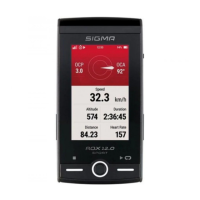
The following table describes which user data you can set on the ROX 12.1 EVO and what influence these
settings have on the use of the device and its data. To set the user information, select Settings › User.
If you want to completely reset your ROX 12.1 EVO, you can do so here.
ATTENTION: All data will be irrevocably deleted! The installed maps, remain thereby!
NOTE: If your ROX 12.1 EVO is connected to the RIDE app, you must pair your ROX 12.1 EVO again.
Once your ROX 12.1 EVO is reconnected to the RIDE app, all sport profiles, settings, favorite tracks and
workouts will automatically be played back on your ROX.
Activities will NOT be transferred back to the ROX 12.1 EVO.
To establish the connection to the smartphone, make sure that Bluetooth is switched on on your
smartphone. You must download the SIGMA RIDE app from the respective app store (iOS or Android). If
these two requirements are met, select the menu item Connect RIDE App in the ROX 12.1 EVO under
Settings<Connections. The ROX 12.1 EVO will automatically search for the SIGMA RIDE app. For the
further process, please follow the instructions in the SIGMA RIDE App.
The SIGMA RIDE app will ask you for various permissions, including location sharing. Agree to these
authorization requests to ensure optimal functioning of the SIGMA RIDE app. If you have successfully
connected the smartphone, you can see which smartphone has been connected to the device in the
Connect RIDE app menu item, as well as unpair the smartphone. Please note that the ROX 12.1 EVO can
only communicate with ONE smartphone.
The easiest way to search for sensors is to use the “Search all” function. Here you only have to make sure
that the sensor is active. As soon as this is the case, it will be listed in the sensor search list. You have the
USER
FACTORY SETTINGS
SET CONNECTIONS
SIGMA RIDE APP
CONNECTION TO SENSORS



 To Next Page
 Loading...