SilverHT GetWireless BT Keyboard
54321
EN/ Tech specs
Step 1: turn on the keyboard holding the multifunction button (5) pressed
for approximately 3 seconds until the blue led (4) stops flashing. Once
turned off, click the multifunction button (5) shortly two times and the blue
led (2) will start flashing.
Step 2: turn on the Bluetooth function that you will find in the top menu with
shortcuts or entering in settings -> connections -> bluetooth of your
smartphone / tablet.
Step 3: the name Silver HT Bluetooth Keyboard will appear on your
smartphone / tablet, press and wait for it to get paired (press OK)
Step 4: to turn off your Silver HT keyboard, press and hold the multifunction
button (5) for approximately 3 seconds, the blue led (4) will start flashing
and the keyboard will turn off.
Connectivity
-Bluetooth: class II, 3.0
-Range: 10 m
-Operating frequencies: 2.4 GHz
Battery
-Capacity: 150 mAh / 3.7 V
-Type: Li-Po
-Battery life: 55 h
-Charging port: Micro USB
-Charging time: 2 hours
Other features
-Compatible with Android, Windows
and iOS devices
-Size: 185 x 205 x 8.5 mm
-1 micro USB charging cable
included
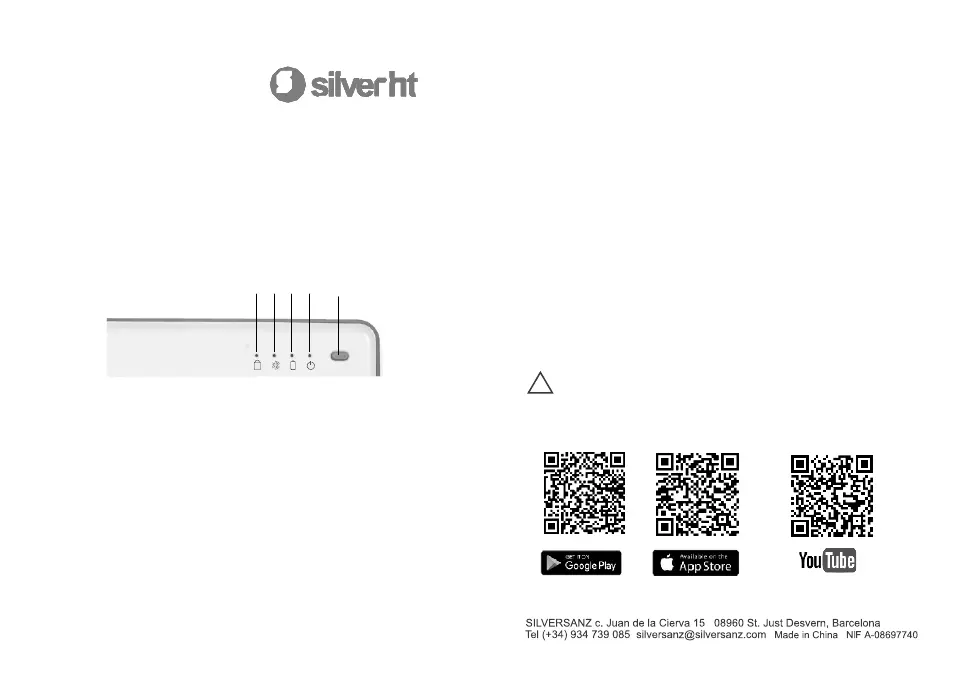
1.Caps Button
2.Bluetooth LED status
3.Charging status
4.On/Off status
5.Multifunction button
Buttons and indicators
How to pair your Silver HT Keyboard
with your smartphone or tablet.
GetWireless
A
54321
EN/ Tech specs
Step 1: turn on the keyboard holding the multifunction button (5) pressed
for approximately 3 seconds until the blue led (4) stops flashing. Once
turned off, click the multifunction button (5) shortly two times and the blue
led (2) will start flashing.
Step 2: turn on the Bluetooth function that you will find in the top menu with
shortcuts or entering in settings -> connections -> bluetooth of your
smartphone / tablet.
Step 3: the name Silver HT Bluetooth Keyboard will appear on your
smartphone / tablet, press and wait for it to get paired (press OK)
Step 4: to turn off your Silver HT keyboard, press and hold the multifunction
button (5) for approximately 3 seconds, the blue led (4) will start flashing
and the keyboard will turn off.
Connectivity
-Bluetooth: class II, 3.0
-Range: 10 m
-Operating frequencies: 2.4 GHz
Battery
-Capacity: 150 mAh / 3.7 V
-Type: Li-Po
-Battery life: 55 h
-Charging port: Micro USB
-Charging time: 2 hours
Other features
-Compatible with Android, Windows
and iOS devices
-Size: 185 x 205 x 8.5 mm
-1 micro USB charging cable
included
1.Caps Button
2.Bluetooth LED status
3.Charging status
4.On/Off status
5.Multifunction button
Buttons and indicators
How to pair your Silver HT Keyboard
with your smartphone or tablet.
GetWireless
A
silverht.com
!
SilverHt
Set keyboard language (Android)
-On-screen keyboard
Settings -> General administration -> Language and input -> Language -> English
* If you have several languages, the first one will be the one used as default
-Silver HT Physical Keyboard
Once paired with your Android device, go to Settings -> General administration ->
Language and input -> Physical keyboard -> English
Set keyboard language (iOS)
-On-screen keyboard
Settings> General> Keyboard> Keyboards
-Silver HT Physical Keyboard
Once paired with your iPhone, iPad or iPod touch, go to Settings> General> Physical
keyboard and select English
If the problems persist after following the
recommendations above, download and install
the GBOARD (OFFICIAL APP FROM GOOGLE)
App for Android and iOS
F.A.Q
For further information
about the working of our
products, please visit our
website www.silverht.com
and our youtube channel.


 To Previous Page
 Loading...