Section 1 (continued):
How it works
(“Select Disable”)
It’s not uncommon that rooms using
the Staff Check feature also have motion
sensors in them. Select Disable is a part
of the Staff Check feature that disables
clearable alarms, such as a motion sensor,
in a room when a staff member presses the
Staff Check button.
This prevents unnecessary alarms from
appearing on your consoles and pagers
whenever a staff member performs
routine checks.
With Select Disable turned on
(configured at installation), whenever
a staff member presses the Staff Check
button within a room, a message
appears on your desk console that reads
“Staff In Room” for that room. This
tells your staff that all clearable alarms
— usually motion sensors — have
been disabled for a brief period while
someone is in the room.
When finished, your staff member
simply presses the Staff Check button
again to re-enable alarms. If that
person forgets to press the button
to re-enable alarms, the system will
automatically re-enable them after
a pre-configured amount of time—
usually 5 to 10 minutes.
Section 2:
Performing
Staff Checks
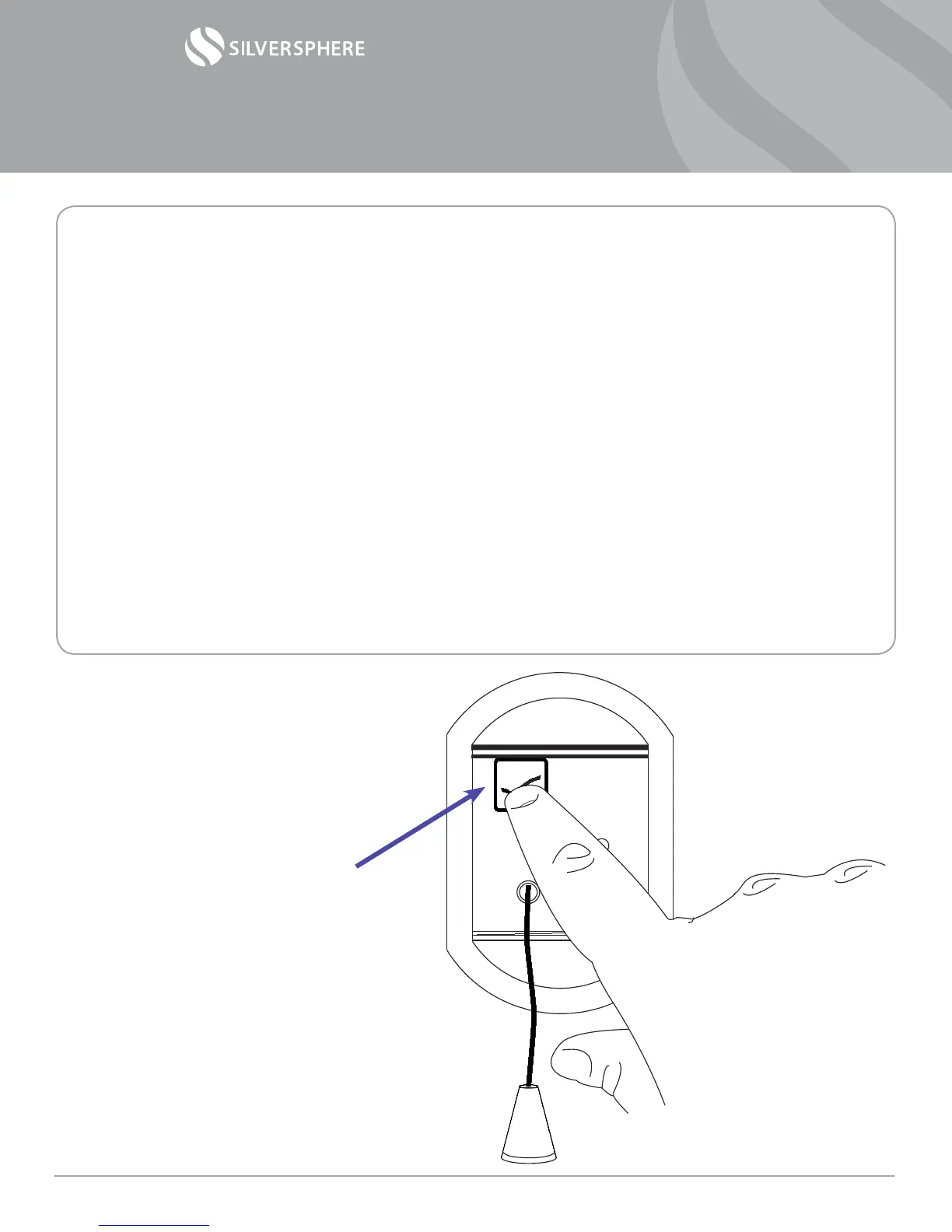
1) During your rounds, go
to the resident’s room and
press the check mark on the
Silversphere wireless device.
Operational Manual— Staff Check w/ Select Disable
©2014 Silversphere - Doc.SCSD.0214
Page 2



 To Next Page
 Loading...