Step 2
Once LED indicator light is blinking rapidly,
select “Confirm light blinks rapidly” to
continue.
Step 3
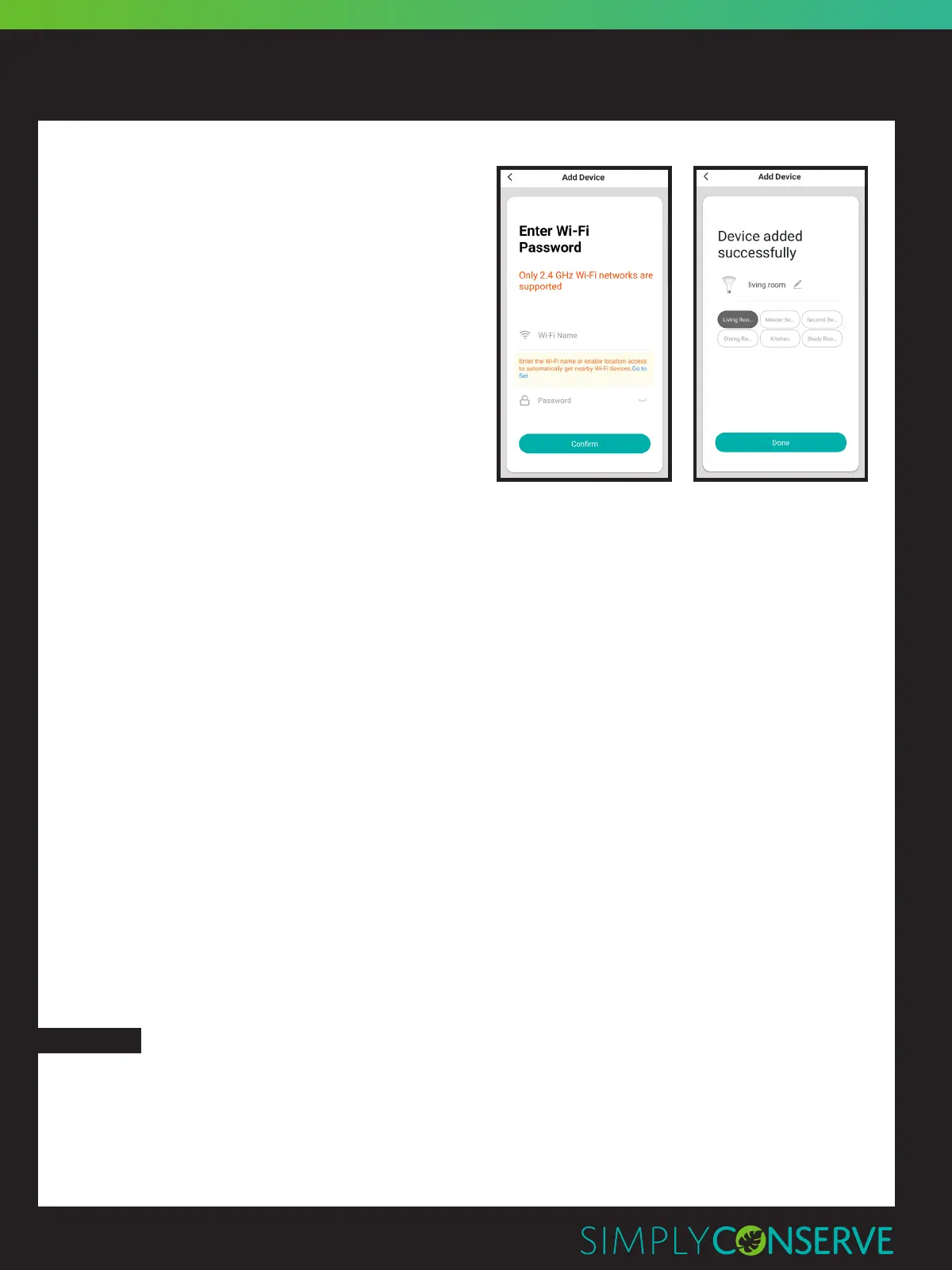
Select your Wi-Fi network and enter the
password. When finished, select “OK.”
For best functionality, maintain a strong
Wi-Fi signal by keeping device and router
within range.
In the process of connecting, the flashing
light will change from flashing to steady. Once
the socket has connected, “Device added
successfully” will appear on app screen. If
adding more than one socket at the same time,
wait for the others to confirm as successfully added after a few seconds.
Pairing with AP Mode
Step 1
Ensure LED indicator light is flashing.
Step 2
After tapping “Add device” and selecting your socket, tap “AP Mode” in the top right corner.
Connect to device hotspot and then Wi-Fi.
Step3
Tap “Next” to add device.
You can rename the socket and share it with family members registered to the Simply
Conserve™ app using the mobile number they registered. This will allow them to control the
plugged-in devices from their phone.
Note: Mobile number must be entered exactly as typed for registration.
CONTROL YOUR DEVICES
You can control your devices in several ways – including clicking on a socket to turn on or
off, setting schedules for your sockets, sharing sockets with other household members, and
grouping sockets to reflect the same settings.
SMART HOME USER GUIDE
SMART SOCKET
STEP 5
Page 3



 To Next Page