EasyManua.ls Logo

sky viper 01601 - User Manual

sky viper 01601
4 pages
Print Icon
To Next Page IconTo Next Page
Loading...
1 2
3 4
POWERING UP AND PAIRING (WITH ALTITUDE ON)
TOGGLE INTO MANUAL FLIGHT WHILE IN AUTO-HOVER
Hold stunt button and press auto land/auto launch button
and a tone will sound from the remote. Make sure your
throttle stick is in the down position.
After the tone is heard, move the throttle stick up until
the drone starts to rise. (If throttle is not matched in
5 seconds then manual flight will be cancelled.)
TOGGLE INTO AUTO HOVER WHILE IN MANUAL FLIGHT
Press either the up or down altitude locking button to
toggle back into auto hover. (Your drone will hover at the
current throttle speed.)
TOGGLE INTO MANUAL FLIGHT BEFORE TAKE-OFF
Hold stunt button and press auto land/auto launch button
and a tone will sound from the remote. Make sure your
throttle stick is in the down position.
Push the throttle stick up to begin manual flight.
When launching the drone, face the same
direction as the drone. Green blades and green
LEDs should be in front.
If your drone drifts in any direction when you are
hovering, you will need to make Trim
adjustments to correct the driving. Trim
adjustments are sometimes needed when the
drone is first flown after purchase. See TRIM
ADJUSTMENTS section for details.
Practice launching, hovering and landing before
attempting to learn other moves.
Flying 2 to 3 feet above the ground will reduce
ground turbulence and make flying easier.
When first attempting to fly in different
directions, start by tapping the direction stick
until you have a feel for it. Always move controls
slowly until you become comfortable operating
the drone.
Once you’ve mastered flying in directions,
practice rotational controls. Spinning and
keeping drone facing the same direction as you
makes flying easier and more intuitive.
Stay 2 to 3 feet away from walls and ceilings
as drone will be drawn towards them if you fly
too close.
If propeller blades come in contact with
another object or you crash, throttle down or
auto land immediately to prevent possible or
further damage.
If anything prevents drone’s blades from
spinning or they become jammed, throttle
down or auto land immediately. Do not attempt
to fly until obstruction has been removed and
damage fixed.
Should something prevent drone’s blades from
spinning, drone may auto shutdown. LiPo
battery will need to be unplugged then
reconnected to restore flying power.
If the drone flies too far away, beyond the
control range of the remote, the drone will
auto-land to prevent the drone from flying away
out of control.
FLYING GUIDE
STREAMING VIDEO DRONE
Press Auto Launch to launch a few feet off the ground.
Use the directional Thumbstick to fly in any direction.
Press the Altitude button to fly approximately 12” higher or lower.
Press the Auto Land button to land.
Connect battery wires on bottom of drone. Place drone on flat surface. Turn on remote. Wait for flashing green light to turn solid.
Online Video
Instructions & Flying
Tips available now at
SKYVIPER.COM
FLIGHT CONTROLS
FLYING BASICS
FLYING TIPS
DIRECTION STICK
Push the direction stick forward to fly forward or
away from you (Green blade in front). Push
backwards to fly backward. The further you push,
the faster the drone will fly in that direction.
Push the direction stick left to fly left. Push right
to fly right. The further you push, the faster
the drone will fly sideways.
ALTITUDE BUTTONS
Press the up or down arrow to adjust
the drone’s altitude. The drone will lift
or lower approximately 12” each time
the up or down arrow is pressed.
(Distance may vary.)
Hold the up or down buttons for
continuous lift or descent.
AUTO LAUNCH/LAND BUTTON
Press the auto launch
button to launch a few feet
from the ground.
(Exact height may vary.)
Press the auto land button
to land the drone by itself.
123
LOW MED
123
HIGH
123
FLIGHT SENSITIVITY SWITCH
The Drone’s responsiveness may be adjusted on the controller to match your flying skills.
There are three options: 1 LOW sensitivity 2 MEDIUM sensitivity 3 HIGH sensitivity
It is best to start in the low sensitivity position until you have mastered flying. Flight sensitivity
can be adjusted before or during flight.
Forward/
Backward Trim
Power On/
Off Switch
Power Indicator LED
Video and photo
Recording buttons
Rotation Trim
Left/Right Trim
Stunt Button
THROTTLE/
ROTATION STICK
Press up to
fly forward
Press down
to fly
backward
Press left
to fly lef t
Press right
to fly right
DIRECTION STICK
Press up
to lift
Press down
to descend
Press left
to rotate
counter-
clockwise
Press right
to rotate
clockwise
01601
THROTTLE/ROTATION STICK
While in manual flight mode push the throttle
stick forward to make drone lift.
The further you push the throttle stick, the
faster you lift.
Up and down controls only apply to manual
flight mode.
(
(
01601

Question and Answer IconNeed help?

Do you have a question about the sky viper 01601 and is the answer not in the manual?

Overview

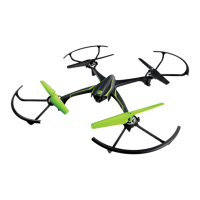
This document describes the Sky Viper Streaming Video Drone, a device designed for both recreational flying and capturing aerial video and photos.

Function Description:

The Sky Viper Streaming Video Drone is a remote-controlled quadcopter capable of streaming live video and recording footage to a smart device or a Micro SD card (sold separately). It offers various flight modes and features, including one-touch stunts like barrel rolls and flips, auto launch, auto hover, and altitude hold. The drone is designed for both beginner and experienced pilots, with adjustable flight sensitivity settings. It can be controlled via a dedicated remote control, which also features a mount for a smart device to view live video feeds.

Important Technical Specifications:

  • Battery: Rechargeable 3.7V 650mAH LiPo Battery for the drone; 3 x 1.5V AAA (LR03) batteries for the remote control.
  • Charging: The drone's LiPo battery is charged via a USB charging cable, connecting to a computer or USB power block. A red light indicates charging, and a green light indicates a full charge.
  • Connectivity: The drone connects to a smart device via Wi-Fi (e.g., SKYVIPER_ABC123 network) for live streaming and recording.
  • Video/Photo: Streams and records video and photos. Recording can be directed to a connected smart device or an optional Micro SD card.
  • Dimensions: Not explicitly stated, but implied to be a compact drone with four rotating blades.
  • Control Range: Not explicitly stated, but implies a range suitable for recreational outdoor and indoor use.
  • Included Components: Streaming Video Drone, Screwdriver, Screws, 4 Blade Guards, USB Charging Cable, Rechargeable 3.7V 650mAH LiPo Battery, Remote Control, 4 Replacement Blades, Phone Mount, Alternative Pro Thumbsticks.

Usage Features:

  • Remote Control: The remote control features two joysticks for throttle/rotation and direction, trim adjustment buttons, auto launch/land button, auto hover button, stunt button, and buttons for photo and video capture.
  • Smart Device Integration: A device holder on the remote allows for attaching a smart device (up to 3-1/8" wide) to view live video and control recording via the Sky Viper Video Viewer app.
  • Flight Modes:
    • Throttle/Rotation Stick: Controls altitude (push up/down) and rotation (push left/right).
    • Direction Stick: Controls forward/backward (push up/down) and left/right (push left/right) movement.
    • Auto Launch/Land: One-touch button for automatic takeoff and landing.
    • Auto Hover: Automatically maintains altitude.
    • Altitude Hold: Keeps the drone at a set altitude.
    • One Touch Stunts:
      • Barrel Roll: Initiated by tapping the stunt button while flying forward or reverse.
      • Flip: Initiated by tapping and holding the stunt button while hovering, then quickly tapping the direction stick in the desired flip direction. Requires a minimum clearance of 6 feet in all directions.
  • Flight Sensitivity: Three settings (Low, Med, High) are available to adjust responsiveness, catering to different skill levels. Setting 3 (High) is not recommended with blade guards.
  • Trim Adjustments: Buttons on the remote allow for fine-tuning the drone's hover stability if it drifts in any direction. Trim adjustments are saved until remote batteries are removed.
  • Pre-Flight Checklist: Includes connecting the battery, placing the drone on a flat surface, connecting the remote, and waiting for solid green lights before flight.
  • Troubleshooting: Provides solutions for common issues like drifting, improper flight, unresponsiveness, and stunt failures.
  • Adult Supervision: Recommended, especially regarding rotating blades, adequate flying space, avoiding hazards, and proper battery handling.

Maintenance Features:

  • Battery Charging: The drone's LiPo battery requires careful charging. It should be allowed to cool down after use, charged in an isolated area, and not modified, heated, or wetted.
  • Remote Battery Replacement: Instructions are provided for replacing the AAA batteries in the remote control using a Phillips screwdriver.
  • Blade Guard Installation: Optional blade guards can be easily installed by inserting posts into holes on the drone. These are recommended for beginners but may reduce flight performance and are not advised for advanced flight sensitivity setting 3.
  • Damaged Blade Repair: Instructions detail how to replace damaged blades, including noting the blade color and letter (A or B), removing a small screw, and securing the new blade.
  • Cleaning: Over time, loose hair or carpet fibers may accumulate in the blades, reducing performance. Instructions advise unplugging the drone and removing fibers from motors (and blades if necessary).
  • Battery Disposal: LiPo batteries must be recycled or disposed of properly according to local laws and regulations.
  • General Care: Avoid dropping the drone, keep it dry, and store it properly. Do not mix old and new batteries in the remote.

sky viper 01601 Specifications

General IconGeneral
Brandsky viper
Model01601
CategoryDrones
LanguageEnglish

Related product manuals