If the drone drifts in any direction while hovering (and you are not pressing the direction stick), you may need to make trim adjustments.
Press the recommended trim button as described below to make adjustments.
Tip 1: When the remote LED flashes 3 times quickly, the trim will revert back to middle of trim range.
Tip 2: If you are uncomfortable trimming the drone in flight, you can land onto a flat surface and make your trim adjustments.
STREAMING AND RECORDING VIDEO
NOTE:
Trim adjustments will remain saved until remotes batteries
are removed.
TROUBLESHOOTING
TRIM ADJUSTMENTS
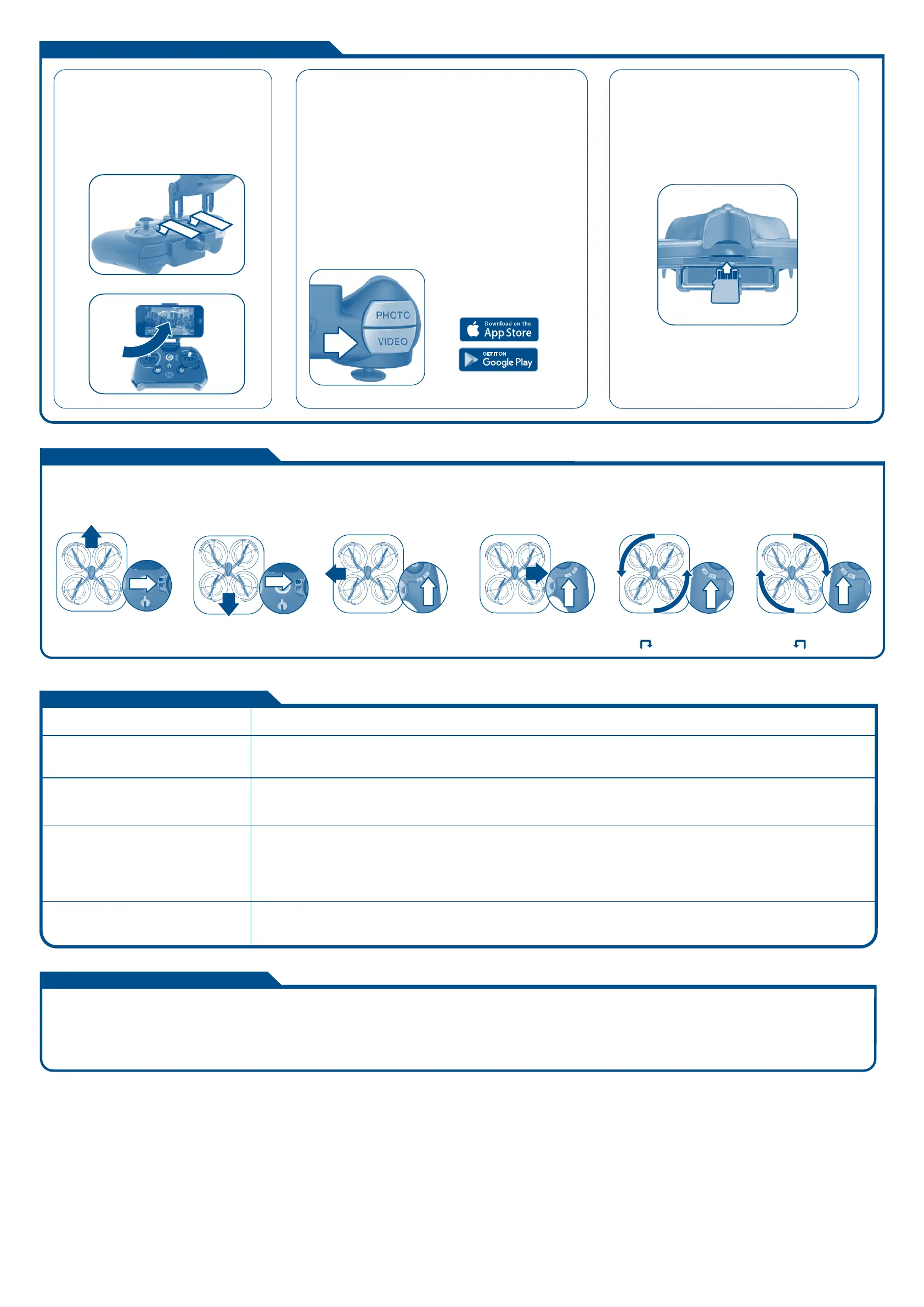
1 Install the device holder to remote.
2 Pull the device holder arm.
3 Insert a smart device (Devices larger than
3-1/8” wide can be used but cannot be
attached to remote).
ATTACHING YOUR
DEVICE
1 Plug in battery on drone.
2 Go to Wi-Fi network list on
your smart device.
3 Select a connection similar to
SKYVIPER_ABC123 and connect.
(Note: May take up to 30
seconds to connect.)
4 Open the Sky Viper Video Viewer app on your device.
5 Follow the on-screen icons to connect with your
drone. Once connected you can record video and
take photos on your device.
6. You can initiate recording by pressing the control
buttons on your remote.
If you are connected to a smart device through WiFi and
wish to record to Micro SD instead of your device, you can
change the recording setting through the Sky Viper Viewer
app. If you are not connected to a smart device, recording
will be redirected to Micro SD automatically.
Micro SD slot is located on back of drone.
(card sold separately)
LIVE STREAMING
AND RECORDING
RECORDING TO
MICRO SD CARD
(SOLD SEPARATELY)
Before each use, an adult should check this product and the LiPo battery to ensure no damage or hazards exist. Drone has rotating blades that move at high speed, posing danger of damage and injury. Pilots are
responsible for any actions that result in damage or injury from the improper operation of drone. Adequate flying space is required. Avoid flying near interior fans and/or vents as they may make flying difficult to
control. Keep a safe distance away from streets, public thoroughfares and power lines. Never attempt to retrieve drone from any location higher than your reach (such as rooftops or trees) or from any location that
poses a safety hazard. Never fly drone at night. Keep drone in sight at all times during operation. Discontinue operation immediately if drone flies out of your field of view. Do not fly near spectators or animals. Keep
spinning rotors away from fingers, hair, eyes and other body parts. Always launch from a flat surface. Never leave drone unattended while it is turned on. Read all enclosed information before operating.
• Drone’s blade may have been installed incorrectly. Reinstall and remember that the GREEN blades point forward.
• Adjust the trim controls until drifting ceases.
• Ensure that drone is flying a minimum distance of 6 feet from the ground with a minimum 6 feet clearance in all directions.
Drone is unresponsive
All blades spin, but drone will not fly properly or
crashes immediately
Drone crashes when attempting stunt functions
PROBLEM SOLUTION
If the drone drifts forward
– Press B button
If the drone drifts backwards
– Press F button
If the drone drifts left
– Press R button
If the drone drifts right
– Press L button
If the drone spins counter-clockwise,
when viewed from the top
– Press button
If the drone spins clockwise,
when viewed from the top
– Press button
ADULT SUPERVISION REQUIRED
Download the
Sky Viper Video Viewer
app for free. The app is
required for streaming.
Drone drifts in any direction during flight without
direction from the remote
• Ensure the remote has fresh batteries and the LiPo battery is
fully charged.
• Drone may be miscalibrated by launching from an un-level surface. Turn the remote off. Turn off the drone then turn them
back on and try again from a flat, level launching surface.
• Inspect drone for any possible damage.



 To Next Page
 Loading...