TV On Demand
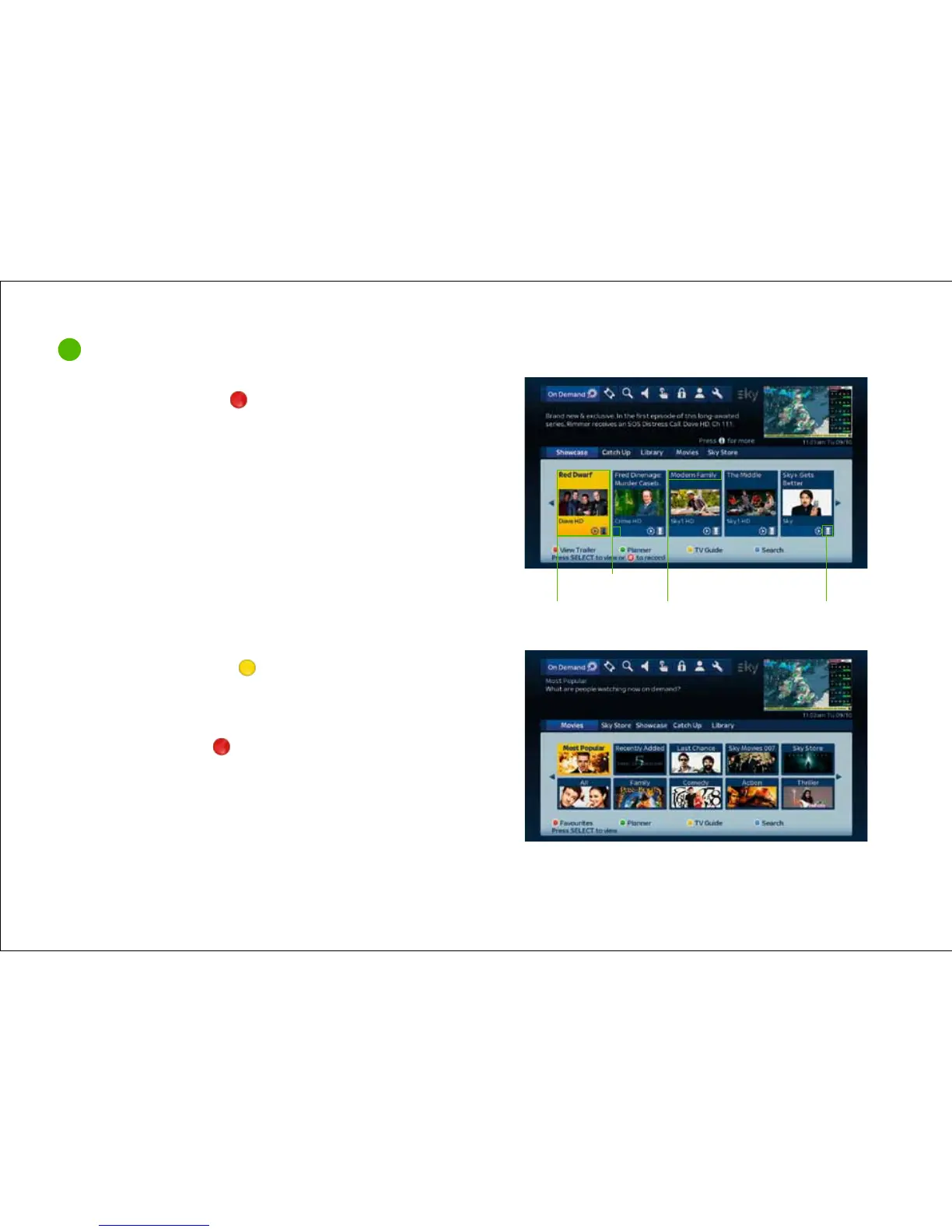
Programme trailer
available
Programme name
Parental rating
Channel name
2
Seeing what’s available to watch On Demand
1 Once your Sky±HD box is connected to broadband,
press tv guide then the red button (On Demand).
2 You’ll go straight into the Showcase section, which is a
selection of the week’s best TV from Sky.
To access the full library of programmes available, use the
left and right arrows to highlight a specific category such
as movies or entertainment, then press select.
Or to choose a programme by channel, scroll left and select
the channels tab. Select your chosen channel to see a list of
all the programmes available.
3 Once you’ve selected a genre, you’ll be able to choose from
categories including most popular and recently added, or
to see a full list of programmes in that genre select all.
4 In the menu, use the up/down or left/right arrows to highlight
a programme. To see a complete list of programmes available
in the category, press the
yellow button.
5 A brief description of the programme appears in the top
left of the screen. Press the i button for more detailed
programme information.
6 If available, press the
red button (View Trailer) to
show a mini trailer.
7 Press select to start downloading the programme to
your Planner. A notification will appear on screen when
the programme is ready to be watched.
50


 To Next Page