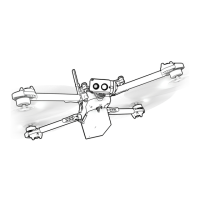
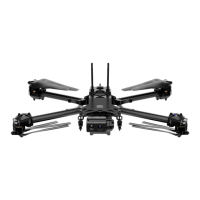
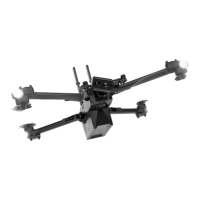
The Skydio 2 can only track people and vehicles, not pets or other animals
The subject you wish to track must be visible in the camera view in order to
become available for tracking.
The closer the Skydio 2 is to the subject, the better the tracking will perform. If
the indicator is not appearing for the subject you wish to track, try moving the
Skydio 2 closer and ensure they are framed in the center of the camera view
Tracking works best when Skydio 2 is 16-22ft (5-7m) away from the subject
If you are in an open area with no other moving objects nearby, turning o the
Height Floor setting may improve tracking performance. See the
Understanding the Height Floor section of this guide for more details
Tips for Best Tracking Performance
The on-screen ight controls are the primary method for controlling Skydio 2 during
both autonomous and manual ight. Manual ight controls are the same in all skills
and may be customized by the user in the “Phone” tab of the device menu while
autonomous controls are unique for each skill
Flight Controls
See the Manual vs. Autonomous Flight section of
this guide for more details
The skills menu gives access to Skydio 2’s library of cinematic skills. Each skill is a
dierent cinematic style of lming and capturing a subject. See the Cinematic
Skills section of this guide for more details
Skills Menu
Each skill may have its own custom settings that only aect that skill while it is
selected. Users may tap the skill settings button to customize each cinematic skill’s
behavior to suit their needs
Skills Settings
10



 To Next Page