EasyManua.ls Logo

SkyLink WC-520 - User Manual

SkyLink WC-520
2 pages
Print Icon
To Next Page IconTo Next Page
Loading...
4. Setup the IP-Camera (Continued)
1. Tap on “Set up Wi-Fi”
4. Setup Wi-Fi
5. Camera Screen Overview
1. Open the SkylinkNet App
and tap on “More” and
“System Settings”.
2. Select your Wi-Fi Network.
3. Enter your Wi-Fi password
and tap “OK”.
4. Tap on “OK” 5. Tap on “Back”
6. Tap on “Go to Camera page”
6. Warranty / Customer Service
2. Tap on “Setup Wizard”.
3. Tap on “Add Camera”
4. Tap on “Continue”
5. Enter a Name for Camera.
6. Enter the UID or Tap on “Scan Code” and scan the QR Code on
the bottom of the camera or tap on “Search” and select the camera
that is connected in the same routers network.
7. Enter the camera password.*
The password is on the bottom of the camera.
8. Tap on “Preview”
9. Tap on “Save” if the
status shows “Online”.
10. Tap on “OK”
3. Setup the IP-Camera
Online/Offline Status
Full Screen
Refresh
Live Video
Select Camera
* - Not applicable
Folder
Saved Videos and Snapshots
Record Video
Snapshot
*Change the default password in the camera settings for security purpose.
This product is guaranteed to be free of defects in materials and workmanship for 1 year from the
date of purchase. If this product is defective, call 1-800-304-1187 for repair or replacement parts.
Guarantee does not include normal wear and tear or batteries.
If you have any questions, problems or missing parts,
please call Skylink Customer Support:
1-800-304-1187
9:00 AM – 5:00 PM EST, Monday-Friday
Or e-mail us at support@skylinkhome.com
www.skylinkhome.com
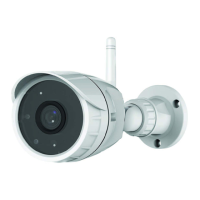
Outdoor Wireless
Camera
Model: WC-520
User Manual
1. Package Contents
Power Adapter
Ethernet Cable
Outdoor Wireless
Camera
Model: WC-520
Mounting
Accessories
2. Connect the IP-Camera
NOTE: The Outdoor Wireless Camera will only work with the SkylinkNet Internet Hub and the
App. Please set up the Internet Hub and the SkylinkNet App first in order to connect the
Outdoor Wireless Camera. If you want setup the camera without the SkylinkNet Internet Hub,
please contact Skylink Customer Service for instructions.
1. Screw antenna on the
back of the camera.
2. Plug power supply into
camera and into an
outlet.
3. Plug network cable into camera and into your router.
(You can unplug this once Wi-Fi is setup).
3
2
AD S L
IN T ER N E T
RE S ET PO W ER
LA NLA N
*
*
Question and Answer IconNeed help?

Do you have a question about the SkyLink WC-520 and is the answer not in the manual?

SkyLink WC-520 Specifications

General IconGeneral
BrandSkyLink
ModelWC-520
CategoryOutdoor Camera
LanguageEnglish

Summary

Package Contents

Connect the IP-Camera

Screw Antenna

Screw the antenna onto the back of the camera for proper connection.

Connect Power Supply

Plug the power adapter into the camera and then into a wall outlet.

Connect Network Cable

Connect the Ethernet cable to the camera and your router for initial setup.

Setup the IP-Camera

Navigate to System Settings

Open the SkylinkNet App and tap 'More' then 'System Settings'.

Start Setup Wizard

Tap on the 'Setup Wizard' option within System Settings.

Add New Camera

Select 'Add Camera' to begin the process of adding a new device.

Proceed with Setup

Tap 'Continue' to advance through the IP camera setup steps.

Setup the IP-Camera (Continued)

Name and Identify Camera

Enter a name and identify the camera using UID, QR code scan, or network search.

Enter Camera Password

Input the camera's password, typically found on the bottom of the device.

Preview Camera Feed

Tap 'Preview' to view the camera's live feed and confirm setup progress.

Save Camera Configuration

Tap 'Save' if the camera status shows 'Online' to confirm settings.

Setup Wi-Fi

Initiate Wi-Fi Setup

Tap 'Set up Wi-Fi' to begin configuring the wireless network connection.

Select Wi-Fi Network

Choose your desired Wi-Fi network from the available list.

Enter Wi-Fi Password

Enter the password for the selected Wi-Fi network and tap 'OK'.

Confirm Wi-Fi Setup

Tap 'OK' after the camera has successfully connected to the network.

Return to Camera Page

Tap 'Go to Camera page' after the Wi-Fi setup is completed successfully.

Camera Screen Overview

Live Video Display

Shows the real-time video stream from the camera.

Online;Offline Status

Indicates the current connectivity status of the camera.

Camera Controls

Includes options for Full Screen, Refresh, Record Video, Snapshot, and Folder access.

Camera Selection

Allows users to select between different connected cameras.

Warranty and Customer Service

Product Warranty Details

Details the one-year warranty against defects in materials and workmanship.

Contact for Support

Provides customer service phone number and email for inquiries and issues.