QUICK SET UP:
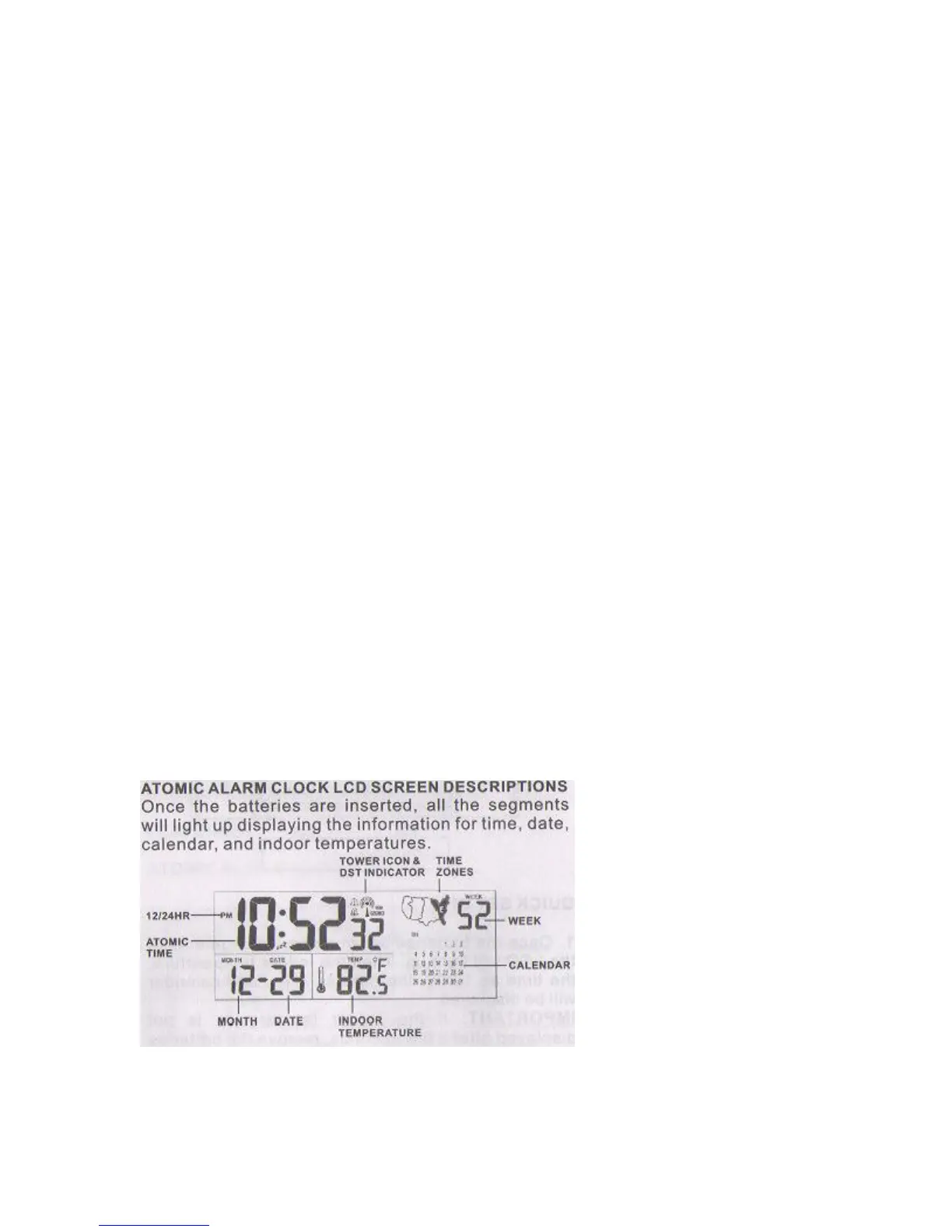
1. Once the batteries are in place, all segments of the LCD will light up. Then the indoor
temperature, the time as 12:00, the date as 1.1. , and calendar will be displayed.
IMPORTANT: If the indoor temperature is not displayed after a few seconds, remove
the batteries and wait for at least 30 seconds before reinserting them.
2. The clock automatically will begin to search for the WWVB time signal. After the icon
stops flashing on the display (approximately 5 minutes), you can set the time zone. You
can stop this auto reception by pressing the MONTH/HOUR/WAVE button. The default
time zone is Pacific Standard Time (PST). If you live in the Pacific Time zone move to
step 4.
3. To set the time zone:
Slide the SETTING switch to Time.
Press the ALM/ZONE/DST function button for 2 seconds to change the time
zone setting to the desired time zone.
EST (Eastern Time Zone)
CST (Central Time Zone)
MST (Mountain Time Zone)
Once the desired time zone is displayed in the panel, slide the switch to the lock position.
4. The WWVB time code reception will automatically start when the clock is powered
up. It will automatically set itself to the exact time and date after receipt of the WWVB
time code reception. This typically takes over night. For best reception place your clock
next to a window facing Colorado over night. Once a successful reception is received
relocate your clock to your desired location.



 To Next Page