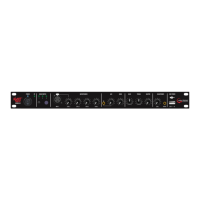
Function Operating Instructions
If you are using the SDM300 as a part of a permanent equipment setup we highly
recommend mounting the SDM300 in a standard 19” equipment rack to facilitate the
integration of other equipment as required. Connect all HDMI sources, stereo auxiliary
sources, microphones, HDMI outputs and main audio outputs to their respective ports on
the rear panel.
Remember which signal sources are connected to which source inputs - we recommend
marking them with coloured tape or labelling them if required. Set levels as required for
system.
If using as a standalone portable unit in temporary or mobile setups (such as DJ/karaoke/
events etc.) we recommend mounting the unit in a 19” equipment sleeve for protection of
the device. Connect your HDMI and audio inputs and outputs, as required, to the respective
rear panel connections. In a live event or PA set-up you may like to take advantage of the
front panel microphone connection to connect a microphone so you could easily plug it in
as needed, say for announcements, or use it as an extra microphone input..
Set-up the input source devices, main presentation device and any monitor display or
auxiliary display and connect them to the HDMI outputs on the rear panel. Set-up speakers
and ampliers or self powered speakers and connect back to the main left / right 3-pin XLR
outputs. Ensure ampliers are turned off and levels are turned down and monitor screens
are powered down.
Turn all levels on the SDM300, including the headphone, completely counter-clockwise to
the lowest setting.
Your SDM300 is ready for use.
Connecting Your Laptop
Just a note about connecting your laptop to the SDM300. Using a HDMI cable. Connect the
laptop output directly to input 1 of the SDM300. With your projector or monitor screen on,
the input 1 selected for output A and the laptop on. If your laptop does not automatically
detect the SDM300 and project the image then look for a function key on the top row of keys
on your laptop which shows two monitors—often F5, F7 or F8. Press the function key and
that function key and it should show the various congurations available for your laptop or
open a connection window with your choices. You generally have the choice of laptop only,
Duplicate—same thing on both screens, or Extend Screens—the screens become two side
by side linked screens. As a rst step use the duplicate screens selection.
Using Bluetooth Connection
If you have a Bluetooth enabled speaker you link the audio output of the SDM300 through
this speaker. Press and hold the button marked Bluetooth on the front of the unit (12) until
it begins to ash. Now do the same on your speaker. Once the “Link” is made the LEDs with
remain lit and the speaker shall play the audio. Volume is controlled via the Headphone
volume dial on the front of the SDM (14).
Please note that there is a small delay in the audio carried over the Bluetooth connection.
Don’t try to run a Bluetooth speaker in the same or adjacent room with speakers cabled from
the main left / right outputs or the signals will not be in sync.
6


 To Next Page
 Loading...