Basic classroom troubleshooting for your
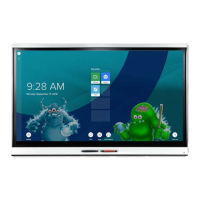
SMARTBoard display
smarttech.com/kb/171720 3
I can’t connect to Screen Share.
You may need to reset Screen Share and ensure your device and the display are connected to the same
network.
To reset Screen Share
1. From the display’s screen sharing application, select Reset Screen Share.
2. From the device you are looking to share from, turn Wi-Fi on and off by putting it into airplane mode for
a moment or by just turning Wi-Fi off and back on.
To confirm your device and the display are connected to the same network
1.
From the display, tap Settings > Network.
2. Make note of the network your display is connected to.
3. Open the Wi-Fi settings on your device and verify that your device is on the same network as the
display.
smarttech.com/support
smarttech.com/contactsupport
© 2020SMARTTechnologiesULC. All rights reserved. SMARTBoard, smarttech, the SMART logo and all SMART taglines are trademarks or registered trademarks of
SMARTTechnologiesULC in the U.S. and/or other countries. All third-party product and company names may be trademarks of their respective owners. Contents are subject to
change without notice. November 24, 2020.








 To Previous Page