CHAPTER 3
USING APPS ON THE DISPLAY
20 smarttech.com/kb/171166
To erase ink on an acetate
NOTE
If you erase all the ink, the display returns to the app without saving the acetate.
See Writing, drawing and erasing on page15.
Acetate tools
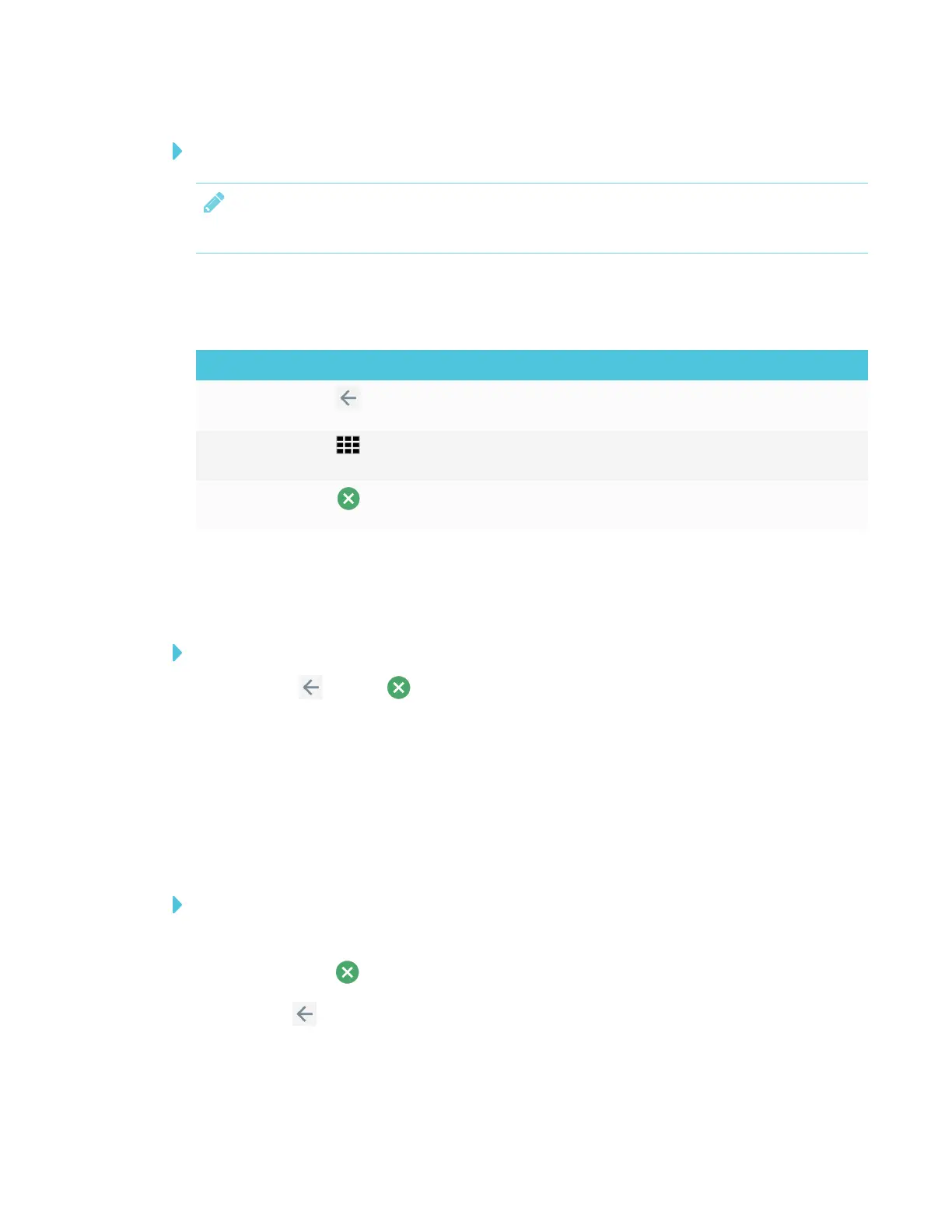
Tool Icon Description
Back Closes the acetate and returns to the app. You can choose to
discard the acetate or save it to the Whiteboard Library.
Whiteboard
Library
Opens the Whiteboard Library.
Close Closes the acetate and returns to the app. You can choose to
discard the acetate or save it to the Whiteboard Library.
Saving an acetate
Acetates are saved to the Whiteboard library.
To save an acetate
1.
Tap Back or Close .
2. Tap Save to save the acetate in the Whiteboard Library.
OR
Tap Discard to discard the acetate and return to the app.
Closing an acetate
To close an acetate
1. There are several ways to close an acetate.
o
Tap Close to close the acetate.
o
Tap in the command bar.
o
Erase all the ink. See To erase ink on an acetate above for more information.



 To Next Page