Please ensure before attempting to setup your new Smarter product, that this is the signal you
will be connecting to.
Some customers will have dual-banded WiFi networks (with both 2.4gHz signals and 5gHz
signals being emitted), whilst others won’t.
If you have a dual-banded network, and you don’t have the option to connect solely to the
2.4gHz signal, you will need to get in contact with your network provider, and ask to have this
split. If you router is only emitting a 2.4gHz signal, you can go ahead and commence the setup of
your Smarter product.
In order to check what signal your WiFi router is emitting, you can:
Take a look at the network list within your mobile device’s WiFi settings.
o You may see two options for your home network (one with 2.4 at the end of the
network name, and one with 5 at the end). This indicates that your router is
emitting both a 2.4gHz signal, and a 5gHz signal separately. Please ensure your
mobile device is connected to the 2.4gHz signal before attempting the setup of
your Smarter product.
o You may only see one option for your home network, without any indication of
which signal is being emitted. In this case, it would be best to call your network
provider to double check what WiFi network you have.
Go online to your network providers website, and take a look at your account
information. Some customers are able to check what type of broadband they have here.
Call your network provider and enquire with them.
I've changed my wifi how do I reconnect my
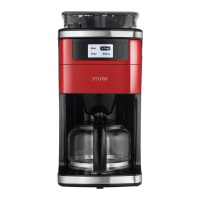
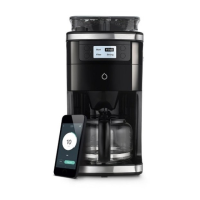
Smarter Coffee - 2nd Generation
When you connect your Smarter Coffee to your router, it holds onto those details and cannot be
setup with a new router until those details have been cleared.
To clear those details and reset the WIFI, simply press and hold the beans button (bottom left)
until you see factory reset appear on the screen. Once the screen has reloaded, unplug it for at
least 10 seconds before plugging it back in.
Now the Smarter Coffees WIFI has been reset and you can redo the setup.


 To Next Page
 Loading...