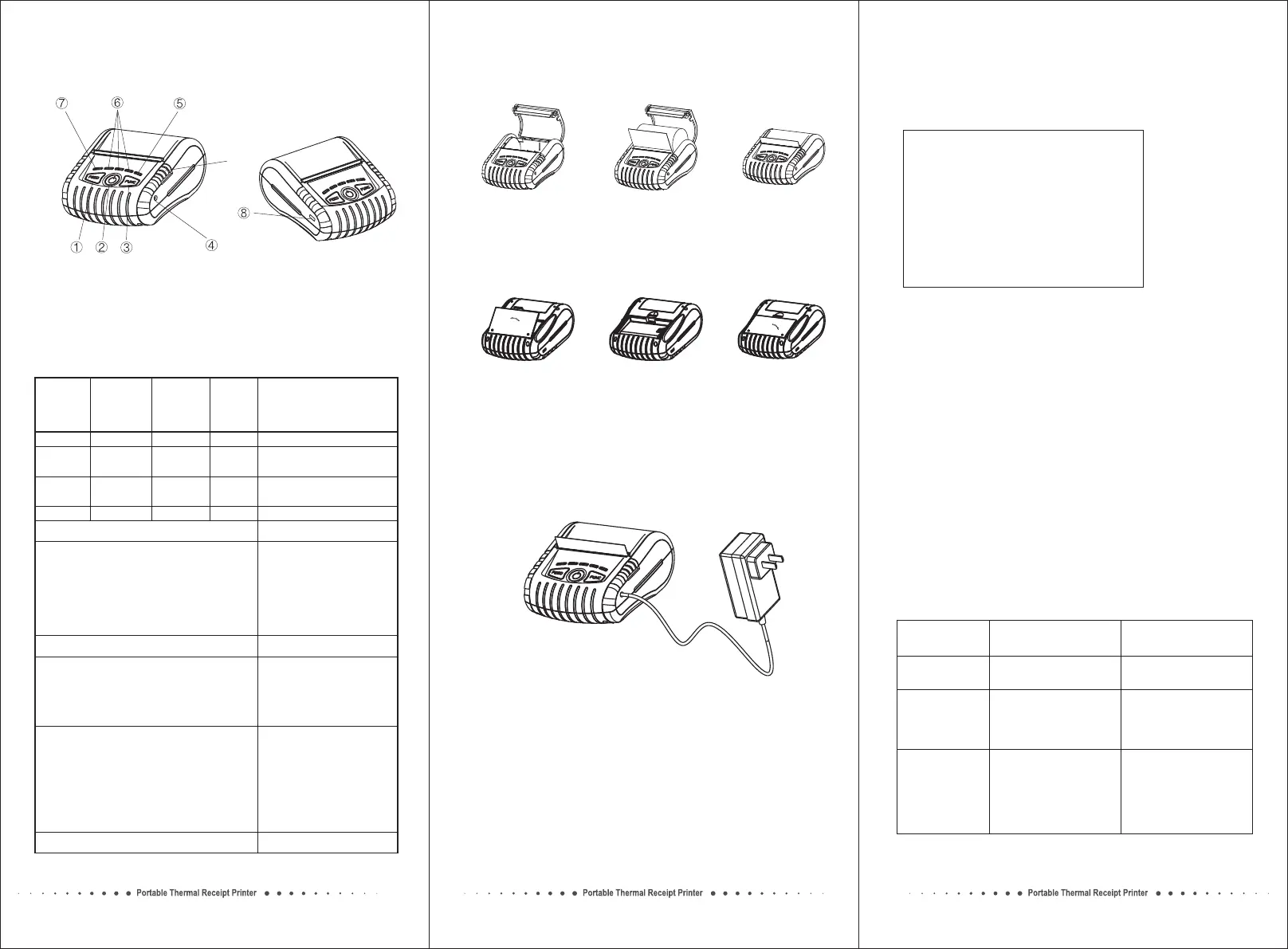
Printer parts:
1.
2.Power button
3.Function key button
4.Power port
5.Status indicator (Blue)
Feed button
Paper Roll Installation
a.Open the cover. b. install
the paper roll.
Correctly
Battery Installation
1. Open the cover. 2. Insert the left side to install
the battery at the rear of the
printer, push the right side
of the battery.
3. Close the cover.
Battery Charging
Indicators, Beeper and Buttons:
NOTE:
1. Charging the battery must be in the state of power-on.
Printer
Input: AC100-220V
Output: DC9V/1A
6.Battery status indicator (Green)
7.Error indicator (Red)
8.USB port
9.Cover open button
Status
ERROR
indicator
(Red)
Battery
status
indicator
(Green)
STATUS
indicator
(Blue)
Beeper
OFF
Blinking
OFF
OFF
OFF
ON
ON
ON
OFF
OFF
OFF
ON
No
Yes
No
No
Printer power off.
Printer power on, but out
of paper.
Printer is powered on and
in normal print mode.
Bluetooth/WiFi connected.
Long press the power button for 3 seconds.
Note:The printer can not be printed without using battery.
Printer power ON/OFF.
Pr ess th e PO WER b ut t on a nd F UNC
b u t t o n s i m ul t a n eo u s ly, w a it f o r t he
green lights light in turn, then release the
POWER button firstly. the red light and blue
light lights up in turn, after the blue light
di ms , r el ea se t he FU NC b ut to n; r ed
light dims, the printer motor will vibrate.
Printer initialization
Printer power on, press the FEED button.
Paper feed
Hexadecimal Dumping
Press the FEED button and the POWER
bu tt on s im ul ta ne ou sl y, w ai t fo r a ll t he
lights are bright, then release the POWER
button firstly, wait for STATUS indicator
(blue light) dims, then release the FEED button.
Print Self-test page
Press the FEED button and the POWER
button simultaneously, wait for all the
lights are bright, then release the POWER
bu t t o n fi rs tl y; a ft er t he b lu e li gh t
and red light dims in turn, then release the
FEED button, meanwhile the printe r
prints out "Hexadecimal Dump" page, then
printer is changed to Dump mode.
Interface informationPrinter power on, press the FUNC button.
c.Close the top cover,
keep 5mm of the
paper outside.
Connect printer with computer via USB cable, and then turn on
the printer power, a U-Disk appears in computer, which saved
the driver software into a zipped package. Please copy to your
local disk for driver installation.
Driver software
Interface information
a. turn on the printer, press the FUNC button, the printer will
print a receipt showed interface information, such as below:
Interface information
INTERFACE: USB2.0
USB Printer & Mass Storage Device
U-disk size: 4M
INTERFACE: BLUETOOTH BLE4.0 & BT3.0
BLUETOOTH NAME: Printer_6BB3
BLUETOOTH PIN: 0000
BLUETOOTH LINK: 1 Android + 1 iOS
BLUETOOTH ADDR: 00:18:E4:0C:6B:B3
CONNECTION: DISCONNECT
Blutooth name
Bluetooth PIN
Bluetooth link
Bluetooth address
Connection states
b. According to the interface information, enter Bluetooth PIN
0000 or 1234 for connecting to the APP and then printing.
The way of changing Bluetooth Name,
PIN, WiFi mode and password
a. Download Gptools.APK and then install to the Android device
to use it.
b. Or download GPrinterSetTool and then install to the computer
to use it.
Troubleshooting
Problem
Possible Cause
Recovery Procedure
*
dirty.
The print head sensor is
* Please use soft brush
to clean the sensor.
The following guide lists the most common problems that may
be encountered when operating this printer. If the printer still
does not function after all suggested solutions have been
invoked, please contact the Customer Service Department of
your purchased reseller or distributor for assistance.
Printer doesn’t
power on.
* The battery is used up. * Please use the original
AC power adapter to
recharge it and start
again.
Poor print quality
* Poor media quality.
* The print head is dirty.
* The platen roller is dirty.
* Change proper media
roll.
* Please use the lint-free
cloth with 100% ethanol
to wipe the print head
and the platen roller.
⑨
Printer doesn't
detect the paper.


 To Previous Page
 Loading...