This document is a programming guide for the WG01 Smart-Link Hub, a device designed to integrate various smart home components into a unified system. The hub acts as a central gateway, enabling control and automation of different smart devices.
Function Description
The WG01 Smart-Link Hub serves as a gateway for smart home devices, allowing users to connect and manage them through a single application, the Smart Life app. It facilitates communication between various smart devices, enabling them to work together seamlessly. The hub supports the integration of a wide range of smart products, including sensors, lights, switches, and other home appliances, creating a cohesive smart home ecosystem.
Key functionalities include:
- Device Integration: Connects and manages multiple smart devices from different categories (e.g., security, lighting, appliances, health, entertainment).
- Gateway Functionality: Acts as a central point for smart devices, allowing them to communicate with each other and with the user's smartphone.
- Remote Control: Enables users to control connected devices remotely via the Smart Life app.
- Automation: Supports the creation of automation rules and scenes, allowing devices to perform actions based on predefined conditions (e.g., turning on lights when a motion sensor is triggered).
- Voice Control Integration: Compatible with popular voice assistants like Amazon Alexa and Google Assistant, allowing for hands-free control of connected devices.
- Third-Party Integrations: Works with IFTTT (If This Then That) and SmartThings, expanding its automation capabilities and compatibility with other smart home platforms.
- Scene Control: Allows users to set up different scenes for various activities or times of the day, controlling multiple devices simultaneously with a single command.
Important Technical Specifications
The WG01 Smart-Link Hub has the following technical specifications:
- Model: WG01
- Connector: Micro USB
- Input: 5V 1000mA / 5V 2000mA
- Output: Max 20 motors
- Wi-Fi Connectivity: Supports 2.4 GHz Wi-Fi networks. It is crucial to connect the hub to a 2.4 GHz network, as it does not support 5 GHz Wi-Fi.
- Indicator Light: Features an LED indicator that provides visual feedback on the device's status, such as blinking for pairing mode or solid for connected status.
Usage Features
The usage of the WG01 Smart-Link Hub involves several steps, from initial setup to daily operation and device management.
Initial Setup and Gateway Pairing:
- Download and Register: Users must first download the Smart Life app (available on App Store and Google Play) and register an account.
- Power On and Connect: Plug the smart link hub into a power port and wait for the indicator to blink quickly.
- Add Device in App: Open the Smart Life app, enter the homepage, and click "Add Device."
- Select Device Type: Navigate to the "Others" category and select "Others (Wi-Fi)" to add the gateway.
- Wi-Fi Configuration: Select a 2.4 GHz Wi-Fi network and enter the password. Ensure the mobile phone is connected to the same 2.4 GHz Wi-Fi network.
- Confirm Indicator Status: Confirm that the indicator is blinking quickly.
- Connecting Device: The app will search for and connect to the gateway. A successful connection will be indicated by a message "Add the smart link successfully!"
Adding Subdevices:
- Enter Pairing Mode: To add subdevices, press the button on the back of the remote two times to enter pairing mode. Alternatively, press and hold the programming button on the subdevice for 5 seconds until the motor jogs once.
- Add Subdevice in App: In the Smart Life app, on the gateway's control page, click "Add subdevice."
- Ensure Device is in Pairing Mode: Verify that the LED on the subdevice is blinking. If not, reset the device to enter pairing mode.
- Search and Connect: The app will search for and add the subdevice. A message "1 devices have been successfully added" will confirm the addition.
Gateway Parameters and Control:
Once connected, the Smart Life app provides various control options for the gateway and its connected subdevices:
- Scene Control: Create and manage scenes to automate multiple devices with a single command.
- Voice Control: Integrate with Amazon Alexa and Google Assistant for voice commands.
- Group Control: Group multiple devices to control them simultaneously.
- Timed Control: Set schedules and timers for devices to operate automatically.
- Third-Party Integrations: Utilize SmartThings, IFTTT, and Works with Tuya smart for extended functionality.
- Siri Shortcuts: Create custom Siri shortcuts for quick control.
Maintenance Features
The WG01 Smart-Link Hub includes features for troubleshooting and resetting the device, which are important for maintenance and resolving connectivity issues.
Resetting the Device:
- Reset Button: The hub features a reset button. To reset the device, press and hold the reset button for 6 seconds.
- Indicator Change: The indicator light will turn red and then release the button. This indicates that the device has been reset and is ready for re-pairing.
- Power Cycle Reset (for Smart Link): If the smart link fails to connect, users can try disconnecting the power for about 10 seconds and then turning the power back on.
- Indicator for Successful Reset: A successful reset is indicated by the green indicator blinking quickly, signifying that the device is ready to be re-added to the app.
Troubleshooting Connectivity:
- Wi-Fi Frequency: Ensure the hub is connected to a 2.4 GHz Wi-Fi network. If the connection fails, verify that your router is broadcasting a 2.4 GHz signal and that your phone is connected to it during the setup process.
- Indicator Status: Pay attention to the LED indicator's blinking patterns, as they provide crucial information about the device's current status (e.g., fast blinking for pairing mode, slow blinking for network issues).
- Manual Review: If connection issues persist, the manual advises referring to the manual for detailed troubleshooting steps.
The WG01 Smart-Link Hub is designed to be user-friendly, with clear instructions for setup and management, making it accessible for users to build and maintain their smart home systems. The integration with various platforms and voice assistants further enhances its usability and versatility.

 Need help?
 General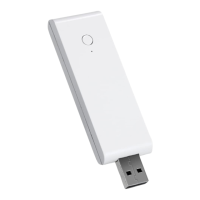

 To Next Page
