EasyManua.ls Logo

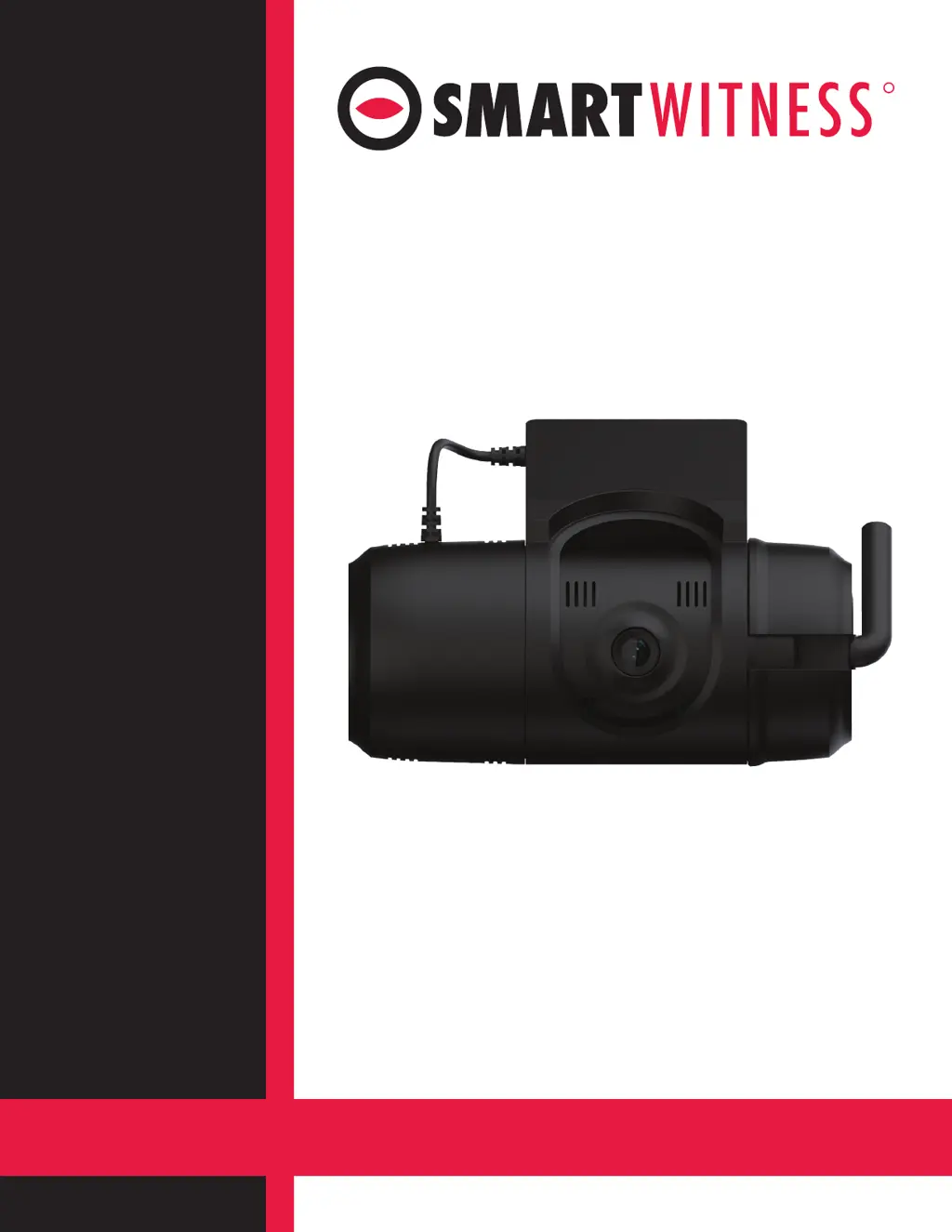
SmartWitness CP2-LTE - User Manual

SmartWitness CP2-LTE
16 pages
Print Icon
To Next Page IconTo Next Page
Loading...
R
CP2-LTE
2 Channel HD Recorder
Installation Guide
smartwitness.com
Version 1.0

Questions and Answers

  • D
    daviladeanAug 4, 2025
    Why is the red LED solid on my SmartWitness Camcorder CP2-LTE?
    • H
      Hayden GatesAug 4, 2025
      If the SmartWitness Camcorder CP2-LTE has a solid red LED, it could indicate insufficient voltage or amperage. Check the power source and ensure the ground connection is secure.
  • R
    robertkennedyAug 11, 2025
    What to do if the red LED is blinking on my SmartWitness Camcorder CP2-LTE?
    • D
      Diamond RichardsonAug 11, 2025
      If the red LED is blinking on your SmartWitness Camcorder CP2-LTE, it signals an SD card error or corruption. To resolve this, replace or repair the SD card after contacting SmartWitness Support for instructions at support.smartwitness.com.
  • B
    Brian TaylorAug 20, 2025
    Why does my SmartWitness Camcorder CP2-LTE have a solid red light along with solid green and blue?
    • A
      Amanda BarnesAug 20, 2025
      If your SmartWitness Camcorder CP2-LTE shows a solid red light along with solid green and blue lights, this indicates that the second camera is not receiving a video signal. Please check the camera’s connection.
  • G
    gregory83Aug 27, 2025
    What to do if the blue light is solid but the green LED is blinking or off on SmartWitness Camcorder CP2-LTE?
    • A
      Andrea HoffmanAug 27, 2025
      If the blue light on your SmartWitness Camcorder CP2-LTE is solid but the green LED is blinking or off, remove, swipe clean, and re-insert the SIM card, ensuring it is correctly inserted. If the issue persists it may be a camera configuration issue or server issue. Please contact SmartWitness.

Summary

Safety Alerts and Warnings

Electrical Shock Hazard

Risk of electric shock; no user-serviceable parts inside. Refer servicing to qualified personnel.

Battery Explosion Hazard

Risk of explosion if battery is replaced by an incorrect type. Dispose of used batteries properly.

Installation Placement Safety

Install product to not block driver's visibility or airbag deployment.

Product Malfunction and Data Loss

Manufacturer not responsible for damages from malfunction or data loss.

Environmental Hazard Warning

Do not expose appliance to rain or moisture to prevent fire/shock hazard.

Introduction to CP2-LTE

Recording Features Overview

Details on wide-angle lens, HD resolution, frame rate, dual mode, shock sensor, and LTE modem.

Playback and Analysis Capabilities

Information on PC/Mac software, compatibility, real-time tracking, and data filtering.

Package Contents

Included Components List

Lists vehicle recorder, power adapter, locking cover, keys, VHB pads, prep pads, wiring harness, power cable, and zip ties.

Hardware Overview

Front View Components

Identifies camera lens, bracket, GPS/GLONASS, and cable connection.

Left Side View Components

Shows SD memory card slot, SIM slot, and locking cover.

Driver-Facing View Components

Details warning LED, communication LED, REC button, panic button, and G-Sensor calibration button.

Top View Components

Shows windshield mount, pivoting bracket, camera lens, and locking cover with 3M pads.

Installation Procedure

First Steps: SD;SIM Card Insertion

Guide to inserting SD and SIM cards and securing the side cover plate.

Windshield Mounting

Instructions for applying 3M adhesive, mounting location, and camera height.

Camera Angle Adjustment

Steps to adjust camera angle using the key and bracket.

Power Adapter and Wiring

Connecting Power Adapter

How to connect the CP2-LTE lead cable to the power adapter and its switch.

Routing Power Cable

Guidance on laying out and securing the power cable through the vehicle interior.

Wire Harness Connections

Details on connecting the 3 required wires from the harness to the vehicle power source.

Completion and Power-up

Secondary Camera Connection

Simple plug-and-play connection for a secondary camera via Channel 2.

LED Status Indicators

Explanation of LED sequences during boot-up and operation.

G-Sensor Calibration Procedure

Procedure for calibrating the G-Sensor on a flat surface.

Onboarding and Activation Wizard

Requirements to use the installation wizard for onboarding and activation.

Troubleshooting Common Issues

Solid Red, Green, Blue LEDs

Indicates 2nd camera not receiving video signal; check connection.

Solid Blue, Blinking;Off Green LED

Suggests SIM card issue or configuration error; re-insert SIM or contact support.

Blinking Red LED

Indicates SD card error/corruption; contact support for guidance.

Solid Red LED (Power Issue)

Suggests insufficient voltage/amperage or bad ground connection.

LED Status and Sound Indicators

Startup and Booting LED Behavior

Describes LED behavior during system startup and booting steps.

Recording and Power Off LED Status

Explains LED status during recording and power off states.

Communication and Function LEDs

Details LEDs for network connectivity, initialization, calibration, and firmware upgrades.

Warning and Error LED Indicators

Covers LED indicators for system warnings, record errors, communication errors, and event triggers.

SmartWitness CP2-LTE Specifications

General IconGeneral
CategoryDash Cam
Video Resolution1080p
ConnectivityLTE, Wi-Fi
StorageMicroSD card
GPSYes
G-SensorYes
Frame Rate30 fps
Storage CapacityUp to 128GB
LensWide-angle lens
BatteryNo internal battery
Operating Temperature-20°C to 70°C

Related product manuals