16
4-3
4-4
3
21
4-5
4-3b
Layout
4.1 The screen
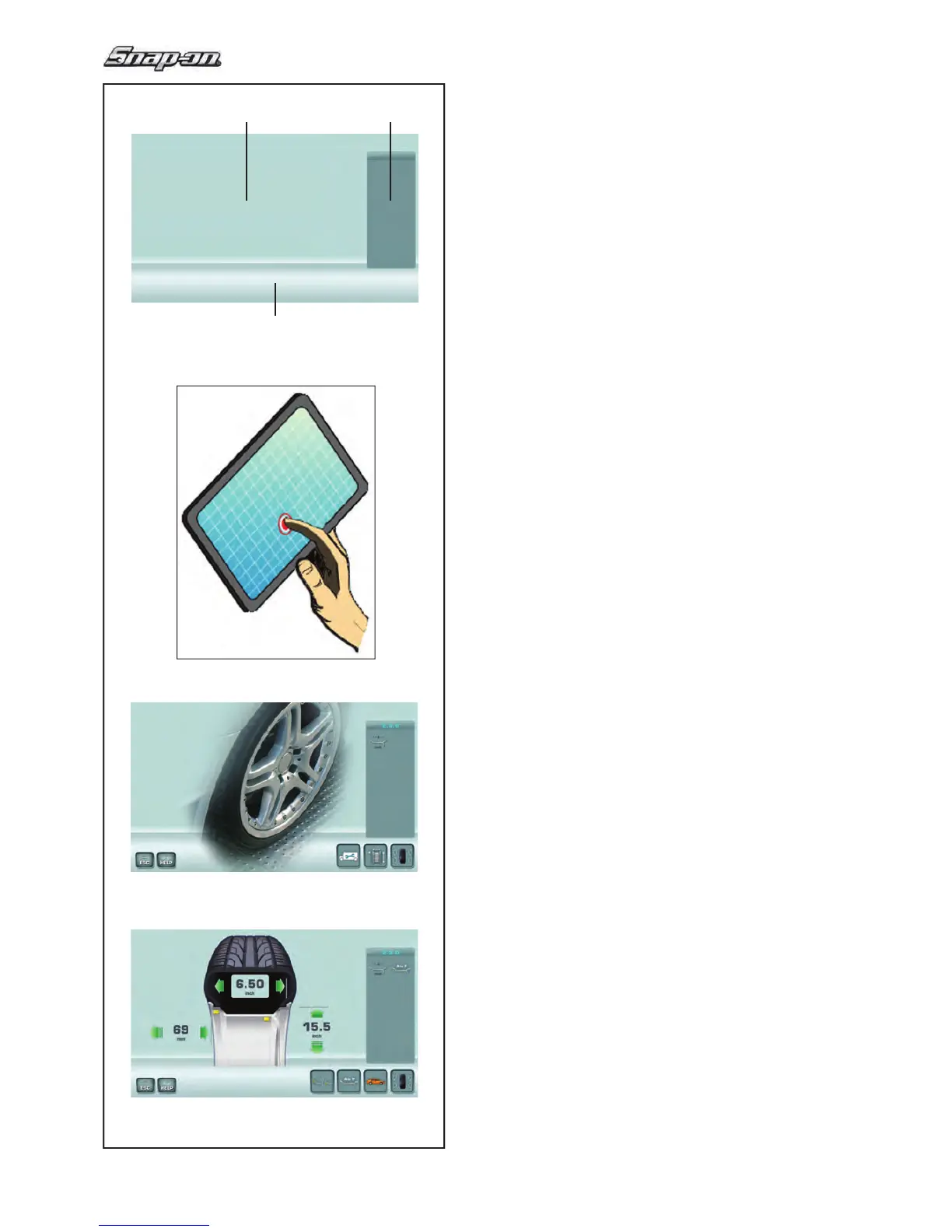
Fig. 4-3 Screen with display ! elds
1
Display fi eld
2 Information fi eld
3 Commands fi eld
The screen reads out inputs, helpful information, all
measured data and possible error codes.
Description of display fi elds
Each ! eld of the screen has a speci! c function.
1 Display fi eld
- Rim dimensions (editable).
- Balancing modes (editable).
- Unbalance value.
- List of Counters.
- C codes (User Codes).
- Help information.
2 Information fi eld
- Number of the installed program version.
- Measurements of the wheel being processed.
- Operating conditions icons.
- Error codes.
3 Commands fi eld
The pictographs illustrating basic and special
functions are located here.
Each key has an icon showing the speci! c function
it is used to retrieve.
Touch Screen
In the Touch Screen interface, in order to have a touch
response, you need to tap and release the area on the
screen with your ! nger (Fig. 4-3b).
The operator can hear a con! rmation tone, whenever
their own touch performs an action connected with
icons, buttons, text or images on the screen.
4.1.1 Screen pages / Menu
Types of Menu Fields
The Display !
eld shows the main Operating Screen
Pages:
Fig. 4-4 INTRO SCREEN
Basic screen / Main menu.
Fig. 4-5 RIM DATA ENTRY
Rim data input Screen.


 To Next Page