
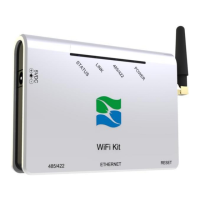
What to do if SolarMAN Wireless Router connection to remote server failed?
- RRicky DaughertySep 10, 2025
If the SolarMAN Wireless Router fails to connect to the remote server, check if the WiFi connection can access the internet.
What to do if SolarMAN Wireless Router connection to remote server failed?
If the SolarMAN Wireless Router fails to connect to the remote server, check if the WiFi connection can access the internet.
Why is the RS485/422 off on my SolarMAN Data Loggers?
The RS485/422 being off on your SolarMAN Data Loggers can be due to an abnormal connection with the inverter. Check the connection cable, ensuring the cable order complies with the descriptions in the manual or the inverter's quick guide. Also, ensure the stability of the RJ-45 connection and confirm that the inverter is working under normal conditions.
What to do if LINK is flashing on SolarMAN Data Loggers?
If the LINK indicator is flashing on your SolarMAN Data Logger, it means the data logger hasn't connected to the internet in AP mode. Configure the internet connection by following the instructions in the Quick Guide.
What to do if the Status is off on SolarMAN Data Loggers?
If the Status indicator is off on your SolarMAN Data Logger, it suggests the device is working abnormally. Try resetting it. If the reset fails multiple times, contact customer service.
What to do if the LINK is off on my SolarMAN S-WE01S?
If the LINK indicator is off on your SolarMAN Wireless Router, this indicates a failed connection to the external server. First, verify that your router can connect to the internet. Also, check the antenna to ensure it is securely attached. Finally, ensure the device is within the router's operational range.
How to improve weak WiFi reception on SolarMAN Wireless Router?
If you are experiencing weak WiFi reception with your SolarMAN Wireless Router, check the antenna connection first. If the connection is ok, consider installing a WiFi repeater to extend the range or connect via Ethernet cable for a more stable connection.
How to fix a SolarMAN Data Loggers that is powered off?
If your SolarMAN Data Logger is powered off, the cause may be no power supply. Connect the power supply and ensure good contact.
Why SolarMAN S-WE01S connection with inverter is abnormal?
If the connection between your SolarMAN Wireless Router and the inverter is abnormal: * Check the connection cable and ensure that the cable order complies with T568B. * Ensure the RJ-45 connection is stable. * Verify that the inverter is working under normal conditions.
What to do if SolarMAN Wireless Router is not connected to WiFi data logger?
If your SolarMAN Wireless Router's data logger isn't connecting to WiFi: * Check if the antenna is loose or has fallen off. If it has, tighten it. * Make sure the WiFi network you're trying to connect to is within range. * Try resetting the data logger and setting up the network connection again.
How to fix power off on SolarMAN S-WE01S?
If your SolarMAN Wireless Router is powered off, connect the power supply and ensure that there is a good contact.
Explains warning and attention symbols used in the manual for hazard identification.
Outlines essential safety precautions for installation and operation to prevent injury or damage.
Provides crucial usage guidelines and device handling requirements, including power and replacement.
Lists all components included in the WiFi Kit package, with item codes and descriptions.
Specifies environmental and spatial requirements for optimal device installation, avoiding adverse conditions.
Step-by-step instructions for wall-mounting the WiFi Kit device, including tools and drilling.
Describes the alternative method of placing the device flat and orienting the antenna.
Details the device's ports, buttons, LEDs, and RJ45 cable pinout for connectivity.
Explains how to connect single and multiple inverters to the data logger using appropriate cables.
Guides users on verifying successful connections by checking device LED indicators.
Step-by-step guide to configure the data logger for server communication using the setup wizard.
Configures the data logger to connect to a wireless network using its SSID and security parameters.
Configures the data logger for wired network connection via Ethernet, including IP address settings.
Accesses advanced configurations like working mode, remote server setup, and port settings.
Covers firmware upgrades, restarting, resetting the device, and obtaining a new IP address.
Steps to register a new user account on the SolarMAN monitoring portal with personal and site details.
Accessing the portal to monitor and manage PV systems after successful login and registration.
Explains the meaning of different LED states (POWER, LINK, 485/422, STATUS) on the data logger.
Provides solutions for common phenomena like power loss, connection failures, and weak WiFi signals.
Warning regarding the proper disposal of the device due to toxic substances to prevent environmental pollution.
Lists communication, electrical, and environmental specifications of the S-WE01S data logger.
Provides contact information for technical assistance and company details for support.
| Wireless Standard | IEEE 802.11b/g/n |
|---|---|
| Frequency Band | 2.4 GHz |
| Maximum Speed | 150 Mbps |
| Storage Temperature | -20°C to 70°C |
| Connectivity | Wi-Fi |
| Antenna | External |
Loading...